

You open your website in the morning and it's gone. Maybe it's a white screen, maybe it's a malware warning, maybe the login page keeps looping and won't let you into WordPress at all. If your site brings in enquiries, bookings, orders, or patient information, that's not just a technical issue. It's a business interruption.
That's where WordPress backup and restore stops being a “nice to have” and becomes part of basic risk management. Most guides only help if your WordPress dashboard is still working. That's not much comfort when the dashboard is the very thing you've lost access to. This guide focuses on the practical side of recovery, including the manual steps you can still take when plugins aren't available.
Table of Contents
- Why Your Business Needs a WordPress Backup Plan
- Planning Your WordPress Backup Strategy
- Automated Backups with WordPress Plugins
- The Manual WordPress Backup and Restore Process
- How to Verify Your Backups and Test a Restore
- When to Call a Managed IT Provider
Why Your Business Needs a WordPress Backup Plan
WordPress is everywhere in business because it's flexible, affordable, and easy to extend. It also means one plugin conflict, failed update, hacked file, or hosting issue can take down something your business depends on. WordPress powers 60.8% of the global CMS market, and there are 2.3 million WordPress sites in Australia. For Australian businesses, a daily database backup and weekly full file backup are recommended, and businesses using the 3-2-1 backup strategy have reduced average restore times from 48 hours to under 6 according to this Australian backup guidance.
A backup isn't just a ZIP file sitting somewhere in your hosting account. It's your recovery path when the site breaks and you need to decide two things fast. How much recent data can you afford to lose, and how long can you afford to stay offline.
Two business questions that shape the plan
RPO is the amount of lost data you can tolerate. If your site gets leads all day, your acceptable data loss might only be a few hours.
RTO is how quickly you need the site restored. A brochure site can usually survive a longer outage than an online shop or medical practice portal.
Practical rule: If the website affects revenue, bookings, or client communication every day, your backup schedule needs to reflect daily business activity, not just “whenever someone remembers”.
The backbone of a reliable plan is the 3-2-1 rule:
- Three copies of your data, including the live site
- Two storage types, so one failure doesn't wipe everything
- One offsite copy, separate from your hosting account
That offsite part matters more than most owners realise. If your hosting account is suspended, corrupted, or compromised, backups stored only inside that same account may be useless.
For Brisbane operators trying to reduce that risk across updates, hosting, and routine checks, this guide to website upkeep for Brisbane businesses is useful background reading alongside your backup plan.
| Backup approach | What it protects against | Main weakness |
|---|---|---|
| Plugin backups to cloud storage | Plugin errors, accidental changes, many site failures | Can't help much if never tested |
| Hosting snapshots only | Quick rollback in some hosting environments | Often tied to the same provider and account |
| Manual file and database copies | Admin lockout and deeper disaster recovery | Slower and easier to get wrong |
Planning Your WordPress Backup Strategy
The best backup systems are boring. They run on schedule, store copies offsite, and don't depend on someone remembering to click a button before a plugin update.
Before you choose tools, decide what has to be recoverable. On most WordPress sites, the database contains posts, pages, settings, users, WooCommerce orders, form entries, and other dynamic content. Files hold your theme, plugins, media uploads, and custom code. If you only back up one side of that equation, the restore will be incomplete.
What you actually need to recover
A simple way to think about it is this:
- Database backup covers the changing business data
- File backup covers the site structure and assets
- Offsite storage protects you when the hosting account itself is the problem
For many small businesses, a sensible pattern is daily database backups and weekly file backups, then extra backups before major changes such as theme edits, plugin installs, or WooCommerce updates.
If you're reviewing broader business continuity, not just websites, these business data backup best practices fit well with a WordPress-specific plan.
WordPress Backup Method Comparison
| Method | Ease of Use | Reliability | Best For |
|---|---|---|---|
| Backup plugin with scheduled jobs | High | Strong if stored offsite and tested | Most small businesses and sole traders |
| Hosting provider snapshots | Very easy | Useful as a secondary layer | Fast rollbacks and hosting-level recovery |
| Manual FTP and phpMyAdmin backups | Low | Strong in the right hands | Emergency recovery and admin lockout scenarios |
A lot of owners ask which one is best. The honest answer is that a mix works best.
Plugin backups are usually the practical day-to-day layer. Hosting snapshots are handy insurance, but they shouldn't be your only plan. Manual backups are slower, but when a site is hacked and wp-admin is dead, they're often the method that still gives you a path back.
A simple setup order
Pick your primary backup tool
Use a reputable WordPress backup plugin that can schedule jobs and send copies offsite.Connect offsite storage
Google Drive, Dropbox, or Amazon S3 are common choices. The key point is separation from your host.Set schedules based on business activity
Content-heavy and transactional sites need tighter schedules than static brochure sites.Keep a manual recovery option
Save credentials for hosting, cPanel, SFTP, and database access somewhere secure.Document the restore steps
In a crisis, people forget details. A short checklist beats memory every time.
If your only backup sits inside the same hosting account as the live website, you don't really have a recovery strategy. You have a copy in the blast radius.
Automated Backups with WordPress Plugins
For most small businesses, plugin-based backups are the best place to start. They're easier to schedule, easier to repeat, and much less likely to be skipped during a busy week.
The most common mistake isn't choosing the wrong plugin. It's setting one up halfway, leaving backups on the same server, and never checking whether the restore process works.
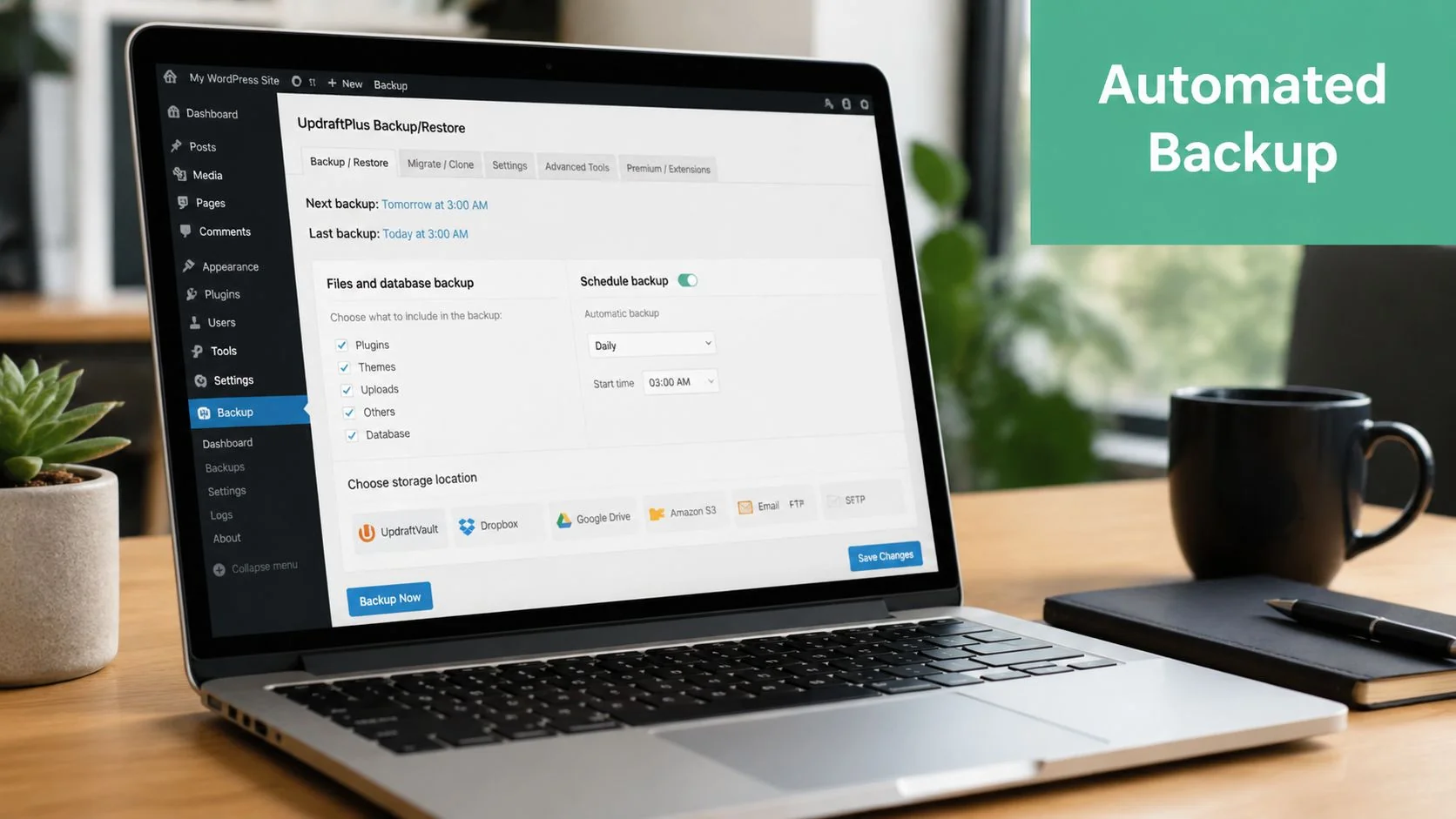
UpdraftPlus is widely used because it's straightforward and supports offsite destinations. It's been used on over 3 million sites, and the same source notes that in Australia 85% of small businesses use plugins like it. It also reports that businesses that fail to test backups monthly suffer 4.2x more severe data loss incidents, while Australian businesses using the 3-2-1 model with offsite storage report a 94% success rate in full restores within 24 hours in this UpdraftPlus reference.
A practical plugin setup that works
If you haven't installed a backup plugin before, the mechanics are simple. Search for the plugin in your WordPress admin, install it, activate it, then go straight to the settings page. If you need a refresher on the plugin installation side, this walkthrough on installing plugins for your WooCommerce store is clear and beginner-friendly.
Once the plugin is active:
Set the backup schedule first
Don't leave it on manual mode. If your site changes daily, your database should too.Separate file and database schedules
The database usually changes more often than files, so it makes sense to back it up more often.Choose remote storage immediately
Google Drive, Dropbox, or Amazon S3 all do the job. What matters is that the backup leaves the hosting account.Enable notifications
Email alerts help you spot failed backup jobs before an emergency happens.
For businesses comparing service options, this page on website backup and database backup support gives a useful view of what managed help typically includes.
The settings that matter most
The plugin options can look crowded, but only a handful really matter:
- Include uploads because your images, PDFs, and client files often live there.
- Include themes and plugins so the restored site behaves like the original.
- Keep multiple restore points so you're not forced to restore a hacked or already-broken copy.
- Name backups clearly if the plugin allows it, especially before updates or redesign work.
A short visual walkthrough can help if you want to see how plugin-led backup and restore usually looks in practice.
A plugin backup is only as good as its storage destination and your last successful restore test.
There's one more point business owners often miss. Plugin backups are your convenient layer, not your only layer. If malware locks the admin dashboard or the site won't load WordPress at all, you need manual recovery skills too.
The Manual WordPress Backup and Restore Process
This is the part most articles skip. If wp-admin is inaccessible because of malware, a fatal error, or database corruption, your backup plugin may as well not exist until the site is reachable again. That's why manual WordPress backup and restore matters.
In Brisbane support work, this is the scenario that creates the most panic. The owner says, “We have backups,” but nobody can trigger a restore because the dashboard is gone.
A common technical obstacle is the 256 MB phpMyAdmin upload limit. The same Hostinger Australia guidance says this causes 30% of manual restore failures for Australian small businesses, and recommends splitting the database or importing it by another method. It also notes that quarterly restore testing on a staging environment shows a 98% success rate in this restore tutorial.
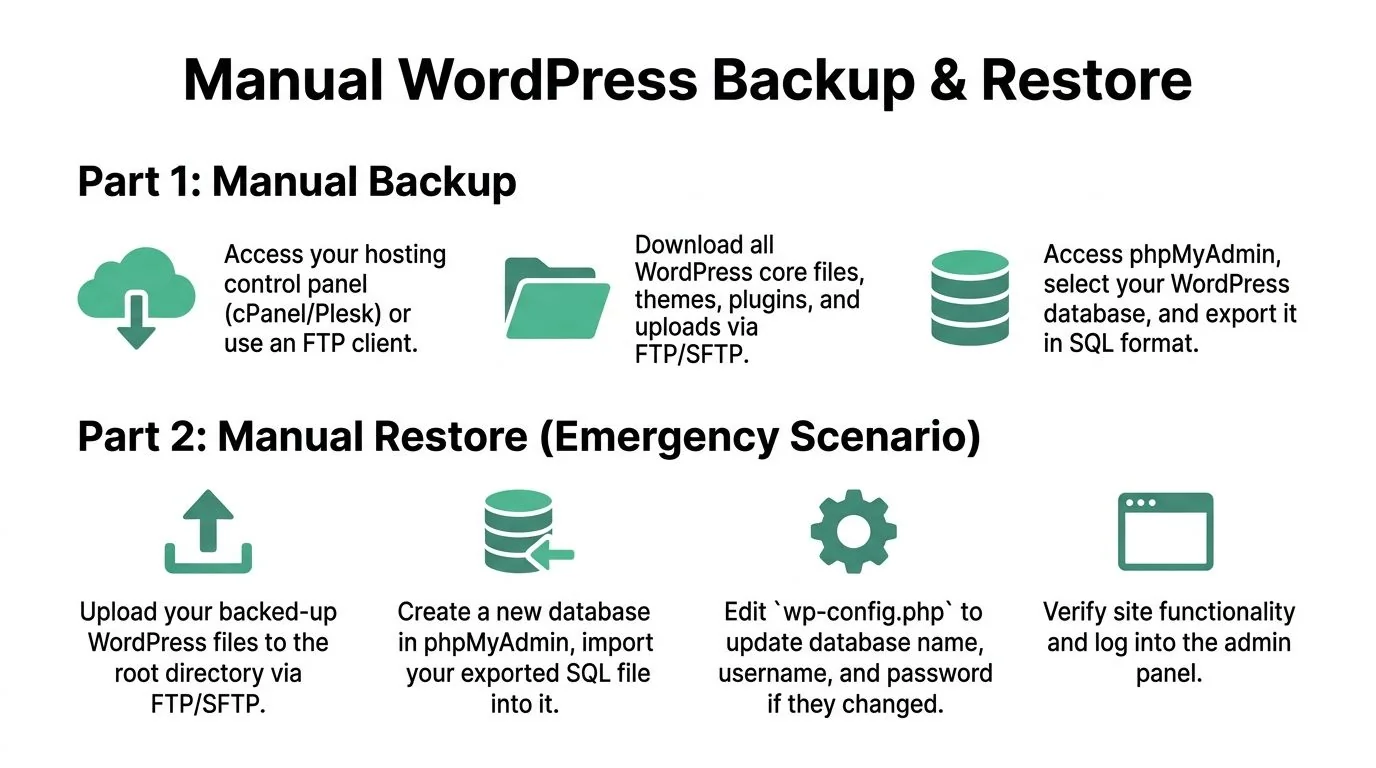
What to back up manually
A manual backup has two separate jobs.
First, copy the files.
Use cPanel File Manager or an FTP/SFTP client. Download the WordPress files from the site root, including wp-content, themes, plugins, uploads, and the wp-config.php file.
Second, export the database.
Open phpMyAdmin in your hosting panel, select the WordPress database, and export it in SQL format.
If the site is still online but behaving strangely, take a fresh copy before you change anything. Even a broken site can hold current uploads or recent orders that aren't in your last scheduled backup.
How to restore when wp-admin is unavailable
Manual restore is slower because you have to rebuild the relationship between files and database yourself. Done carefully, it works even when the dashboard doesn't.
Put the live site aside if needed
If the current files are clearly broken, rename the web root contents or move them into a dated folder so you can roll back if needed.Upload the backup files
Use cPanel or SFTP to upload the backed-up WordPress files to the correct directory.Create or identify the database
In hosting, create a new MySQL database and user if required, then assign the user full access.Import the SQL backup
Open phpMyAdmin and import the SQL file. If the file exceeds the upload limit, split it into smaller parts or use another supported import path.Edit
wp-config.php
Check the database name, username, password, and host values. If any of those changed during recovery, update them here.Load the site and check for hard errors
If the homepage loads but the admin panel doesn't, the restore may still be incomplete or there may be a plugin/theme conflict.
Don't restore straight onto the live site if you have a staging option. A rushed live restore can overwrite newer content or make diagnosis harder.
The trade-off is simple. Manual recovery gives you independence from WordPress itself, but it demands care. Common mistakes include restoring files without the matching database, importing the wrong SQL file, or forgetting to update wp-config.php after creating a new database.
If the site has been hacked, be cautious. Restoring a backup can bring the site back, but it doesn't automatically prove the backup is clean. Hidden malicious files, rogue admin users, or modified plugins can survive if you restore the wrong recovery point.
How to Verify Your Backups and Test a Restore
Most backup failures don't happen at backup time. They show up on the day you need the restore and discover the archive is incomplete, the database won't import, or the restored site doesn't match the current server environment.
That's why testing matters more than backup volume. Ten untested backups aren't safer than one tested backup.
According to this WordPress backup strategy article, incomplete backup files and incompatible PHP/WordPress versions account for 60% of restore failures among Australian agencies. The same source says a post-restore verification process that checks content integrity, plugin functionality, and site performance achieves a 95% success rate, and that the 3-2-1 rule helps 90% of AU small businesses avoid downtime crises.
Why restores fail so often
In practice, four issues come up again and again:
Missing files
Media folders, custom theme files, or uploads are absent from the archive.Database problems
The SQL export is incomplete, damaged, or too large for the chosen import method.Version mismatch
The restored site runs on a different PHP version or a different WordPress/plugin combination than expected.No verification routine
The restore “looks fine” until someone tries the contact form, checkout, membership login, or booking flow.
A restore isn't complete when the homepage loads. It's complete when the business functions work.
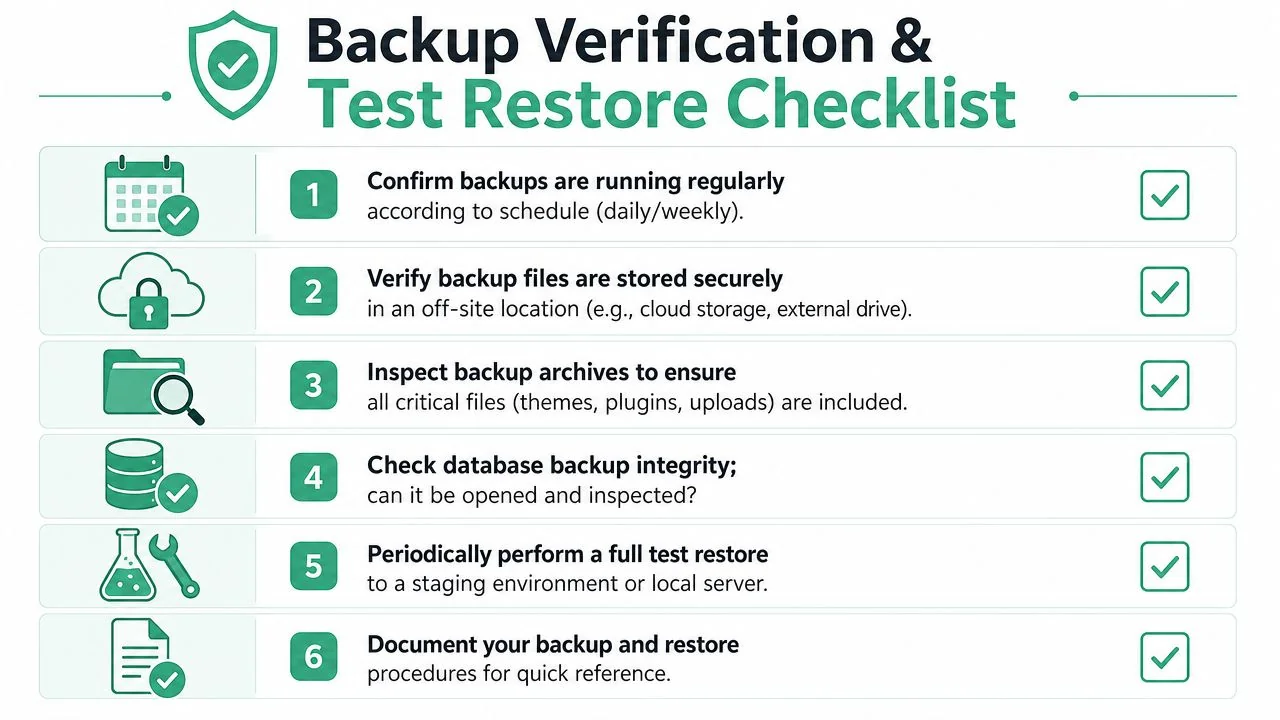
A restore test checklist
Use a staging site or local server. Don't use the live website as your testing ground unless there's no other option.
Check the content
Open key pages, blog posts, product listings, images, PDFs, and recent uploads. Make sure they display properly.Test forms and transactions
Submit contact forms, quote requests, appointment bookings, or checkout flows if your site uses them.Review plugins and custom features
Confirm page builders, SEO plugins, payment extensions, and custom snippets still work after restore.Inspect performance
If pages are suddenly slow or error-prone after restore, something may be off in the environment or database.Confirm admin access
Log in, create a draft, and verify user roles if multiple staff rely on the site.Write the result down
Record the backup date tested, where it was stored, what worked, and what failed.
If you can't say which backup was last tested, where it lives, and how long a restore takes, the process still has a gap.
For a lot of businesses, this is also the point where expert help makes commercial sense. If your site handles bookings, payments, client records, or leads every day, a failed restore test is a warning sign, not a minor technical nuisance.
When to Call a Managed IT Provider
There's a point where DIY stops saving money and starts increasing risk. That point usually arrives when the site is hacked, the database import keeps failing, or the restore technically works but the business-critical functions don't.

The admin-lockout scenario is a major gap in most advice. Queensland data shows 68% of small businesses rely on manual methods that fail in over 40% of real-world corruption scenarios, which leaves them stuck despite having backup files, according to this discussion of inaccessible-dashboard recovery problems.
That's the moment to stop experimenting if any of these apply:
- The site may be infected and you're not sure the backup is clean
- The database won't import and you don't know whether the file, size, or server is the problem
- The restore completed but key features are broken, especially WooCommerce, forms, or bookings
- You don't have a safe staging environment for testing recovery
- You need the site back quickly and can't afford trial-and-error downtime
If the issue involves compromise or suspected malicious code, getting specialist help with hacked website recovery is often the safer move than repeated restores.
Professional recovery isn't about giving up. It's about protecting revenue, data, and reputation when serious consequences loom and the margin for error is low.
If your business depends on WordPress and you want a calmer, more reliable recovery plan, Bridge IT Solutions can help with managed backups, website recovery, and practical support for Brisbane and South East Queensland businesses. The goal isn't just having backup files. It's knowing they'll restore properly when things go wrong.
