

WordPress powers about 43% of all websites globally, and Sucuri's 2022 threat research found that WordPress sites accounted for 96.2% of infected websites it analysed according to Torque's summary of the data. For Brisbane and South East Queensland small businesses, that shifts the conversation. WordPress security hardening isn't a niche technical exercise. It's baseline risk management for a platform attackers probe constantly.
Most of the WordPress clean-ups that land on a local IT desk aren't exotic. They usually start with stale plugins, weak admin access, sloppy file permissions, poor backup discipline, or a site owner assuming the host has “security covered”. That assumption fails fast when a login gets reused, a plugin goes unpatched, or a compromised admin account edits code from inside the dashboard.
The good news is the 80/20 is clear. A handful of changes do most of the work. If you lock down core files, tighten user access, reduce plugin risk, put a proper firewall in front of the site, and make restores routine instead of theoretical, you remove the easiest paths attackers use.
Table of Contents
- Your Pre-Hardening WordPress Security Audit
- Locking Down Core Files and Server Configurations
- Fortifying User Access and Login Security
- Vetting Plugins and Deploying a Web Application Firewall
- Creating a Resilient Backup and Recovery Plan
- Ongoing Monitoring and Your Incident Response Plan
Your Pre-Hardening WordPress Security Audit
Before changing settings, get a baseline. Most small business WordPress sites in Brisbane have grown in layers. A web designer added plugins, a staff member created a temporary user, a marketing tool got connected, a theme was changed, and nobody came back to clean up the leftovers. Hardening works better when you know exactly what's still installed, who still has access, and what's already drifting out of date.
Start with a clean inventory
Run a quick audit through the admin panel and hosting dashboard. Don't overcomplicate it. You're looking for obvious exposure first.
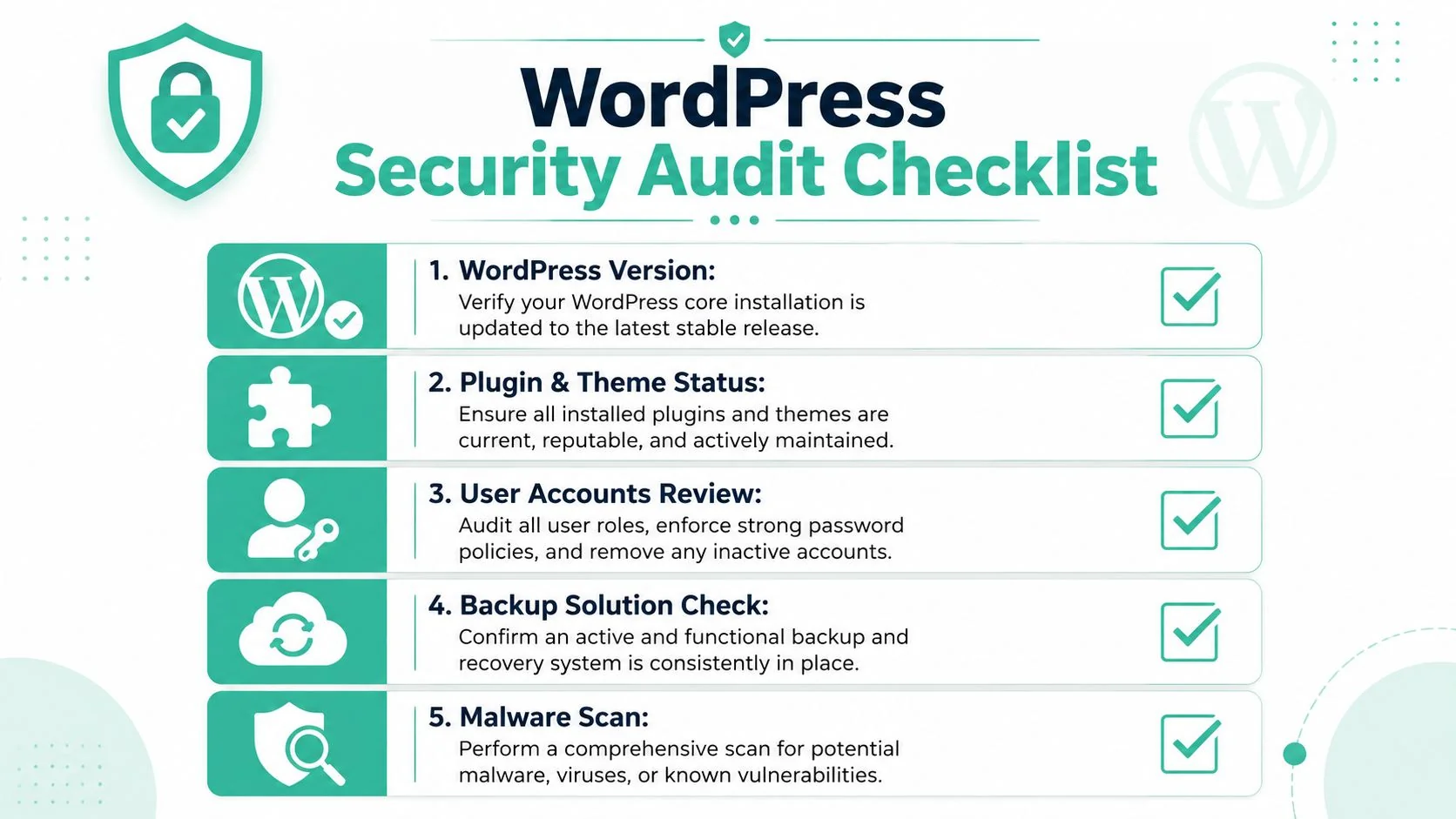
Use this checklist:
- Check WordPress core. Make sure the site is on the latest stable WordPress release.
- Review plugins and themes. Remove anything unused, abandoned, duplicated, or installed “just in case”.
- Confirm the PHP version. If the hosting platform is behind, the whole stack is harder to defend.
- Check backup status. Verify that backups exist and that someone knows where they are.
- Run a malware and vulnerability scan. This won't replace manual review, but it helps surface known issues quickly.
A proper audit is partly technical and partly operational. The technical side finds weak points. The operational side checks whether anyone owns updates, access reviews, and restore testing. That's why broad audit thinking matters, not just plugin scanning. If you want a useful outside perspective on audit discipline, CloudOrbis Inc. audit insights give a good overview of what businesses often miss when they assume their systems are “probably fine”.
Practical rule: Don't harden around clutter. Delete what you don't need before you secure what stays.
Check the accounts that can hurt you fastest
User accounts deserve their own pass. Old agency logins, ex-staff accounts, generic shared users, and admin accounts with weak passwords are common entry points. If a user no longer needs access, remove the account or reduce its role. If the account stays, reset the password and check whether the email address tied to it is still controlled by your business.
Look for usernames that are predictable, especially the default “admin”. Attackers don't need to guess what they already know. Also check whether staff reuse the same password patterns across other services. That's still one of the quickest ways a business website gets dragged into a broader credential theft problem.
A short audit also helps you decide whether it's time for a broader business review rather than a one-off website tidy-up. For owners weighing that question, this guide on when a small business should consider an IT audit is a useful next read.
Use a simple pass/fail table if you want fast visibility:
| Area | What good looks like | Common red flag |
|---|---|---|
| Core updates | Current stable release | Several updates overdue |
| Plugins/themes | Only active, maintained items remain | Inactive extras left installed |
| User accounts | Named users, minimum access | Shared or stale admin accounts |
| Passwords | Strong and unique | Reused or weak credentials |
| Backups | Verified and known | “I think the host does that” |
Locking Down Core Files and Server Configurations
Once the audit is done, move to the controls that reduce damage after a compromise. At this point, WordPress security hardening stops being a checklist and starts becoming real containment. If an attacker gets credentials or abuses a vulnerable plugin, your file and server settings decide whether that incident stays contained or turns into a full site takeover.
Protect the file that matters most
The official WordPress hardening guidance recommends moving wp-config.php one directory above the install where possible, setting it to 400 or 440, and adding define('DISALLOW_FILE_EDIT', true); to disable dashboard file editing, as set out in the WordPress hardening handbook. Those are high-value controls because wp-config.php contains the details that let WordPress talk to the database and define sensitive behaviour.
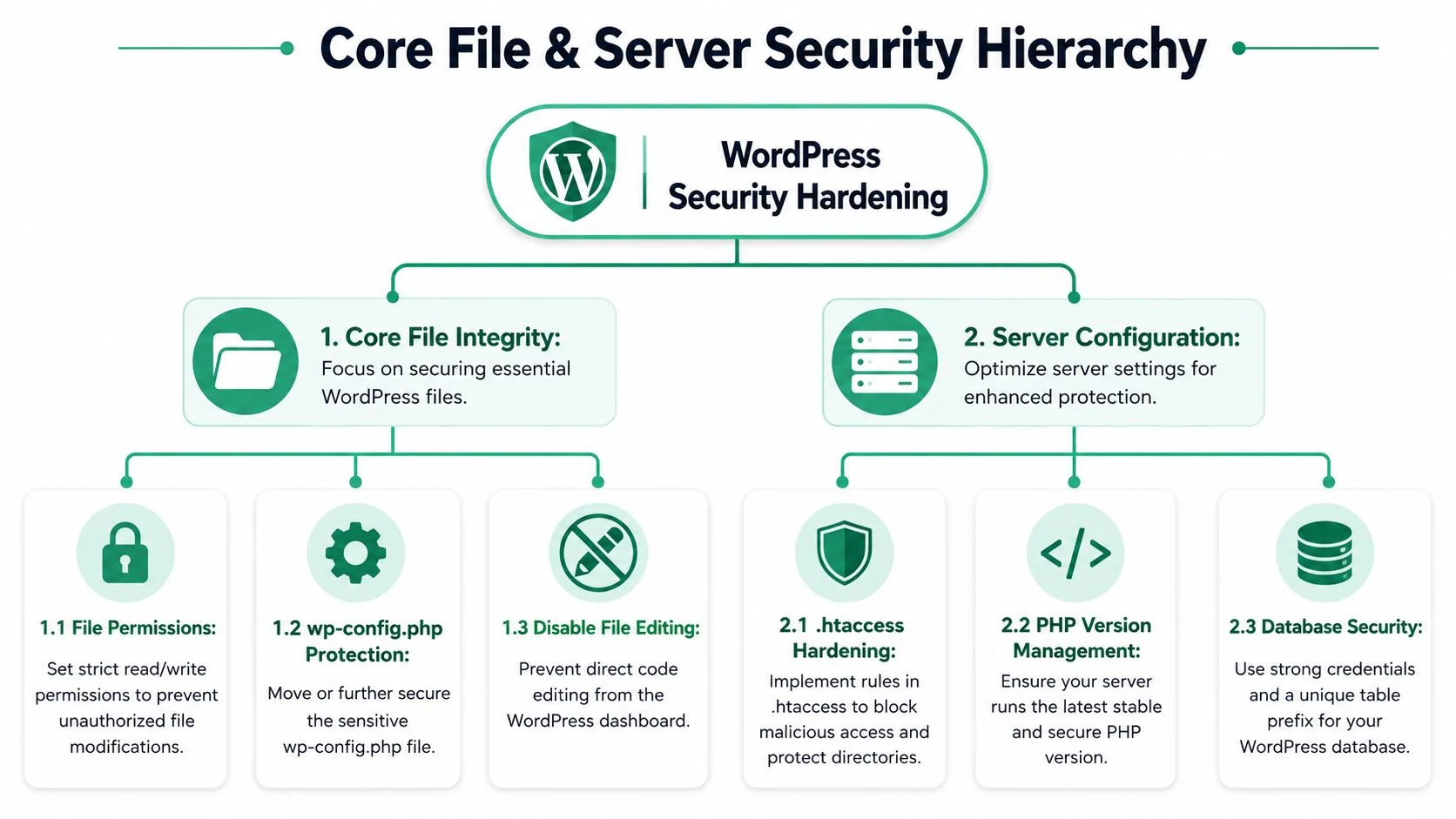
Use this sequence:
- Move
wp-config.phpabove the web root if your hosting layout supports it. - Set permissions to 400 or 440 so only the owner and, where needed, the web server can read it.
- Deny direct web access with server rules or
.htaccess. - Disable dashboard file editing by adding
define('DISALLOW_FILE_EDIT', true);. - Force HTTPS for admin sessions so credentials and session data aren't exposed in transit.
One common mistake breaks these protections without notice. People add protective rules inside the # BEGIN WordPress and # END WordPress block. WordPress can overwrite that block. Put custom protections outside it.
If a stolen admin login can edit theme or plugin files from the dashboard, the attacker no longer needs a second weakness. You've already given them code execution.
Set permissions that support WordPress without inviting trouble
Permissions need to be strict enough to prevent unauthorised changes, but not so strict that updates and media uploads fail. In practice, most SMB WordPress sites work well with standard permissions on normal files and directories, then tighter permissions on sensitive files such as wp-config.php.
A practical model looks like this:
| Item | Typical setting | Why it matters |
|---|---|---|
| Directories | 755 |
Allows traversal without broad write access |
| Files | 644 |
Prevents casual modification by other users |
wp-config.php |
400 or 440 |
Restricts access to the most sensitive file |
That's also where file integrity monitoring becomes useful. Hardening helps prevent bad changes. Monitoring helps you spot them if they still happen. If you want a plain-English overview of how that layer works, UTMStack's modern security's guide to FIM is a solid primer.
There are trade-offs. Some cheap hosting environments, old plugins, or badly built themes push owners to loosen permissions because “it makes the error go away”. That fix often creates a much worse problem. If a plugin only works when permissions are too broad, treat that as a warning sign about the plugin or the hosting setup, not as a reason to weaken the site.
A few server-side checks are also worth doing during this pass:
- Review PHP support. Old PHP versions increase risk and create compatibility headaches.
- Protect sensitive files. Deny browser access to configuration and system files where appropriate.
- Block execution where it isn't needed. Upload directories should hold media, not executable surprises.
Fortifying User Access and Login Security
Most WordPress compromises don't begin with a dramatic technical exploit. They begin with a login. A password gets reused, a phishing email lands, a former contractor still has access, or an “admin” username gives an attacker half the puzzle before they start. If you only harden files and ignore users, you've secured the shell and left the front door open.
Treat admin access like bank access
Administrator accounts need stronger handling than ordinary website logins. The official WordPress guidance recommends two-step authentication and HTTPS for admin traffic, and that's the correct baseline for any business site with real commercial value. Every administrator should use a unique password stored in a password manager and protected with an authenticator app or hardware-backed second factor where available.
If your business still has a username called “admin”, replace it. Create a new administrator with a non-obvious username, log in with the new account, then retire the old one. Also enable login attempt limiting through a trusted security tool or host-level control. It won't stop every determined attacker, but it cuts down the noise from automated password guessing.
Password quality matters across every role, not just admins. This practical guide on creating a strong password and protecting your online accounts is worth sharing internally, especially if staff manage web, email, and cloud logins from the same devices.
Weak website security often starts outside the website. A stolen mailbox or reused password can be enough to reset access and walk straight in.
Use roles that match real work
WordPress makes it too easy for businesses to hand out admin access because it feels convenient. That convenience creates unnecessary blast radius.
Use roles deliberately:
- Administrator for the owner or technical lead who manages site settings, plugins, and users.
- Editor for someone managing pages, posts, and publishing workflow.
- Author for staff who publish their own content only.
- Contributor for people who draft content but shouldn't publish unreviewed changes.
If a marketing contractor only needs to upload blogs, they don't need plugin access. If a reception team member only updates a notice page, they don't need theme controls. Least privilege isn't red tape. It's damage control before damage happens.
A short explainer can help non-technical staff understand why these controls matter in practice:
For Brisbane SMBs, the biggest login mistake isn't lack of tools. It's informality. Staff share credentials, agencies keep long-term access, and nobody revisits old accounts after a redesign. Clean that up and your risk drops fast.
Vetting Plugins and Deploying a Web Application Firewall
Every plugin solves a problem and introduces a dependency. That's the trade-off. Plugins make WordPress flexible, but they also enlarge the codebase your business relies on. If your site has been built by multiple agencies over time, plugin sprawl is usually where the mess starts.
How to judge a plugin before it goes live
Star ratings alone don't tell you much. A safer review looks at maintenance, purpose, and blast radius.
Use these decision criteria before installing anything new:
| Check | What to look for | What should worry you |
|---|---|---|
| Update history | Recent maintenance and active changelog | Long silence from the developer |
| Reputation | Established publisher and clear support presence | Vague ownership or poor support responses |
| Necessity | Solves a real need not already covered | Installed for minor convenience |
| Scope | Narrow, specific function | Plugin that does too much badly |
| Compatibility | Works with your current stack | Reports of breakage after updates |
The practical rule is simple. If two plugins do the same job, keep the better maintained one and remove the other. If a plugin hasn't been touched in a long time, don't treat that as stability. Treat it as neglect until proven otherwise.
Theme choice follows the same logic. A flashy multipurpose theme with bundled extras often creates more risk than a lean, well-supported theme with fewer moving parts. Businesses frequently inherit sites with page builders, sliders, form add-ons, optimisation tools, and security plugins all overlapping. Those stacks are fragile. Reduce them.
Why a WAF changes the game
A Web Application Firewall, or WAF, filters malicious requests before they reach your WordPress site. That matters because not every bad request should be handled by WordPress itself. The earlier you block suspicious traffic, the less chance it has to exploit a vulnerable plugin, hammer a login page, or chew through server resources.
For many SMBs, a service such as Cloudflare is the practical starting point because it can sit in front of the site and handle bot filtering, traffic screening, and HTTPS support in one place. It isn't magic, and it won't excuse poor maintenance inside WordPress. But it adds a valuable layer between the public internet and your application.
A WAF works best when you pair it with disciplined plugin hygiene:
- Keep the plugin count lean so you have fewer moving parts to patch and review.
- Retire duplicates when one tool already covers the feature.
- Review forms, page builders, and file upload tools carefully because they often sit close to common attack paths.
- Always use HTTPS so admin sessions, customer forms, and browser traffic stay encrypted.
Some owners hesitate because they worry a WAF or stricter plugin policy will break functionality. That can happen if changes are rushed. The answer isn't to avoid hardening. It's to test updates, keep records of what was changed, and avoid making multiple major changes at once on a live business site.
Creating a Resilient Backup and Recovery Plan
A backup strategy isn't there to make you feel organised. It's there to get the site back when prevention fails. That distinction matters because many SMBs think they have backups when what they have is an untested assumption about their host, a stale plugin schedule, or a copy stored on the same environment that failed in the first place.
Back up for recovery, not for comfort
Good backups cover both the database and the site files. They also live somewhere separate from the production server. If the host account is compromised or the server fails badly, you need a clean copy that isn't caught in the same blast radius.
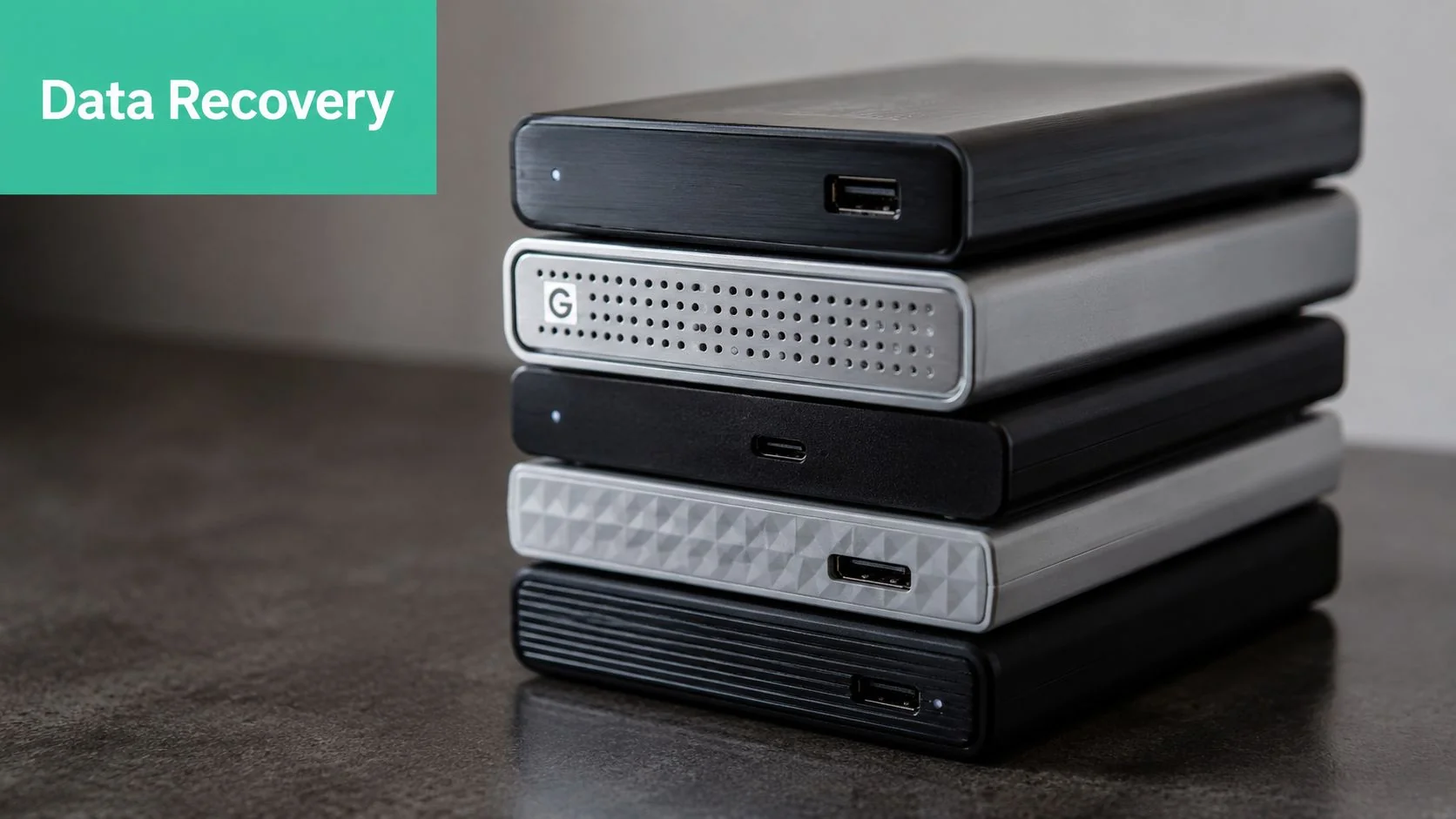
For most business WordPress sites, a sensible setup includes:
- Automated scheduled backups so the process doesn't depend on memory.
- Off-site storage in cloud storage or another controlled location.
- Separate coverage for files and database because each changes differently.
- A documented restore process so recovery doesn't rely on one staff member's memory.
If you're assessing managed options, this overview of website and database backup services shows the kind of coverage businesses should expect, including the operational side many owners overlook.
A backup you haven't restored is still a question, not an answer.
A practical restore routine for SMBs
Testing restores matters as much as creating backups. If your backup contains incomplete data, broken file paths, missing media, or an unusable database export, you don't want to discover that during an incident.
Use a simple routine:
- Schedule backups automatically based on how often the site changes.
- Keep a copy off-site so one hosting issue doesn't wipe out both production and recovery data.
- Test a restore into staging or another safe environment.
- Confirm the restored site works correctly, including logins, forms, media, and key pages.
- Record who performs restores and where backup copies live.
A trade-off appears here too. More frequent backups can mean more storage use and more administration. Less frequent backups can mean more lost work after an incident. The right balance depends on how often your site changes. A brochure site can tolerate a simpler routine than a site with frequent content changes, user submissions, or ecommerce activity.
Don't forget retention. If malware sat for a while, yesterday's backup may already be contaminated. Keep enough history to give yourself options. Exact retention periods vary by business, but the principle doesn't. You want more than one shot.
Ongoing Monitoring and Your Incident Response Plan
Hardening isn't a one-time project. Sites change. Plugins update. staff come and go. Hosting settings drift. Without monitoring, even a well-hardened WordPress install slowly becomes an unknown again.
What to monitor after hardening
Monitoring should answer a simple question. What changed, who changed it, and should that have happened?
Useful layers include:
- Activity logs that record logins, plugin installs, user changes, and major admin actions.
- Malware and vulnerability scanning that flags suspicious files or known issues.
- File change alerts so unauthorised edits don't sit unnoticed.
- Uptime checks that tell you when the site is down or behaving strangely.
Not every SMB needs an enterprise security stack for this. What matters is consistency. If you have logs but nobody reviews them, scans but no alert routing, or notifications sent to an inbox nobody watches, the tooling exists and the outcome doesn't.
A lightweight review cadence works well for smaller businesses:
| Review item | What to check |
|---|---|
| User activity | Unexpected logins, role changes, new accounts |
| Site changes | New plugins, altered files, unusual edits |
| Security alerts | Malware hits, lockouts, scan findings |
| Backups | Latest successful run and storage location |
Your first actions after a suspected compromise
Panic wastes time. A short incident plan helps staff act in order.
Start with containment:
- Take note of what was observed. Redirects, warnings, strange users, modified pages, or failed logins all matter.
- Change passwords for WordPress, hosting, database access, and connected admin accounts.
- Disable suspicious users and remove unknown plugins or code only after preserving enough evidence to understand what happened.
- Scan the site and review logs to work out the likely entry point.
- Restore from a known clean backup if needed, then patch the weakness that let the attacker in.
After that, review the cause. If the issue came from a stale plugin, improve patching and plugin review. If it came from weak access control, tighten user management and 2FA enforcement. If nobody knew who was responsible for the website, assign ownership. The technical fix matters, but the process fix is what prevents the repeat.
The strongest result of WordPress security hardening isn't just a tougher site. It's a business that knows what normal looks like, spots abnormal behaviour earlier, and can respond without scrambling.
If your business wants local help securing, monitoring, backing up, or recovering a WordPress site, Bridge IT Solutions provides Brisbane-based IT and website support for South East Queensland SMBs that need practical protection, not vague advice.
