

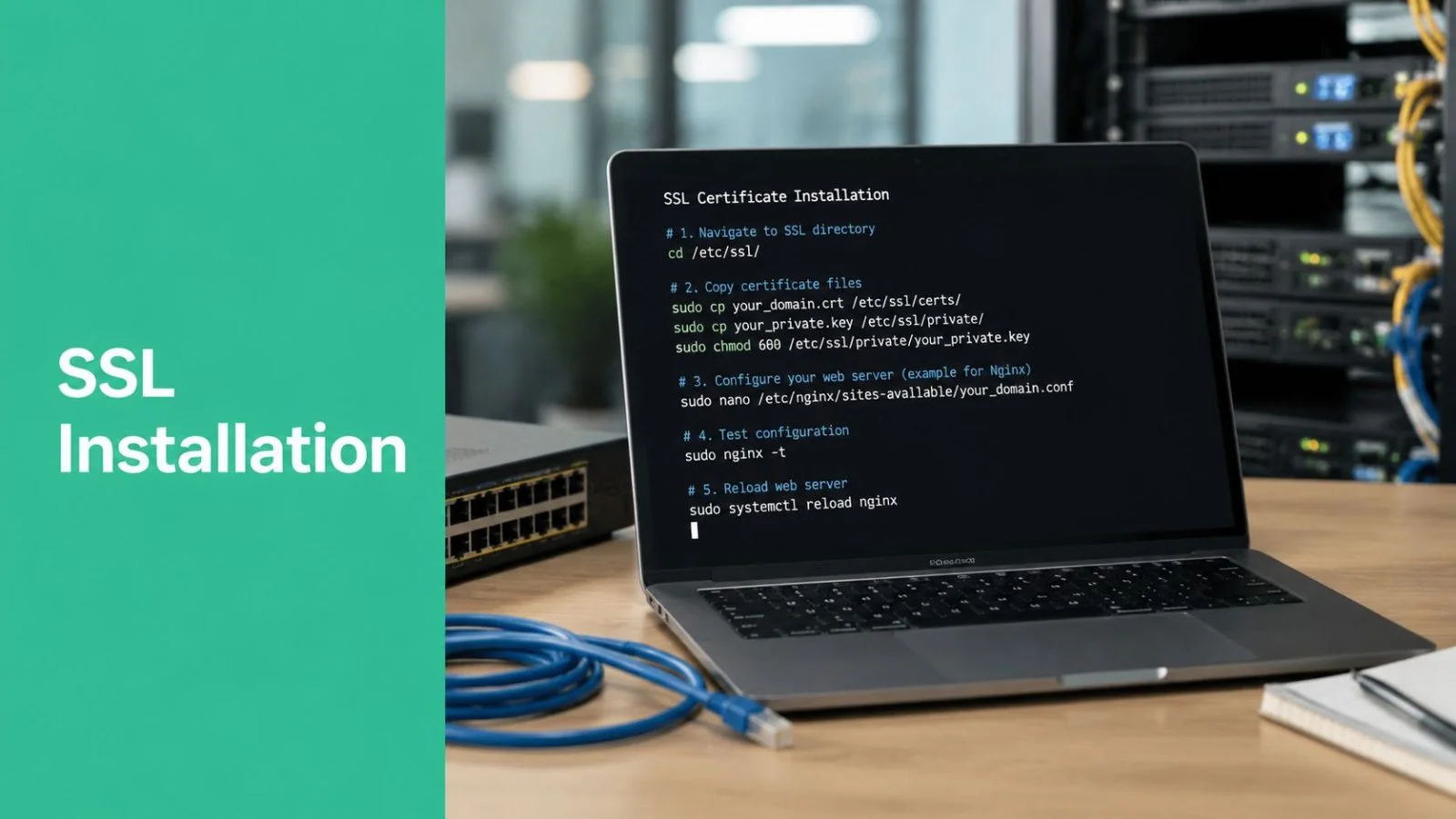
Your website can look polished, load quickly, and say all the right things, but one browser warning can undo that work in seconds. If a customer lands on your site and sees “Not Secure”, many won't stop to investigate. They'll leave.
That's why SSL certificate installation matters. It isn't just a box to tick for IT. It protects form submissions, login details, and payment-related traffic, and it tells browsers your site is legitimate enough to trust with encrypted connections.
For Australian businesses in 2026, though, installation is only half the job. The bigger issue is keeping certificates valid without relying on diary reminders, sticky notes, or someone remembering to renew them before expiry. That old approach is becoming risky fast. A secure website now needs both a correct setup and a reliable renewal process behind it.
Table of Contents
- Understanding the Padlock Why Your Website Needs SSL
- Choosing Your Certificate and Generating a CSR
- Step-by-Step Installation on Common Hosting Platforms
- Handling Advanced Scenarios IIS and Cloud Services
- Verifying Your Installation and Fixing Common Errors
- Automating Renewals and Hardening Your Security
- SSL Installation Frequently Asked Questions
Understanding the Padlock Why Your Website Needs SSL
An SSL or TLS certificate does two jobs at once. First, it encrypts the traffic between your visitor's browser and your website. Second, it proves that the website they reached is the authentic one, not an impostor.
In plain English, think of it as a digital passport plus a secure tunnel. The passport helps the browser trust the site. The tunnel stops other parties from reading data as it travels.
What the padlock actually means
When SSL certificate installation is done properly, your site loads with HTTPS and the browser shows the padlock. That matters even if you don't run a full online store. A contact form, booking form, client portal, or login page all send information that shouldn't travel openly across the internet.
For a small business owner, the business value is straightforward:
- Customer confidence: Visitors are less likely to hesitate when the site looks secure.
- Safer enquiries: Contact details, uploaded documents, and form data are encrypted in transit.
- Professional credibility: A secure site looks maintained. An insecure one looks neglected.
- Search visibility: HTTPS is widely treated as part of a modern, well-built site.
If you want a plain-English refresher on the underlying mechanics, this guide to learn about SSL technology is useful background reading.
Why this matters beyond the website
Website security rarely sits on its own. The certificate is only one layer. If the site is poorly hosted, the CMS is out of date, or admin access is weak, the padlock won't save you from bigger problems.
That's why it helps to look at SSL as part of a broader security posture. This overview of website security and network security is a practical companion if you're assessing the whole environment, not just the certificate.
A valid certificate tells browsers the connection is protected. It doesn't guarantee the rest of the website is well managed.
A lot of business owners assume SSL is only for ecommerce. It isn't. If your website collects any data, has any login area, or represents your brand publicly, HTTPS is the baseline. Customers won't usually praise you for having it, but they'll notice quickly when it's missing.
Choosing Your Certificate and Generating a CSR
Certificate choice is where a lot of small businesses lose time before the install even starts. In 2026, the bigger mistake is choosing something that creates more manual work every few months. With certificate lifespans dropping to 200 days, the right option is not just the one that gets issued quickly. It is the one your hosting setup and support team can renew reliably without last-minute scrambles.
What type of certificate fits your business
For most SMB websites, the primary decision is usually DV versus OV, then deciding whether you need one domain covered or several.
Domain Validated (DV) certificates are the standard fit for many business websites. They confirm control of the domain, issue quickly, and work well for brochure sites, service businesses, booking pages, and standard contact forms.
Organisation Validated (OV) certificates add verification of the business behind the site. That can make sense for firms that want extra organisational identity attached to the certificate, especially where clients are sharing documents, using account areas, or dealing with regulated information.
Extended Validation (EV) certificates involve more manual checks and usually take longer to issue. They still have a place for some businesses with sensitive customer portals or strict internal compliance requirements, but they are not the default answer for every site.
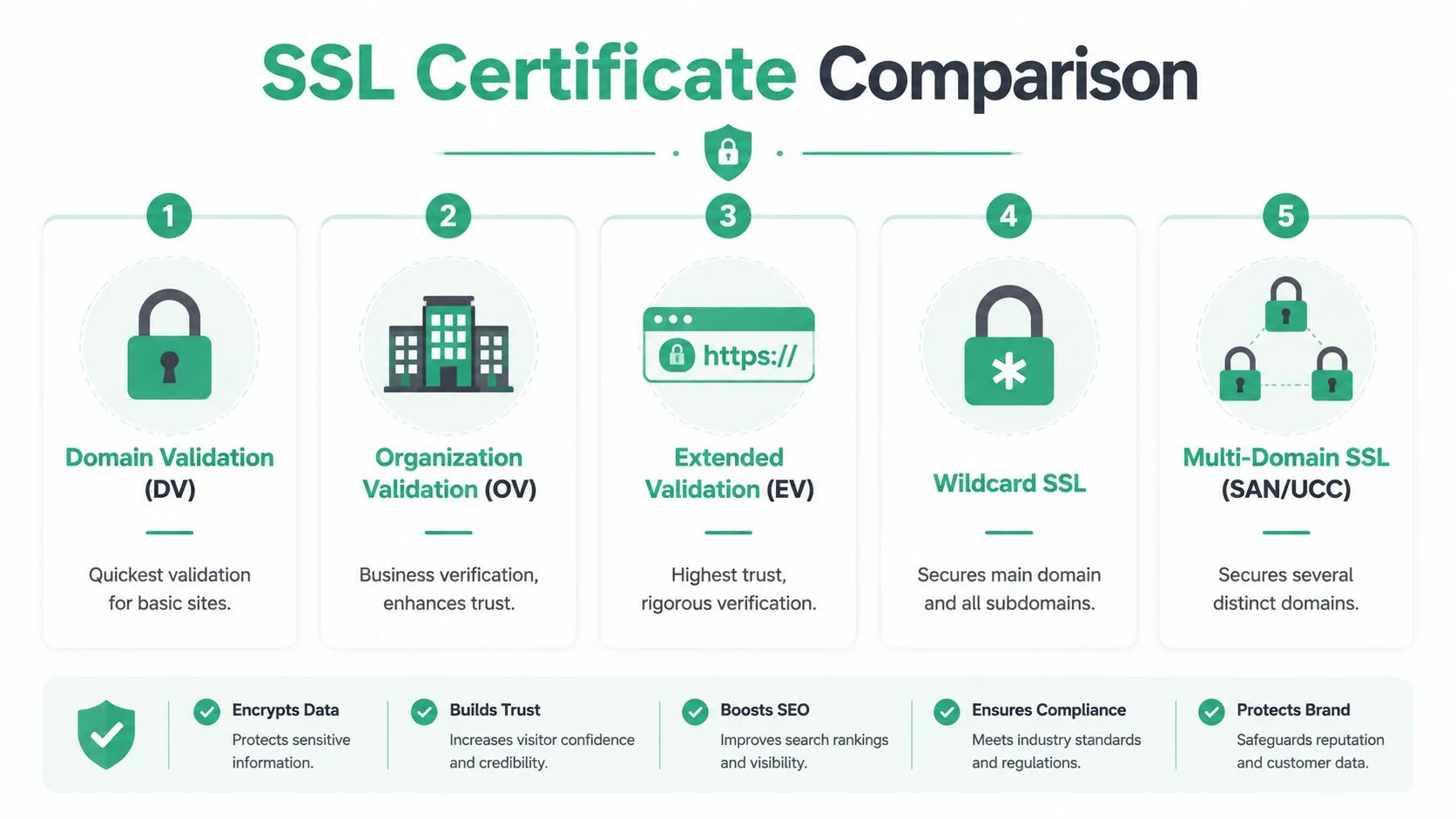
Then there is the question of scope.
| Certificate type | Best for | Watch-out |
|---|---|---|
| Single-domain | One website | Does not cover subdomains |
| Wildcard | Main site plus subdomains | Private key handling matters more because one key can affect many services |
| Multi-domain SAN/UCC | Several separate domains | Easy to overbuild if the domains are unrelated or managed by different teams |
The practical trade-off is simple. A wildcard or SAN certificate can reduce admin overhead, but it also increases the impact of mistakes. If one certificate covers multiple services, renewal planning, DNS validation, and key management need tighter control.
That is one reason your hosting environment matters. If your provider makes certificate deployment and renewal awkward, the certificate type that looked cheaper on paper can cost more in staff time and risk. This guide to website hosting for small business is useful if you are weighing up hosting and security decisions together.
For current best practice, order certificates that support modern TLS settings and strong key sizes. In plain terms, avoid anything dated or unusually cheap that locks you into old cryptography or manual processes you will struggle to maintain.
How to generate a CSR properly
A Certificate Signing Request, or CSR, is the request file sent to the certificate authority. It includes your public key and the details that will appear in the certificate. The matching private key stays with you. It should never be emailed around, pasted into support chats, or uploaded during purchase.
Generate the CSR on the server, appliance, or platform that will use the certificate, or on a trusted system managed by your IT provider. That keeps control of the private key in the right place and avoids one of the most common security mistakes, letting a third party generate the key pair for convenience.
A clean process looks like this:
- Confirm the final hostname first. The certificate name must match the website address people will use.
- Generate the private key locally. Store it with restricted access and a backup process you trust.
- Create the CSR from that same key. The certificate issued later will only work with its matching private key.
- Add SAN entries only when needed. Include alternate names such as
wwwor other subdomains if the site uses them. - Submit the CSR to the certificate authority. Do not send the private key.
A few details catch people out. If your site loads on both example.com and www.example.com, both names usually need to be covered. If you are securing mail, a client portal, and a main website, do not assume one certificate should automatically cover all three. Sometimes that is efficient. Sometimes it creates renewal risk across unrelated systems.
If a host or vendor offers to "handle everything" for you, ask one direct question: who controls the private key and how will renewals be automated? That answer matters more now than it did a few years ago. With shorter certificate lifecycles, a process that depends on someone remembering a diary reminder is not a process. It is a future outage waiting for a busy week.
Step-by-Step Installation on Common Hosting Platforms
Once the certificate authority issues your certificate, SSL certificate installation becomes a platform-specific job. The files are broadly the same, but where you place them and how you activate HTTPS depends on your hosting setup.
A typical certificate package includes the server certificate, your private key, and an intermediate or CA bundle. Keep those organised before you start.

If you're still deciding where the site should live, hosting quality matters just as much as certificate quality. This breakdown of website hosting for small business helps clarify what to look for.
cPanel
cPanel is common on shared hosting and many SMB web packages. The process is mostly point-and-click.
A standard path looks like this:
- Log in to cPanel.
- Open SSL/TLS or SSL/TLS Status.
- Choose the domain you want to secure.
- Paste in the certificate.
- Paste in the private key if it isn't already detected.
- Paste in the CA bundle or intermediate certificate.
- Click Install Certificate.
After installation, force traffic to HTTPS. Many hosts give you a toggle for this, but if they don't, your developer may need to add a redirect in the site configuration.
Common cPanel mistake: the certificate installs, but only the home page redirects properly. Internal pages still load insecure content or stay on HTTP. That's usually an application or content issue, not a certificate issue.
Plesk
Plesk is more structured than cPanel and often appears on managed VPS or agency-managed hosting.
The usual workflow is:
- Upload the certificate files: Go to the domain or hosting settings and import the certificate package.
- Assign it to the site: Select the certificate under the hosting settings for that domain.
- Enable SSL/TLS support: Confirm the site is set to use the installed certificate.
- Apply a permanent redirect: Send HTTP traffic to HTTPS so users and search engines land on the secure version.
Plesk often stores certificates centrally, which is helpful if you manage multiple domains. It also makes renewals easier when paired with automation tools.
Apache
Apache gives you more control, but it assumes you're comfortable editing configuration files and restarting services carefully.
A typical virtual host setup looks like this:
<VirtualHost *:443>
    ServerName example.com
    ServerAlias www.example.com
    DocumentRoot /var/www/html

    SSLEngine on
    SSLCertificateFile /path/to/certificate.crt
    SSLCertificateKeyFile /path/to/private.key
    SSLCertificateChainFile /path/to/ca-bundle.crt

    <Directory /var/www/html>
        AllowOverride All
    </Directory>
</VirtualHost>
You'll also usually keep a separate port 80 virtual host that redirects users to HTTPS. After editing, test the configuration, then reload or restart Apache.
What works well on Apache:
- Clear file naming: Keep certificate, chain, and private key files named consistently.
- Dedicated config review: Check for conflicting older SSL directives.
- Application-level HTTPS updates: Update your CMS base URL and internal references.
What doesn't work well:
- Leaving old cert paths in place: Apache may keep pointing to expired files.
- Forgetting the full chain: Some browsers will show trust errors even if others don't.
- Assuming the redirect alone solves everything: It doesn't fix insecure page assets.
Later in the process, it helps to watch a practical walkthrough before touching production.
Nginx
Nginx is lean, fast, and popular for WordPress, reverse proxies, and container-based deployments. The setup is similar in principle to Apache, but the directives differ.
A basic server block often looks like this:
server {
    listen 443 ssl;
    server_name example.com www.example.com;

    ssl_certificate /path/to/fullchain.pem;
    ssl_certificate_key /path/to/private.key;

    root /var/www/html;
    index index.php index.html;
}
Then create or update the HTTP block to redirect traffic to HTTPS.
Nginx tends to prefer a combined full chain file rather than separate certificate and chain directives in many common builds. If the certificate authority provides separate files, you may need to concatenate them in the correct order.
If browsers trust the site on your laptop but not on an older phone or another network, suspect the intermediate chain before anything else.
For both Apache and Nginx, schedule the restart carefully if the site is live. A small typo in a config file can take the website offline just as effectively as an expired certificate.
Handling Advanced Scenarios IIS and Cloud Services
Not every Australian small business is on cPanel or a Linux web server. Some run websites or portals on Windows Server with IIS. Others host in AWS or another cloud platform where manual file-based installation is the wrong long-term approach.
Installing on Microsoft IIS
On Internet Information Services (IIS), the process usually starts with a pending certificate request that was created earlier in IIS Manager.
The common workflow is:
- Open IIS Manager.
- Select the server node.
- Open Server Certificates.
- Choose Complete Certificate Request.
- Browse to the issued certificate file.
- Give it a friendly name that makes sense for renewal tracking.
- Save it into the correct certificate store.
- Open the target website.
- Choose Bindings.
- Add or edit the https binding and assign the certificate.
The part many people miss is the binding. Importing the certificate into IIS doesn't automatically attach it to the website. Until the binding is updated, the site may keep serving an old certificate or fail to present HTTPS correctly.
For Windows environments, naming discipline helps. Use a friendly name that includes the site or service name so future renewals are obvious when multiple certificates exist on the server.
Using managed certificates in cloud platforms
Cloud platforms change the best practice. If your site sits behind managed infrastructure, you usually don't want to treat SSL certificate installation as a manual upload-and-forget task.
On AWS, for example, a managed service such as AWS Certificate Manager is often the stronger option because it shifts certificate issuance and renewal into the platform itself. That approach suits growing businesses because it reduces hands-on certificate handling and lowers the chance of someone missing a renewal date.
The trade-off is control versus operational simplicity:
| Approach | Strength | Drawback |
|---|---|---|
| Manual certificate files | Full control over placement and config | More admin effort and more renewal risk |
| Managed cloud certificates | Easier lifecycle handling | Tied more closely to platform design |
If you already use load balancers, CDN services, or cloud application gateways, managed certificates usually make more sense than treating every renewal as a manual server task.
Why the certificate chain matters
A certificate doesn't sit alone. Browsers also need to trust the issuing path behind it. That's where intermediate certificates come in.
If the full chain isn't installed, you can see odd behaviour:
- A desktop browser works, but some mobile devices don't.
- One browser shows HTTPS, another shows a trust warning.
- External scanning tools report an incomplete chain even though the certificate itself is valid.
This is one of the most common causes of “it works for me” confusion. The server certificate may be fine, but the browser can't build a trusted path back to a recognised root.
For IIS, Apache, Nginx, and many hosting panels, always confirm you installed the complete chain supplied by the certificate authority. That single detail avoids a surprising number of support calls.
Verifying Your Installation and Fixing Common Errors
A certificate isn't finished when it's installed. It's finished when browsers, scanners, redirects, and your application all agree the site is secure.
What to test after installation
Start with the website itself. Open the HTTPS version in a browser and click the padlock. Confirm the certificate matches the domain and check that the site loads without warnings.
Then run an external scan. A widely used option is SSL Labs.
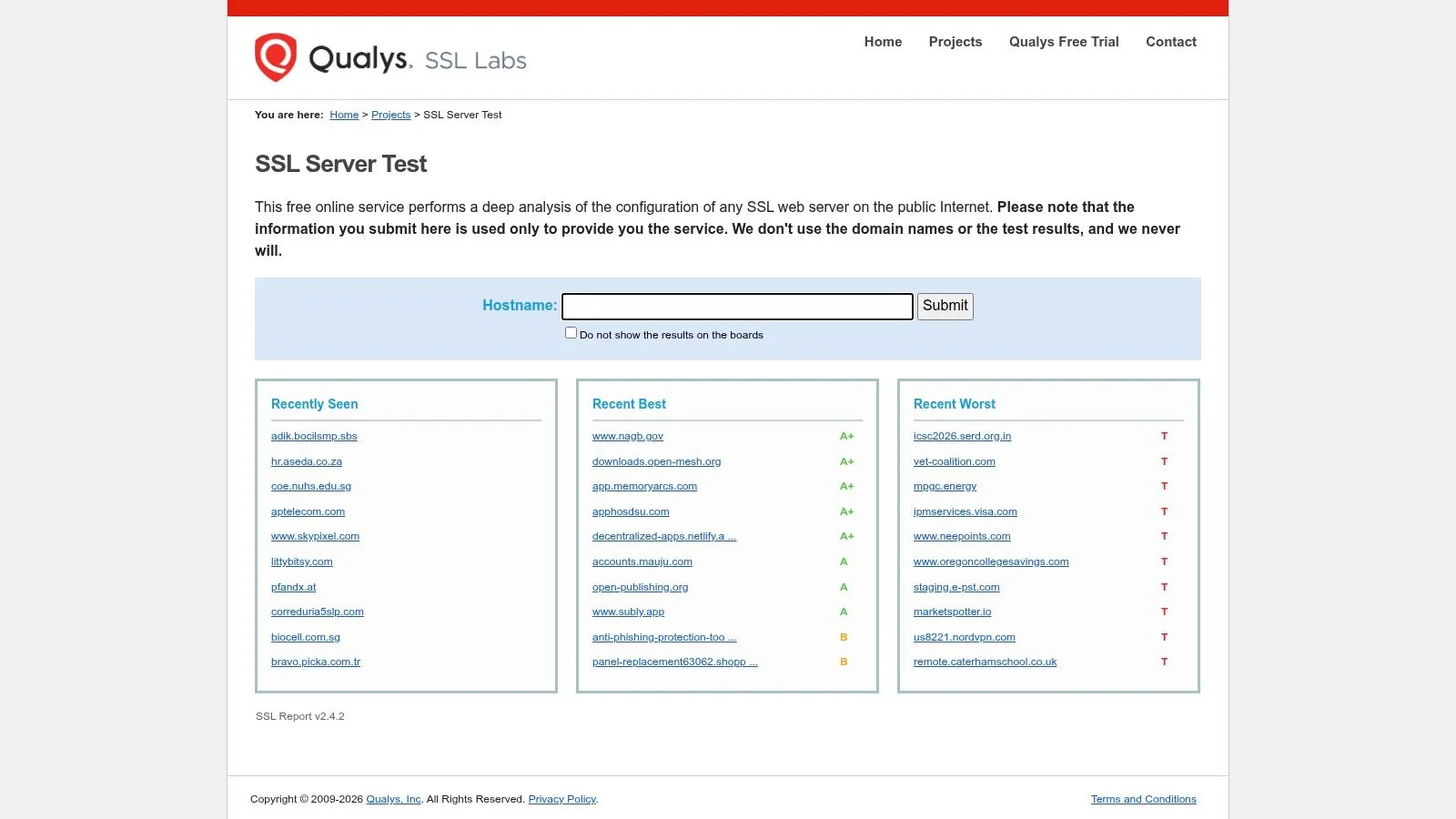
Use a short checklist:
- Certificate match: The domain name on the certificate should match the site visitors use.
- HTTPS redirect: HTTP requests should move cleanly to HTTPS.
- Chain completeness: The scan should show the certificate chain is properly presented.
- Expiry visibility: Note the renewal date somewhere operational, not just in email.
- Browser consistency: Test on more than one browser and on mobile.
Three problems that show up most often
Mixed content is the most common post-installation issue on CMS-driven sites. The page loads over HTTPS, but some images, scripts, fonts, or plugins still call HTTP URLs. Browsers then show a warning or partially block page elements.
Fix it by updating hard-coded links in the CMS, theme, plugin settings, and media references. On WordPress sites, this often means checking the site URL settings and cleaning up old absolute links.
Certificate name mismatch happens when the certificate was issued for one hostname and the visitor uses another. A common example is securing www but forgetting the non-www version, or the reverse. The fix is to reissue or replace the certificate so it covers every hostname the site actively uses.
Incomplete chain errors usually point to a missing intermediate certificate. The site may look fine in one browser but fail in another. Reinstall the certificate package with the proper CA bundle or full chain file.
Don't trust a single successful browser test. Trust repeatable results across browser checks, redirects, and an external SSL scan.
If you're troubleshooting a live business site, change one thing at a time. That makes it much easier to identify whether the problem sits with the certificate, the web server, or the application itself.
Automating Renewals and Hardening Your Security
A common 2026 scenario looks like this. The website launched fine, the padlock is showing, nobody has touched the certificate in months, and then the site starts throwing trust warnings because the renewal date passed during a busy week. For an Australian small business, that is not a minor admin issue. It can interrupt enquiries, online bookings, payments, and customer confidence in a single afternoon.
Shorter certificate lifespans are changing the job. A once-a-year reminder used to be enough for many small sites. It is not a safe operating model now, and it will become less practical as lifespans keep shrinking. The business risk is simple. Manual renewal depends on the right person seeing the reminder, still having access to the hosting account, renewing the certificate correctly, and restarting the right service before customers notice a problem.
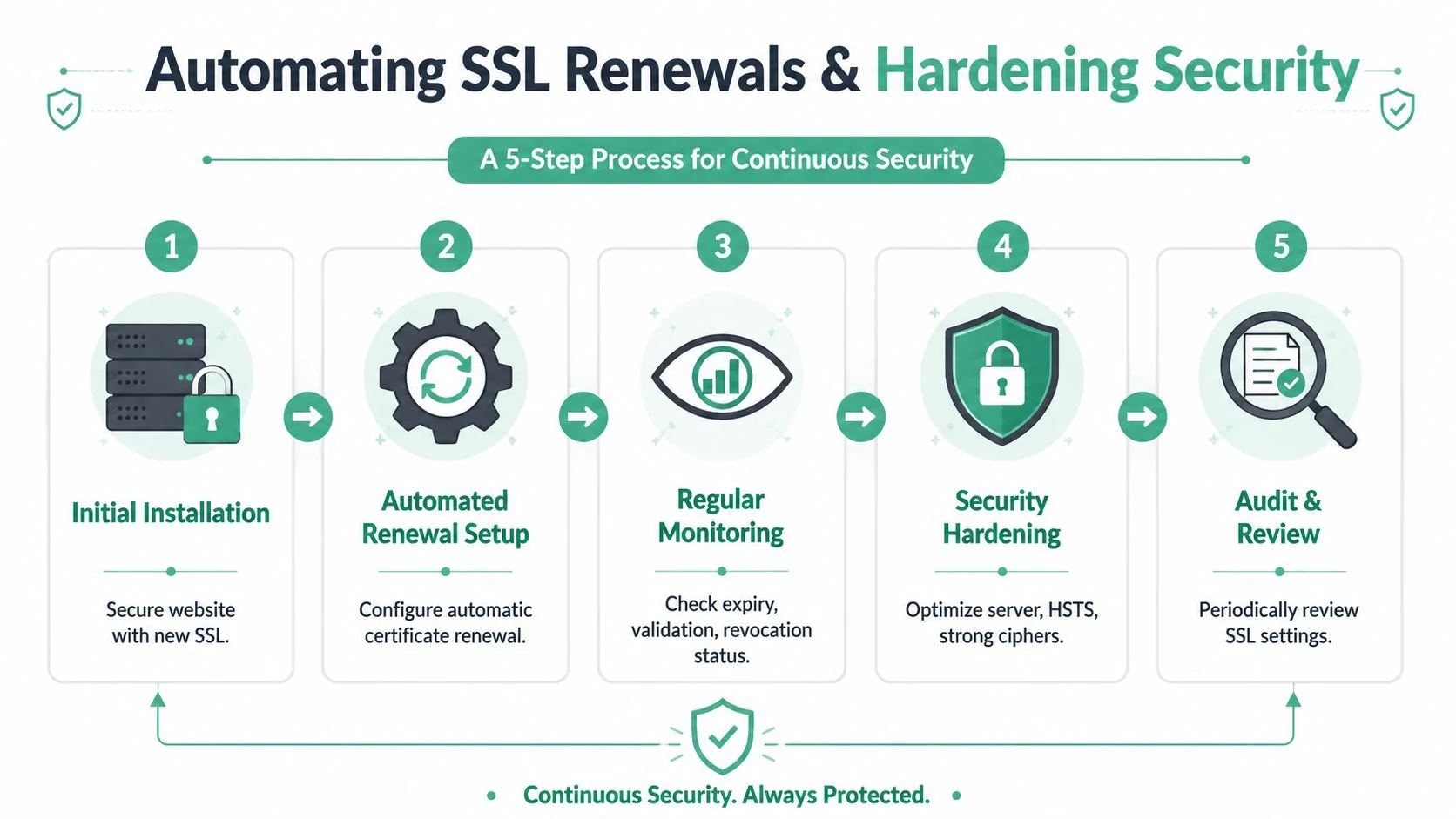
The practical fix is ACME-based automation.
In plain terms, that means using a certificate authority and hosting setup that can issue, renew, and deploy certificates automatically. Good automation does four jobs well:
- Requests renewals before expiry: The system renews early, not on the last day.
- Completes domain validation automatically: This usually happens through DNS or web server checks.
- Installs the renewed certificate correctly: Renewal is useless if the server keeps presenting the old file.
- Alerts someone if the process fails: Automation reduces routine work, but it still needs oversight.
For a single brochure website, this can be quite simple if the host already supports automatic SSL. For businesses with multiple domains, Microsoft 365 services, cloud apps, load balancers, or on-prem servers, certificate management becomes an operational process rather than a one-off task. That is usually the point where owners decide they want central visibility, expiry reporting, and someone accountable for the outcome. If that sounds familiar, structured website security services can help turn scattered reminders into a managed process.
Automation should be paired with a few hardening steps after the certificate is live.
Start with HSTS. This tells browsers to use HTTPS for future visits and reduces the chance of users falling back to insecure connections. Apply it only after HTTPS is working properly across the full site, including redirects and subdomains where relevant, because a bad HSTS rollout can lock users into errors until the policy expires.
Then review the server configuration itself:
- Disable old protocols and weak cipher options: If the server still allows outdated TLS settings, the certificate alone does not fix that weakness.
- Use redirect rules carefully: Force HTTP to HTTPS, but avoid redirect loops and broken application paths.
- Protect private keys properly: The certificate gets the attention, but the private key is the asset that must stay restricted, backed up appropriately, and rotated if compromise is suspected.
- Monitor expiry and configuration drift: A renewed certificate can still fail in production if a load balancer, CDN, or secondary server keeps serving an old copy.
Small businesses often focus on getting the padlock to appear once. The stronger approach is to treat certificates as part of ongoing website maintenance, alongside backups, patching, and access control. That is also why broader reading helps. These best practices from Website Builder Australia are a useful companion if you want to tighten the rest of your web security posture.
The primary improvement in 2026 is not just installing SSL correctly. It is building a renewal process that keeps working without depending on memory, luck, or one staff member being available on the right day.
SSL Installation Frequently Asked Questions
Is a free certificate good enough for a small business website
Yes, in many cases.
If your business website needs standard HTTPS encryption for contact forms, brochure pages, bookings, or a basic client login, a free DV certificate is often enough. It gives visitors an encrypted connection and removes the browser warnings that damage trust.
Paid certificates are usually worth considering when you need a specific validation type, vendor support, procurement alignment, or easier management across a larger environment. The right choice depends less on price and more on how your website is hosted, who manages it, and how renewals are handled.
Does SSL help SEO
HTTPS helps because secure websites meet the baseline search engines and users expect. It supports trust, protects data in transit, and avoids the "Not Secure" warnings that can reduce conversions.
It does not fix weak content, poor page speed, or technical SEO problems. For most small businesses, SSL is part of getting the fundamentals right.
Should I choose Wildcard or Multi-Domain
Choose a Wildcard certificate if you need to secure one primary domain and its subdomains, such as www, shop, and portal on the same root domain.
Choose a Multi-Domain SAN/UCC certificate if you need to cover separate domain names under one certificate.
I usually tell clients to map the certificate to the business structure first. If you only run one site and a few subdomains, keep it simple. If you have multiple brands, portals, or Microsoft and web services tied together, the wrong certificate type creates extra admin work and raises the chance of renewal mistakes.
How long does issuance usually take
It depends on the validation type and how prepared you are. DV certificates are usually issued quickly because the main step is proving control of the domain. OV and EV certificates take longer because the certificate authority needs to verify business details as well.
For launches, hosting moves, and domain changes, leave time for validation and testing. Certificate work becomes stressful when it is left until the day a site goes live.
What's the biggest mistake small businesses make now
Treating SSL as a one-off install.
That approach used to be risky. In 2026, it becomes harder to justify because certificate lifespans are shortening and renewal windows come around faster. A business can install SSL correctly once and still end up with an outage later if renewals depend on one person seeing a calendar reminder, finding the right login, and updating every live service before expiry.
The better approach is automated lifecycle management. That means the certificate is issued, renewed, deployed, and checked through a process your business can rely on, even during staff leave, supplier changes, or website migrations. For many Australian SMBs, that is the primary SSL project now.
If your website, client portal, or hosted application needs a more reliable SSL setup, Bridge IT Solutions can help you move from one-off certificate installs to a properly managed, secure renewal process. That includes practical support for hosting, website security, Microsoft 365 environments, and the broader IT systems your business relies on every day.