

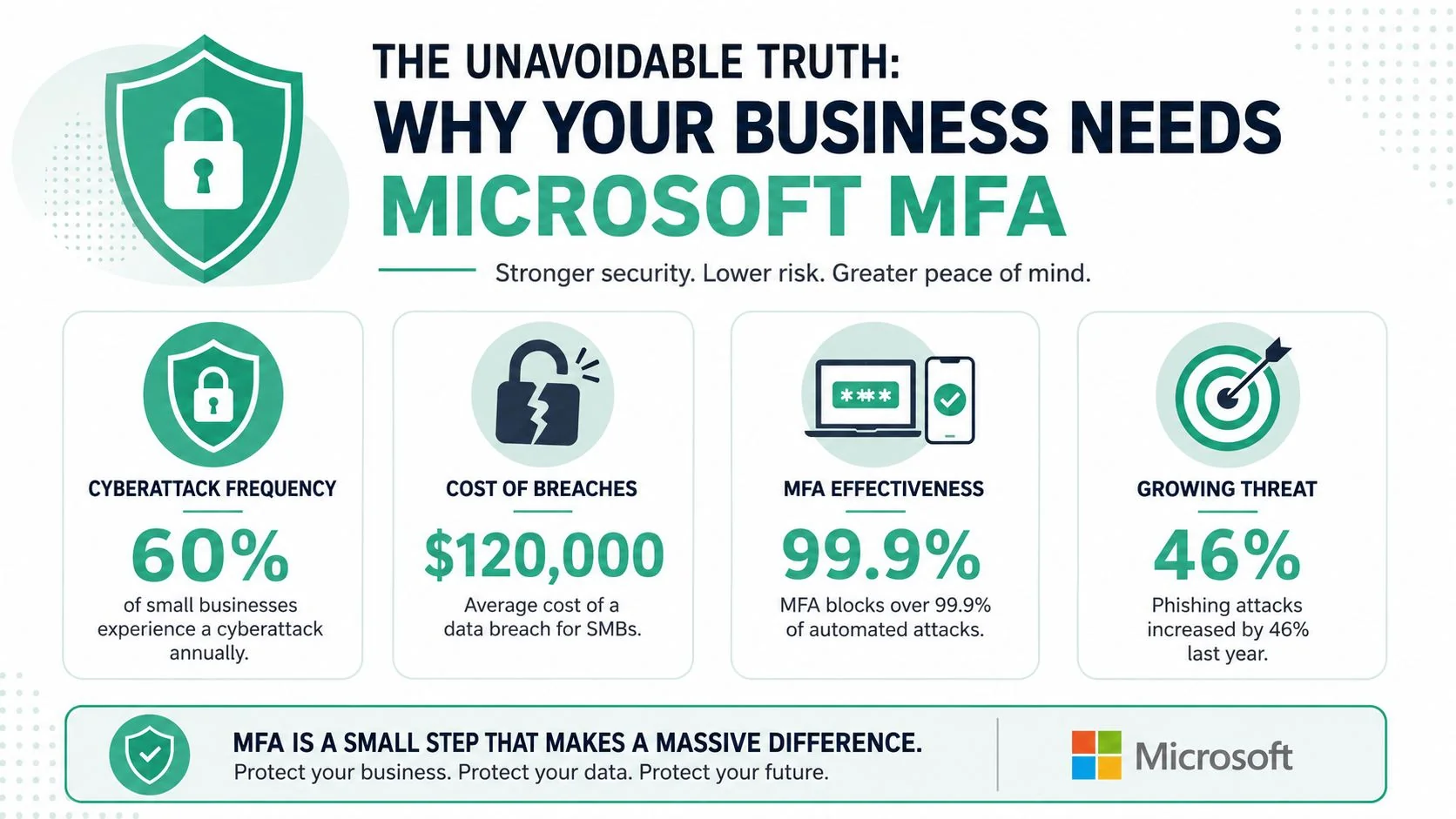
Microsoft reports that enabling Multi-Factor Authentication prevents 99.9% of identity and data theft, and Microsoft research also found MFA reduces compromise risk by over 99%, even when credentials have been leaked, as summarised by Eftsure's write-up of the Microsoft findings. For a small business in Brisbane, Logan, Ipswich or the wider South East Queensland region, that changes MFA from a “nice to have” into a basic operating control.
Most Microsoft 365 compromises seen in small organisations aren't exotic. They start with a reused password, a phishing page, or an old account no one locked down properly. Once an attacker gets in, they don't care whether your business has ten staff or two hundred. They care whether they can read email, reset invoices, access SharePoint files, or impersonate your team.
That's why the discussion around multi factor authentication for Microsoft isn't just technical. It's about continuity, trust, insurance posture, and whether your security setup matches how your business works.
Table of Contents
- Why Your Business Cannot Ignore Microsoft MFA
- Prerequisites and Licensing for Microsoft MFA
- Choosing Your MFA Path Security Defaults vs Conditional Access
- Step-by-Step Implementation and User Enrolment
- Developing Your Rollout Strategy and Managing Legacy Apps
- Troubleshooting Common Issues and Best Practices
Why Your Business Cannot Ignore Microsoft MFA
The hard truth is simple. Passwords fail. People reuse them, attackers phish them, and old accounts often keep them for far too long. Microsoft MFA exists to stop a stolen password from becoming a business-wide incident.
The risk is business-wide, not just an IT issue
When a Microsoft 365 account is compromised, the damage rarely stays in one mailbox. Attackers look for invoice threads, payroll approvals, client contacts, OneDrive files, Teams chats, and admin roles. In a small business, one account often has visibility far beyond what the owner realises.
That's why MFA has such outsized value. It adds a second proof point after the password, so a phished password on its own usually isn't enough. Done properly, it stops a very common attack path without forcing a complete rebuild of your systems.
Practical rule: If your business depends on Microsoft 365 for email, files, Teams, or identity, MFA belongs in the same category as backups and antivirus. It's foundational, not optional.
For local firms, that matters commercially as much as technically. A compromised mailbox can stall quotes, misdirect payments, expose client correspondence, and trigger uncomfortable conversations with customers who trusted you to keep their information secure.
Why this matters in South East Queensland
South East Queensland businesses often run lean. One person may handle accounts, operations, and supplier communications. That makes Microsoft 365 both productive and dangerous if it isn't protected. A single successful sign-in can give an attacker enough access to cause real disruption fast.
Businesses that already invest in Microsoft 365 security hardening usually get the biggest lift when MFA is treated as part of a wider identity control set, not as a standalone tick box. That means protecting admin access, enforcing strong enrolment, and reducing exceptions.
There's also a trust angle. Professional services firms, medical practices, and community organisations in Queensland don't get judged on effort. They get judged on whether client and patient information stayed protected when something went wrong.
Prerequisites and Licensing for Microsoft MFA
Before enabling anything, get clear on two practical questions. What can your current Microsoft 365 plan do, and what level of control does your business need?
What you need before turning MFA on
At minimum, you need a working Microsoft 365 tenant, active user accounts, and a decision on your enforcement method. That decision shapes everything else. A very small business may be fine with broad baseline protection. A growing firm with compliance pressure usually needs policy-based control.
The Australian context makes this more than a feature choice. The ACSC Essential Eight Maturity Model treats MFA as a core control, and Microsoft's Australian guidance ties MFA directly to that compliance path while noting that MFA can prevent 80 to 90% of all cyber-attacks in this context, as outlined in Microsoft's guidance for meeting Essential Eight MFA expectations in Australia and New Zealand.
If you're trying to align Microsoft 365 with Essential Eight, the first question isn't “Can we enable MFA?” It's “Can we enforce it consistently, with the right exceptions and visibility?”
That's where many SMBs get caught. They've technically switched MFA on for some users, but they haven't built a model that survives staff turnover, new devices, admin changes, and application exceptions.
How to think about licensing in practical terms
The licensing discussion becomes much easier when framed around outcomes, not SKU names.
| Business need | Practical MFA fit | Licensing mindset |
|---|---|---|
| Basic protection for all users | Security Defaults | Works when simplicity matters more than granular policy |
| Selective testing or a few protected users | Per-user MFA | Useful as a temporary step, not a long-term design |
| Role-based, app-based, and location-aware enforcement | Conditional Access | Best for growing, regulated, or more complex environments |
For many SMBs, the turning point comes when they want to do any of the following:
- Protect admins more strictly than staff: Owners, finance users and administrators shouldn't all share the same sign-in policy.
- Allow safer sign-ins with more context: Trusted devices and managed devices matter.
- Handle exceptions properly: Legacy apps, service workflows, and contractor access need rules, not ad hoc workarounds.
- Reduce user friction without reducing security: Smart policy beats blanket prompts.
If you're still deciding what Microsoft 365 plan suits your business more broadly, it helps to review Microsoft 365 for business options before locking in an MFA approach. The right plan isn't the cheapest one. It's the one that gives you enough control to secure the way your team works.
Choosing Your MFA Path Security Defaults vs Conditional Access
This is the critical fork in the road for most businesses using Microsoft 365. The wrong choice either leaves gaps or creates needless friction. The right choice gives you enough protection without making staff hate the login process.
Three paths, three very different outcomes
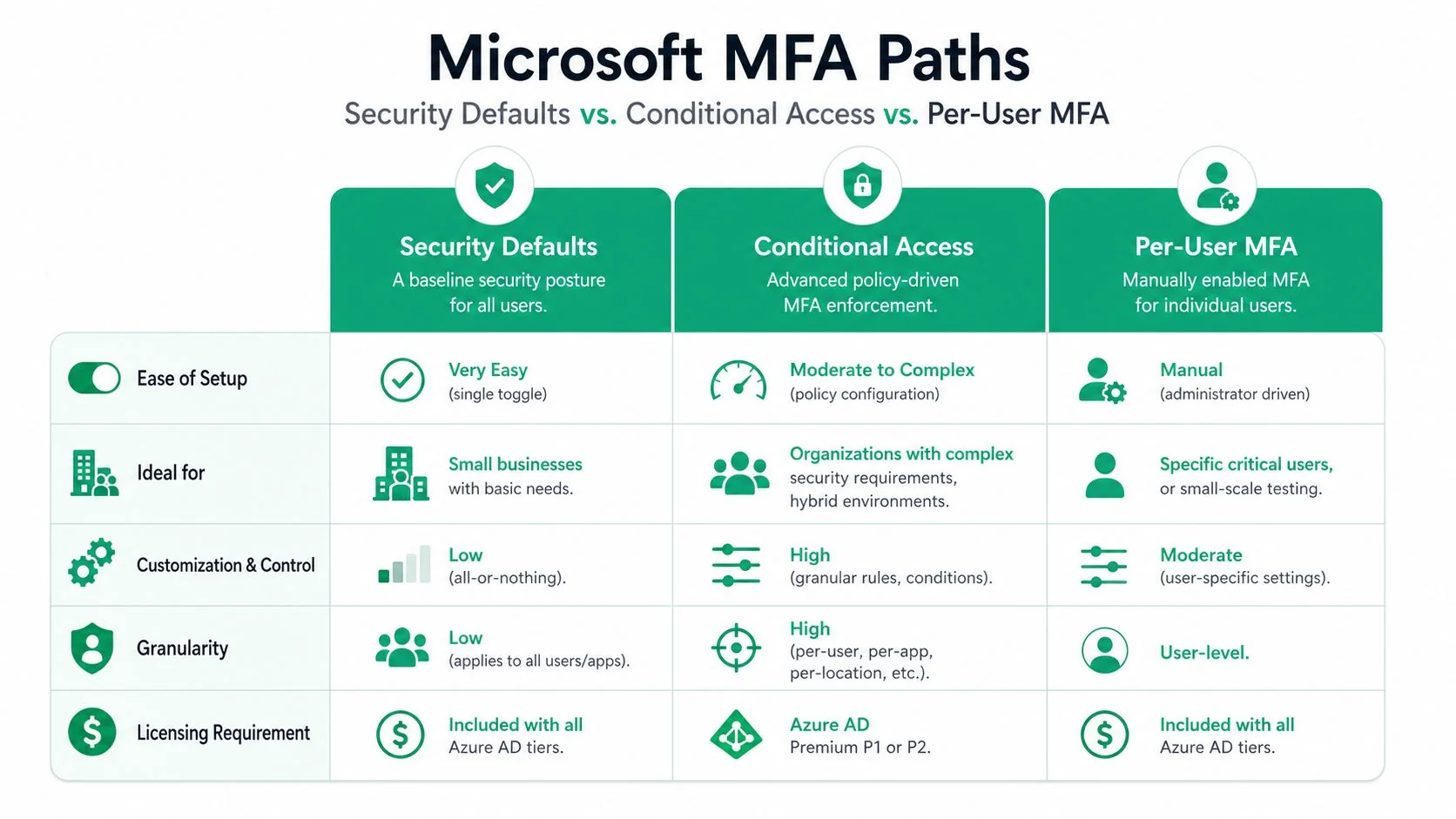
Microsoft gives SMBs three common ways to approach MFA. They are not equal.
Security Defaults is the cleanest starting point. It's broad, simple, and suits smaller environments that want an all-users baseline without detailed tuning. For a sole trader or a very small office, that can be enough.
Per-user MFA is older and more manual. It can help with short-term testing or with protecting a handful of accounts during transition, but it isn't usually the best long-term operating model. It's harder to manage consistently and doesn't reflect how modern Microsoft identity controls are meant to work.
Conditional Access is the serious option. It lets you apply MFA based on role, app, device state, sign-in risk context, and other business rules. That makes it better for firms that need to balance security with usability, especially in legal, healthcare, finance, or any business with admin separation and compliance obligations.
Comparison table for SMB decision-making
| Method | Best fit | Strengths | Trade-offs |
|---|---|---|---|
| Security Defaults | Very small businesses with straightforward needs | Fast to enable, broad protection, minimal design effort | Limited flexibility, all-or-nothing feel |
| Per-user MFA | Temporary testing or narrow user-by-user changes | Simple for isolated cases | Manual, dated approach, hard to scale cleanly |
| Conditional Access | Growing SMBs and regulated organisations | Granular control, stronger policy design, better long-term fit | Requires planning, licensing, and proper testing |
Which option fits which business
A Toowoomba sole trader using Microsoft 365 for email, OneDrive and Teams often needs the least complicated path. Security Defaults is usually the better answer there because the biggest risk is having no MFA at all, not lacking advanced policy logic.
A small Brisbane accounting firm is different. Partners, payroll staff and administrators carry more risk than general users. They may also need tighter controls around sign-ins from unmanaged devices. That's where Conditional Access starts to justify itself quickly.
A growing trade business with field staff across South East Queensland often sits in the middle. If everyone uses mobiles, tablets, and shared business systems, usability becomes part of security. Conditional Access can keep prompts sensible while still enforcing stronger protection for sensitive access.
Security Defaults is a good starting point. Conditional Access is the better destination when the business needs exceptions, compliance alignment, or cleaner control over who can access what and how.
If you're searching for guidance on Multi Factor Authentication – Microsoft options, that's the practical takeaway. Don't ask which method is “best” in abstract terms. Ask which one fits your current size, risk, and likely growth over the next few years.
Step-by-Step Implementation and User Enrolment
A smooth MFA rollout depends less on clicking the right toggle and more on how well you prepare users. The admin work matters, but the employee experience usually decides whether the rollout lands cleanly or creates a week of helpdesk noise.
Admin setup that avoids rework
Start by deciding your enforcement model first. Don't enable per-user MFA for half the office and then rebuild it later with Conditional Access unless you have a clear transition plan. Mixed approaches create confusion.
A practical rollout usually follows this sequence:
- Review privileged accounts first: Global admins, billing admins, and any account with privileged access should be handled before standard users.
- Confirm authentication methods: If you want staff using Microsoft Authenticator, set that expectation early.
- Check sign-in dependencies: Mail clients, mobile devices, old desktop apps, and shared workflows need review before you enforce.
- Stage the policy: Start with a pilot group so you can see where enrolment or app compatibility breaks.
- Document your recovery process: Lost phones and replacement devices are not edge cases. They're normal operations.
The best admin designs are boring. They remove surprises.
What staff will see on their phones
For most users, the easiest path is the Microsoft Authenticator app. They sign in, are prompted to set up extra verification, scan a QR code, and complete an approval step on the phone. Number matching improves the sign-in flow because users can see they're approving the session they started.
Explain the process in plain language before enforcement starts:
- Install the app early: Ask users to download Microsoft Authenticator before the cutover day.
- Use work instructions with screenshots: Don't assume everyone knows what a QR code enrolment looks like.
- Tell staff what a legitimate prompt looks like: That reduces panic and helps them recognise suspicious approvals.
- Give one support contact path: One mailbox or one phone number is better than vague “contact IT” advice.
A quick visual explainer helps many teams more than a long PDF. This walkthrough is a useful reference point during user enrolment:
Why the Microsoft Authenticator app is the better default
Research cited by Forbes notes that app-based authentication like Microsoft Authenticator significantly outperforms SMS, and that matters even more in Australia where SMS delivery can be unreliable in some areas, as covered in Forbes' summary of Microsoft MFA effectiveness and the case for app-based methods.
That maps closely to real-world Queensland conditions. A trades business working across outer suburban, regional, or patchy coverage areas doesn't want security dependent on whether a text message arrives on time. The app is usually more consistent, and it avoids building your sign-in process around mobile signal quality.
Staff don't need to understand identity architecture. They need a method that works quickly, predictably, and doesn't fail just because they've stepped outside metro coverage.
Developing Your Rollout Strategy and Managing Legacy Apps
The best MFA rollouts don't begin with a company-wide switch-on. They begin with a pilot, a communication plan, and a clear list of the systems that won't behave nicely.
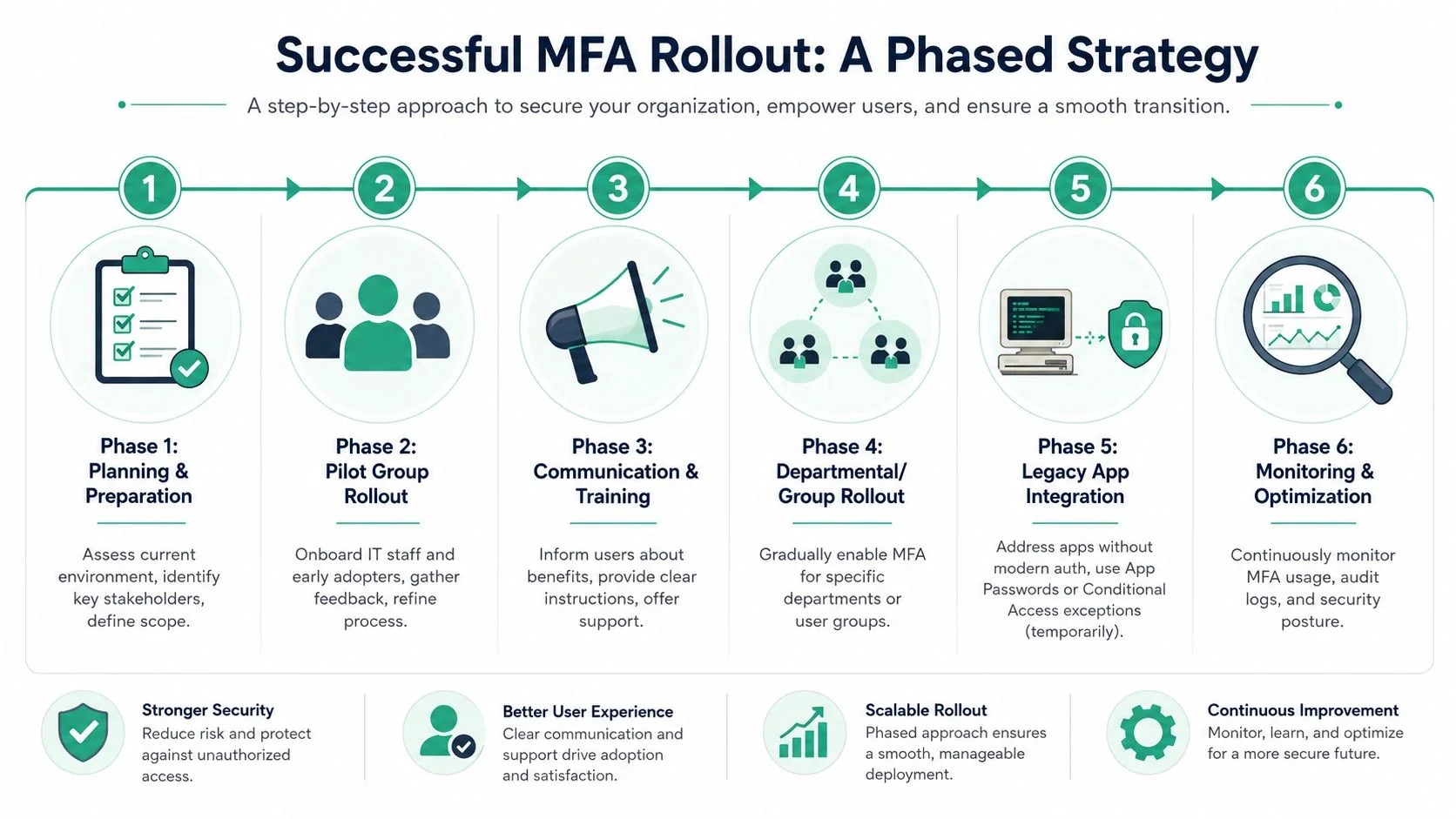
A rollout example that works
Take a typical Brisbane professional services business. The internal IT lead and a few confident users go first. They test Outlook on desktop, Outlook mobile, Teams, SharePoint access, and any line-of-business workflow that signs into Microsoft 365.
After that, the wider office gets a short briefing. Not a security lecture. Just the essentials:
“From next week, Microsoft 365 sign-ins will require approval through Microsoft Authenticator. This protects client email, files, and business systems if passwords are phished or reused.”
That message works because it explains the business reason. Staff support MFA more readily when they understand it protects customer information and stops account takeovers, not when it's framed as another IT rule.
A phased pattern usually works best:
- Pilot with internal champions: Choose users who can give practical feedback, not just technical feedback.
- Refine the instructions: Fix confusing screenshots, login wording, and enrolment steps before wider release.
- Roll out by team or location: Smaller waves make it easier to support.
- Track exceptions actively: If someone can't use the standard path, record why and set a review date.
Handling older apps without weakening the whole tenant
Legacy applications are where many MFA projects drift off course. An older accounting integration, scan-to-email device, or dated mail client can force awkward exceptions. The temptation is to leave broad gaps “for now”. That's where security debt grows.
With legacy MFA methods deprecating by September 30, 2025, small Australian businesses should use the transition to audit old authentication paths and tighten policy design, including an exclusive by default approach to reduce bypass opportunities, as discussed in CyberCX's guidance on Microsoft 365 MFA changes and Conditional Access policy design.
App Passwords have historically been used as a bridge for older systems that can't handle modern authentication. In practice, they should be treated as temporary containment, not a comfortable permanent fix. If you need one, document where it's used, who owns it, and what the replacement plan is.
The long-term answer is usually one of these:
- Replace the legacy app
- Move the workflow to a modern authentication method
- Create a tightly controlled exception with review
- Remove the dependency entirely
If an old system forces you to weaken access controls for everyone else, the old system is now a business risk, not just a technical annoyance.
Troubleshooting Common Issues and Best Practices
MFA doesn't end at rollout. It becomes part of day-to-day operations, and the quality of that operation depends on how you handle common issues before they become bad habits or dangerous exceptions.
Fix the issues users actually raise
The most common problems are predictable. A user gets a new phone, notifications stop arriving, or someone approves a prompt they didn't expect because they were in a hurry.
Handle those situations with a defined process:
- Lost or replaced phone: Make sure staff know who to contact to reset their authentication method safely.
- No push notification: Check whether the Authenticator app is registered correctly and whether the device is blocking notifications. If needed, users can fall back to the app manually rather than waiting for a push that never appears.
- SMS not arriving: In regional or lower-coverage areas, SMS can be unreliable. That's one reason app-based methods are the better standard.
- Unexpected prompts: Treat these seriously. Repeated approval prompts can indicate MFA fatigue or an attacker repeatedly trying to authenticate.
A good support response doesn't just “get them back in”. It confirms whether the event was normal, suspicious, or part of a wider pattern.
For user awareness, phishing education still matters because attackers often aim to steal the first factor or trick users into approving prompts. Practical staff training on how to spot and avoid phishing scams and cyber fraud strengthens MFA rather than competing with it.
Best practices that make MFA resilient
One of the most overlooked controls is the emergency account. Microsoft has been explicit that break-glass emergency access accounts must be configured properly with MFA, and missing this step can create a serious problem during an outage or crisis, as noted in Microsoft's Azure MFA enforcement update.
That single point gets missed often because SMBs focus on user rollout and forget recovery administration.
Other practices matter just as much:
- Review sign-in activity regularly: Don't wait for a breach notification to discover repeated suspicious attempts.
- Keep exceptions minimal: Every bypass becomes a likely target.
- Use exclusive by default thinking: Start from deny or require protection, then carve out only what's necessary.
- Train users on approval discipline: If they didn't initiate the sign-in, they shouldn't approve it.
- Revisit policies after changes: New offices, new software, and contractor access often introduce quiet gaps.
For organisations that also manage broader digital experience platforms and customer-facing identity flows, it's worth reading Learn from Kogifi on DXP security. The principles around identity governance, access boundaries, and least-privilege design complement Microsoft 365 MFA planning well.
A resilient MFA setup is one users can follow, administrators can audit, and the business can recover from when a phone is lost, a role changes, or a legacy system finally has to be retired.
If your business wants help planning or tightening Microsoft 365 MFA, Bridge IT Solutions can help you choose the right path, roll it out cleanly, and align it with practical security and compliance requirements across South East Queensland.
