

You've got a new laptop on the desk, Outlook is installed, and you just want your business email working before the next client message lands. Instead, Outlook asks questions about servers, passwords, sync, account types, and sometimes throws you into a login loop that makes a simple setup feel far harder than it should be.
That's a common spot for small business owners in Brisbane and across South East Queensland. Some are setting up a Microsoft 365 mailbox, others are connecting an older hosted email account over IMAP, and a few are still dealing with POP because that's what their provider gave them years ago. The right setup depends less on the app and more on the kind of email service sitting behind it.
If you're connecting a non-Microsoft mailbox, provider-specific settings still matter. For example, if you use Yahoo, this practical guide to Yahoo Mail settings for Outlook can help you verify what Outlook needs before you start clicking around.
Table of Contents
- Getting Started with Your Outlook Email Setup
- Choosing the Right Email Account Type
- Outlook Email Setup on Windows and Mac Desktops
- Configuring Outlook on Mobile Devices iOS and Android
- Troubleshooting Errors and Securing Your Account
- When to DIY and When to Call the Experts
Getting Started with Your Outlook Email Setup
Most Outlook setup problems start before Outlook even opens. The issue is that the mailbox type hasn't been identified properly. If you don't know whether you're using Microsoft 365, Exchange, IMAP, or POP, it's easy to choose the wrong path and waste time re-entering passwords that were never the problem.
Microsoft's own guidance shows that Outlook for Windows still relies on a manual, standards-based process in some situations. Users may need to open File, go to Account Settings, and verify the incoming mail server, outgoing mail server, and server port numbers against the provider's values before running Test Account Settings. Microsoft also notes that Outlook.com users must turn POP or IMAP access ON under Mail > Forwarding and IMAP when those legacy protocols are needed, and that's a reminder that setup can involve more than just an email address and password (Microsoft Outlook account settings guidance).
For a small business, that matters because Outlook is often sitting at the centre of daily work. Quotes, invoices, support requests, and client approvals all pass through it. If the first setup is messy, the pain doesn't stay on one device. It follows the user to their phone, shared mailbox access, and every later troubleshooting call.
Practical rule: Before you add the account, confirm who hosts the mailbox, what protocol it uses, and whether that mailbox is meant to sync across multiple devices.
A clean email setup in Outlook usually comes down to three decisions:
- Choose the right account type. Microsoft 365 for business is a different setup path from a hosted IMAP mailbox.
- Use automatic setup first. If Outlook can detect the account properly, let it.
- Only go manual when needed. Manual setup is useful, but only when you have the correct server names, ports, and authentication details from the provider.
That sounds basic, but it's the difference between a ten-minute setup and a half-day headache.
Choosing the Right Email Account Type
The biggest mistake I see is treating every email account as if it works the same way in Outlook. It doesn't. A Microsoft 365 or Exchange mailbox behaves like a business platform. IMAP is usually workable for standard email sync. POP is older and much narrower in how it handles mail.
For Australian small businesses, that choice has become more important. Microsoft notes that some non-Microsoft domains may not sync correctly via IMAP, and many users are really trying to solve for recoverability and multi-device access rather than basic mailbox connection. That's where policy-driven Microsoft 365 is generally the stronger fit for business use (Microsoft POP, IMAP and SMTP settings for Outlook.com).
How to tell what you have
If your business signs in through a Microsoft login page and uses services like Teams, SharePoint, or OneDrive, you're probably on Microsoft 365. Outlook usually handles these accounts smoothly with modern sign-in and autodiscover.
If your email came from a web host, telco, cPanel host, or older mail provider, there's a fair chance it's IMAP or POP. In that case, you'll need the server settings from the provider, and the mailbox may not include business-grade identity controls or the broader collaboration tools people expect.
If you're weighing whether to stay with a basic mailbox or move to a business platform, this overview of Microsoft 365 for business gives a useful benchmark for what a more centralised setup looks like.
Microsoft 365 vs IMAP vs POP at a glance
| Feature | Microsoft 365/Exchange | IMAP | POP |
|---|---|---|---|
| Best fit | Businesses that want centralised identity and multi-device work | Standard email accounts that need inbox sync | Older mail setups or legacy requirements |
| Email sync across devices | Yes | Yes | Limited, depends on provider behaviour and client setup |
| Calendar and contacts | Native business experience | Usually not the same experience as Exchange | Not the right option for a modern shared workflow |
| Shared mailbox suitability | Strong | Limited | Poor |
| Recoverability and admin control | Stronger for business use | More manual | More fragmented |
| Setup style in Outlook | Usually automatic sign-in | Often manual if autodiscover doesn't populate details | Manual and usually best avoided unless required |
If your team works from laptop, phone, and webmail, IMAP is the minimum acceptable legacy option. POP usually creates more friction than it solves.
A simple way to think about it is this. If you just need one mailbox connected and the provider is stable, IMAP can be fine. If your business depends on shared access, staff turnover, security controls, and a clean recovery path, Microsoft 365 is the better long-term home.
Outlook Email Setup on Windows and Mac Desktops
Desktop Outlook remains where many do their serious work. It's where the full inbox appears, where folders get organised, and where the setup either feels effortless or immediately starts fighting you.
Setting up Microsoft 365 or Exchange
For a Microsoft 365 account, Outlook on Windows or Mac is usually straightforward.
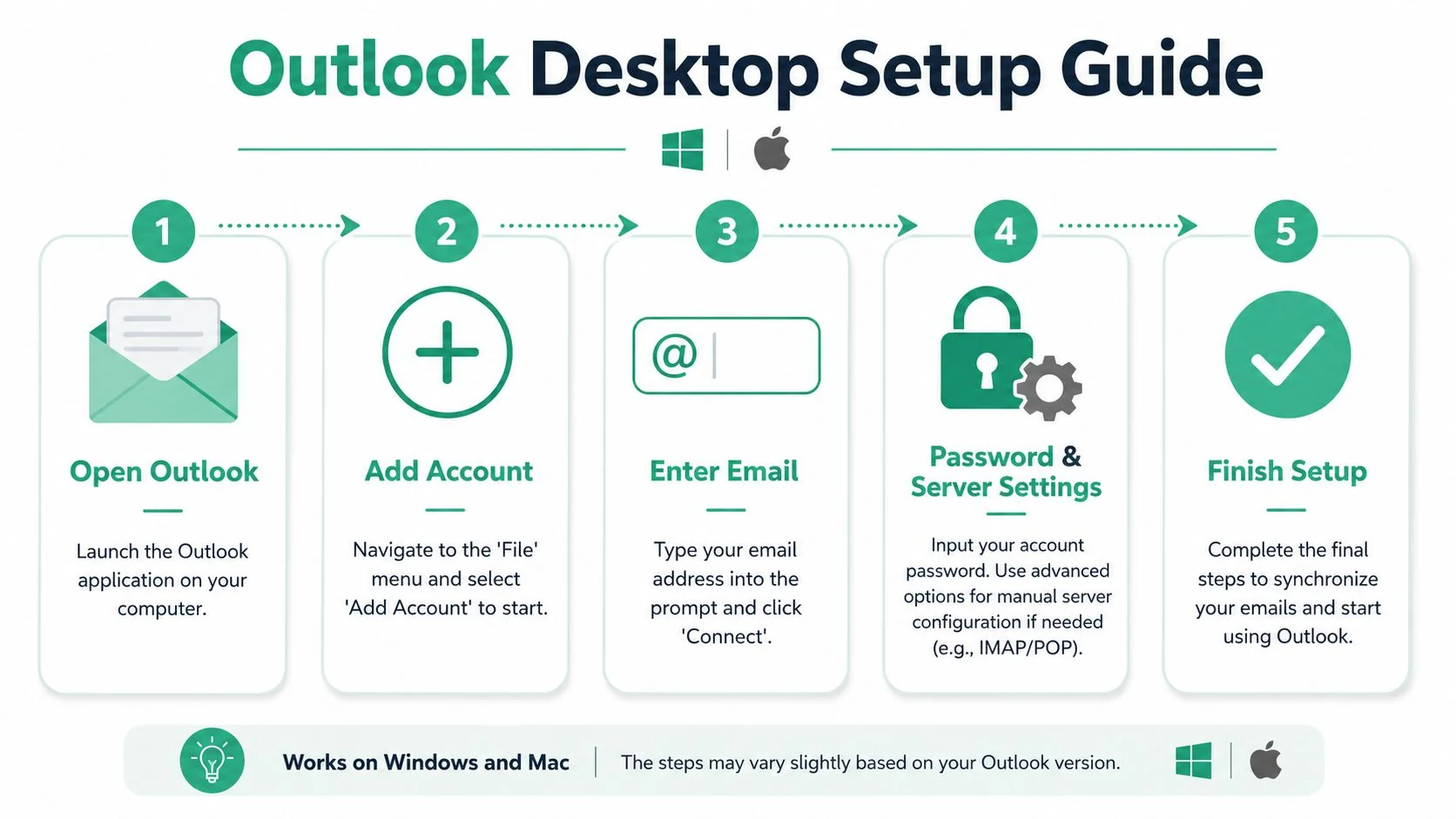
On desktop, the basic flow is:
- Open Outlook
- Go to File
- Select Add Account
- Enter your business email address
- Follow the Microsoft sign-in prompts
- Complete any authentication steps your organisation requires
If autodiscover works, Outlook fills in the connection details for you. That's the ideal result. You don't need to guess server names, and you're less likely to create sync problems by choosing the wrong protocol.
This is why Microsoft 365 tends to be the cleanest business setup. The mailbox, identity, and client are designed to recognise each other.
Using manual IMAP setup when autodiscover fails
When Outlook can't prepopulate the settings, Microsoft's recommended fallback is manual IMAP setup. The documented path for Outlook for Windows is to open Outlook > File > Add Account > Advanced options, tick Let me set up my account manually, choose IMAP, then enter the provider's incoming and outgoing server names, full email address, and encrypted ports, typically 993 for IMAP and 587 for SMTP, before finishing the setup (manual Outlook account setup steps).
What you'll need from your provider:
- Incoming mail server. Usually an IMAP hostname supplied by the provider.
- Outgoing mail server. The SMTP hostname supplied by the provider.
- Full email address. Not just the username.
- Password. Sometimes an app password or provider-specific credential is required.
- Correct encrypted ports. Outlook commonly uses 993 for IMAP and 587 for SMTP when the provider supports that setup.
The reason I tell business owners not to improvise here is simple. One wrong hostname or one old POP setting can send you into endless password prompts.
Don't keep retrying the same failed setup if you haven't confirmed the mailbox policy first. Some providers require IMAP access to be enabled at the account level before Outlook can connect.
What usually goes wrong on desktop
When desktop setup fails, it's usually not because Outlook is broken. It's because one of the prerequisites is wrong.
The most common desktop issues are:
- Wrong protocol selected. The mailbox expects IMAP, but POP was chosen.
- Incorrect server names. A typo in the incoming or outgoing server field will stop the connection.
- Authentication mismatch. The provider expects one sign-in method, but Outlook is trying another.
- IMAP not enabled on the mailbox. Some platforms won't allow the connection until this is switched on.
For Windows and Mac users, the practical workflow is the same. Start with the simplest path. If the account is Microsoft 365, use the Microsoft sign-in flow. If it's a hosted mailbox, confirm the provider settings first and then use manual IMAP only when needed.
That approach saves time and avoids the classic situation where mail appears on one device but not the other.
Configuring Outlook on Mobile Devices iOS and Android
Your phone usually becomes the definitive test of whether the mailbox was set up properly. If Outlook works on the desktop but not on mobile, the issue is often the account type, a missing permission, or an old-style provider setup that doesn't handle modern authentication neatly.

Adding a Microsoft 365 account in the Outlook app
For most Microsoft 365 users, mobile setup is easier than desktop. Install the Outlook app from the App Store or Google Play, open it, enter your work email address, and follow the sign-in prompts. If your business uses modern identity controls, the app will usually redirect you to the proper Microsoft login flow.
That matters because it reduces manual entry. You're not hunting for ports or server names on a small screen. You're just authorising the account properly and letting Outlook connect the service the way it was designed to.
A few practical mobile tips help:
- Use the Outlook app, not the default mail app if your business relies on Microsoft 365 features.
- Approve any sign-in prompts promptly if your organisation uses additional identity checks.
- Let the app finish initial sync before deciding something is missing.
Adding an IMAP account on mobile
IMAP accounts can still work well on iPhone and Android through Outlook mobile, but the process is more manual. You'll usually enter the email address first, then choose manual account configuration if Outlook can't detect the service cleanly.
You'll need the same essentials you used on desktop:
- Incoming IMAP server name
- Outgoing SMTP server name
- Full email address
- Password or app password
- Any provider-specific sign-in requirement
If the provider's setup is older, mobile can be less forgiving than desktop. A tiny typo in the outgoing server field can stop sending even when incoming mail looks fine.
A quick walk-through can help if you prefer to see the flow on screen:
A better way to handle mobile notifications
Once the mailbox is live, spend a minute on notifications. Business owners often set up Outlook successfully and then get buried in alerts every time a newsletter, invoice copy, or cc'd reply lands.
A better mobile setup is to keep notifications focused on what needs attention. For example, you might allow alerts for direct messages and calendar items, but mute low-priority folders or newsletters. Outlook becomes much more useful when it supports your day instead of interrupting it.
Troubleshooting Errors and Securing Your Account
A common small business scenario goes like this. Outlook connects on one device, fails on another, and staff start working around the problem by forwarding mail, sharing passwords, or relying on webmail. That is usually when a simple setup issue turns into a reliability or security problem.
For Australian small businesses, the first question is not just "what error am I seeing?" It is "what type of account am I trying to run?" If the mailbox is on Microsoft 365, fix it as a Microsoft 365 account. If it is standard hosted email, check the IMAP and SMTP settings properly. A lot of recurring Outlook faults come from mixing those two methods.
When Outlook keeps asking for your password
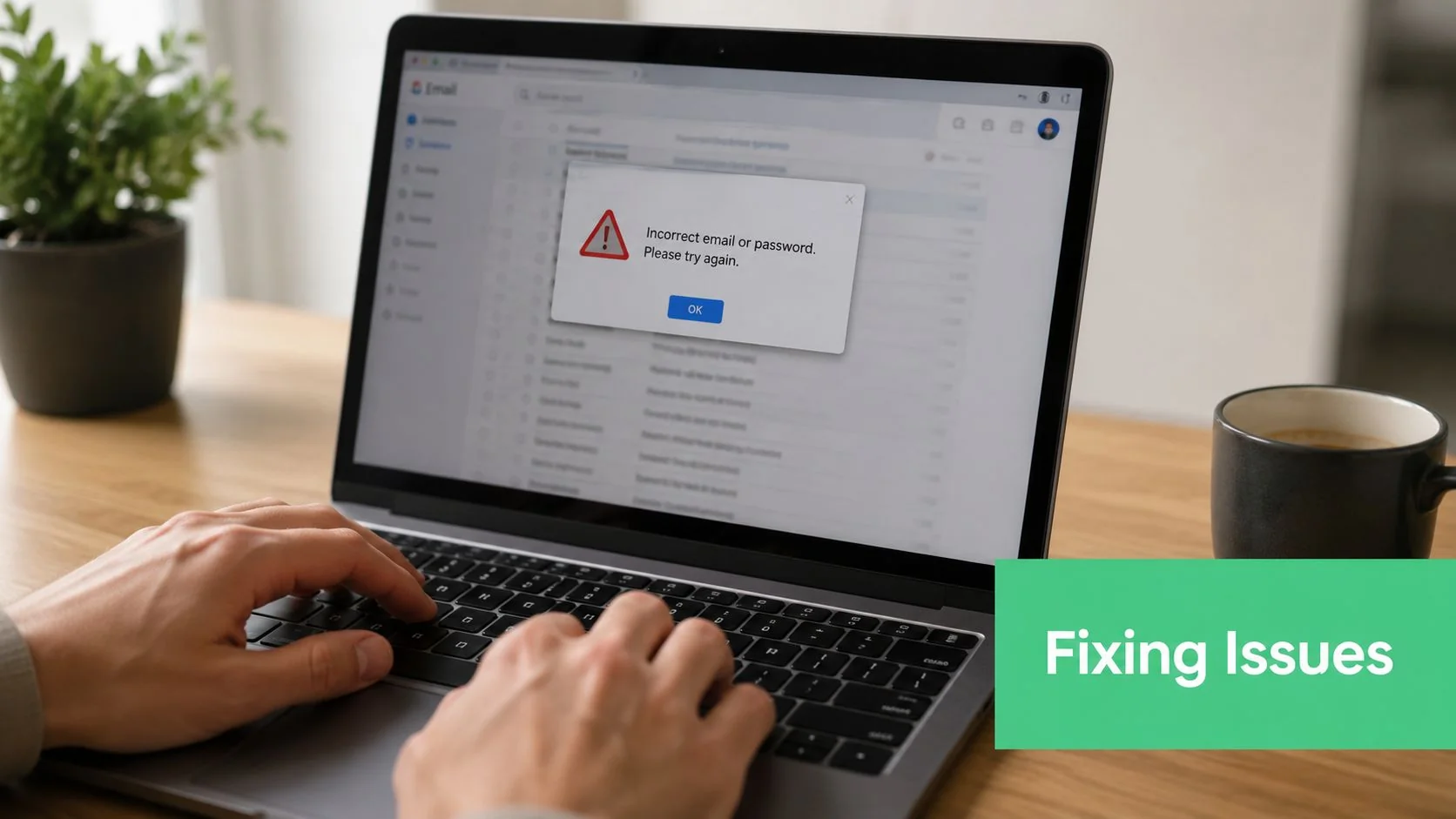
Repeated password prompts usually point to the sign-in method, not just the password itself. I see this often after a business has tried to force a Microsoft 365 mailbox through manual IMAP setup, or after an older mailbox has been moved and the saved credentials no longer match.
Work through these checks in order:
- Confirm the account type first. Microsoft 365 accounts should usually use Microsoft's sign-in flow, not manual server entry.
- Use the full email address. Short usernames often fail, especially after provider changes.
- Test the login in webmail. If webmail rejects the password, Outlook will too.
- Check for app passwords or multi-factor authentication requirements. Some providers and older setups still need this.
- Rebuild the Outlook profile only after verifying the settings. Re-adding the same wrong details wastes time and can create duplicate data files.
If you are reviewing broader account safety at the same time, this guide on how to protect your digital identity online is a useful extra read. Good login hygiene and fewer Outlook sign-in problems usually go together.
When mail sends but sync is unreliable
Receiving mail does not prove the account is configured correctly. Outlook can pull messages down while the outgoing server is still wrong, or one device can sync properly while another is using a different protocol.
Here is a practical fault-finding guide:
| Symptom | Likely issue | First action |
|---|---|---|
| Mail stuck in Outbox | SMTP server, port, or authentication mismatch | Re-check outgoing server details with your provider |
| Inbox differs across devices | One device is using POP, or the wrong account type was added | Confirm the mailbox should be Microsoft 365 or IMAP |
| Missing folders | Partial sync, cached view issue, or provider-side folder limitation | Compare Outlook with webmail |
| Repeated login prompts after setup | Wrong sign-in path or saved credential conflict | Remove saved credentials and add the account again correctly |
For small teams, the M365 versus IMAP decision plays a key role in day-to-day use. Microsoft 365 usually gives better calendar syncing, contact handling, shared mailbox support, and modern authentication. IMAP is fine for straightforward email access, but it is weaker for collaboration and more prone to odd sync behaviour across multiple devices.
Microsoft also notes that Outlook rules can automatically move or categorise messages based on sender, subject, or keywords, while fuller reporting on email activity generally needs add-ins, Microsoft Graph, or external tools (Microsoft discussion of Outlook rules and reporting limitations). For a small business, that usually means good folder structure and consistent account setup matter more than chasing reporting features inside Outlook.
A tidy mailbox needs decisions. Enquiries, invoices, support requests, and internal messages should not all land in one pile and hope for the best.
If you are also tightening domain-level protection, our guide to SPF, DKIM and DMARC protection against email phishing explains the controls that sit behind Outlook and help stop spoofing and delivery issues.
Security settings worth taking seriously
Email setup affects more than convenience. For many businesses, especially in accounting, legal, healthcare, and professional services, it affects confidentiality, staff access, and recoverability after a problem.
Outlook supports security features such as digital signing and encryption, but those settings only help when the mailbox, identity system, and business process are aligned. That is one reason DIY is fine for a single basic mailbox, but migrations, shared mailboxes, and compliance-sensitive setups often deserve proper IT help.
Treat these items as standard practice:
- Use multi-factor authentication where available. It cuts the risk of account takeover dramatically.
- Do not share passwords between staff. Use delegated access, shared mailboxes, or proper permissions instead.
- Review mailbox rules regularly. Bad rules can hide invoices, redirect messages, or mask a compromised account.
- Keep recovery details current. Recovery email addresses, phone numbers, and admin access should be checked before there is an incident.
- Match the setup to the business risk. A sole trader with one inbox can often manage with a careful DIY setup. A business with multiple staff, shared mailboxes, and client-sensitive data usually needs tighter controls.
The mistake I see most often is treating Outlook as just an app on a laptop. In practice, it is part of your business communication system. If the account type is wrong, the sign-in method is weak, or the mailbox permissions are messy, the problems tend to show up at the worst time.
When to DIY and When to Call the Experts
A lot of Outlook setups are perfectly suitable for DIY. If you're a sole trader adding one business mailbox to a new laptop or phone, and you already know the account type, you can usually handle it yourself without much drama.
DIY jobs that are usually safe
These tasks are normally manageable in-house:
- Adding one Microsoft 365 account to one device where the sign-in flow is already working
- Connecting a known IMAP mailbox when the provider has supplied the correct settings
- Setting up the Outlook mobile app for basic email access
- Creating simple inbox rules to separate enquiries, invoices, and newsletters
If you're also thinking more carefully about secure message handling, FaxZen's guide to data protection is a sensible extra reference. It's useful for small businesses that know they need safer email habits, even if they're not ready for a bigger systems review.
Jobs that usually need proper IT support
Some Outlook jobs look simple from the outside but carry real risk.
It's usually smarter to get help when you're dealing with:
- A migration from an older email platform to Microsoft 365
- Shared mailboxes and staff-wide access changes
- Persistent sync or authentication problems that affect multiple users
- Security-sensitive environments where email forms part of a broader compliance process
- Recoverability concerns, especially where the business can't afford lost mail or downtime
If your team is losing time to setup errors, recurring login loops, or inconsistent mailbox behaviour across devices, proper remote IT support for business systems is often the faster and safer path.
The point isn't that Outlook is hard. It's that email touches everything. A quick DIY setup is fine when the risk is low and the account is straightforward. Once the mailbox becomes part of team operations, security, or a migration, clean setup matters far more than saving an hour upfront.
If you'd like a hand getting Outlook set up properly, securing your business email, or planning a cleaner move to Microsoft 365, Bridge IT Solutions can help. We support small and medium organisations across Brisbane and South East Queensland with practical IT advice, reliable support, and email systems that work the way a business needs them to.
