

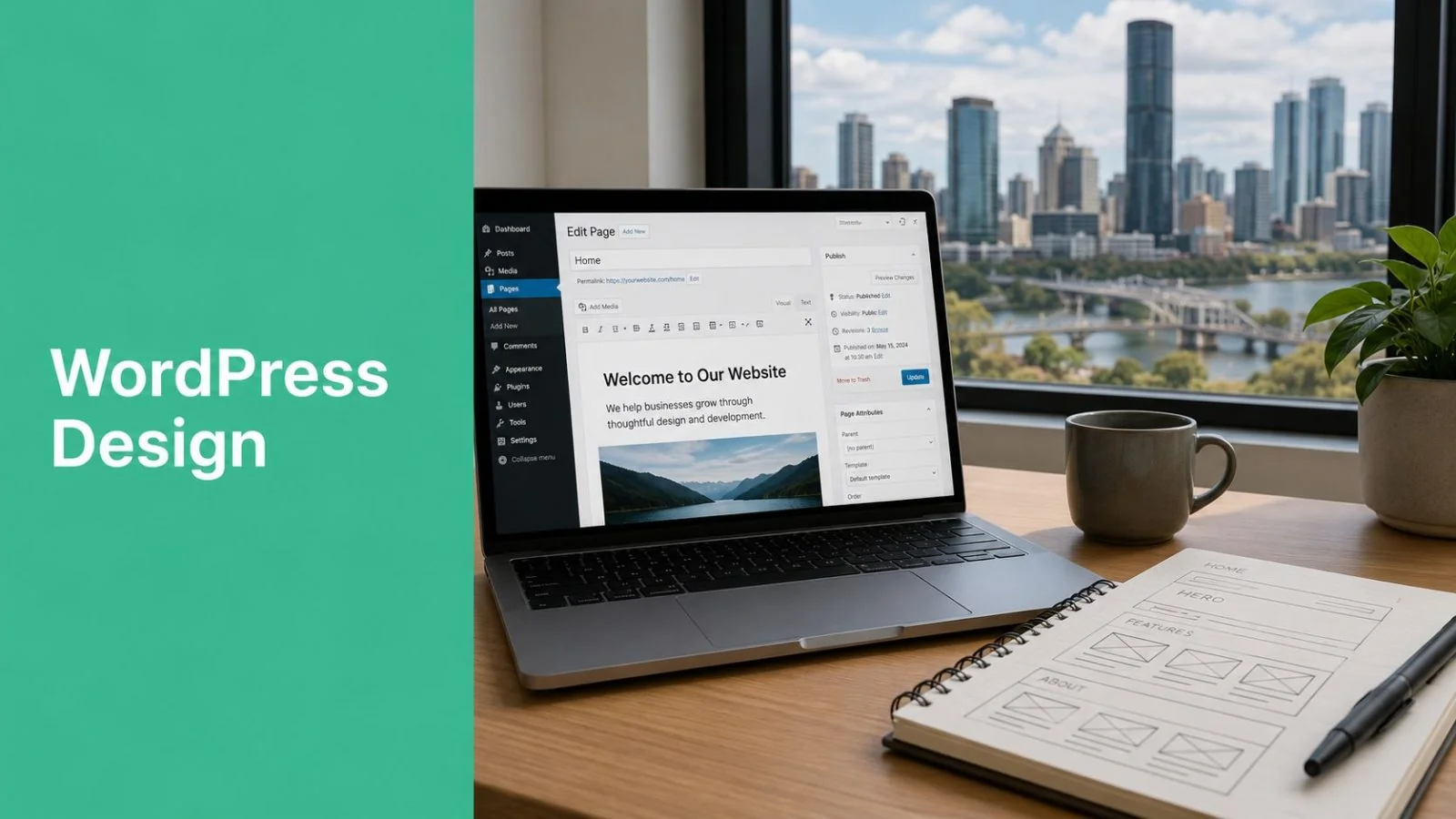
You've probably been there already. You know your business needs a proper website, but the choices pile up fast. Domain name, hosting, WordPress, themes, page builders, plugins, forms, security, mobile layout, Google visibility. What starts as “I'll sort it this weekend” can turn into weeks of half-finished pages and second-guessing.
That's why a good WordPress website isn't built by starting with colours or animations. It starts with structure. If you want to learn how to design a WordPress website for a Brisbane small business, the primary task is balancing DIY practicality with the parts that are worth handing to a professional. Most business owners can handle parts of the build. Fewer have the time or appetite to manage hosting, updates, backups, security, and all the invisible work that keeps a site healthy after launch.
WordPress is a sensible choice for many SMEs because it's flexible, familiar, and mature. The challenge isn't whether WordPress can do the job. It can. The challenge is building a site that looks professional, stays easy to manage, and doesn't become another thing on your to-do list that never gets maintained.
Table of Contents
- Your Solid Foundation A Strategic Website Plan
- Setting Up Your Technical Cornerstones
- Choosing Your Design Tools Themes and Page Builders
- Building Your Core Pages and Content Structure
- Pre-Launch Checklist SEO, Security, and Performance
- Website Launch and Ongoing Maintenance
- Frequently Asked WordPress Design Questions
Your Solid Foundation A Strategic Website Plan
A Brisbane business owner usually starts with the wrong question. They ask, “Which theme should I use?” The better question is, “What does this website need to do every week for the business?”
If you run a trade business, the site might need to generate quote requests. If you run a clinic, it might need to support enquiries and appointment bookings. If you sell products, it needs to help people browse, trust you, and buy without friction. Different goals create different design decisions.
Start with one business goal
Pick one primary goal for the website. One. You can support secondary actions, but if every page tries to do five things at once, the site feels cluttered and weak.
A simple planning sheet helps. Write down:
- Main goal: enquiries, bookings, sales, or calls
- Ideal customer: local homeowners, professional clients, patients, or wholesale buyers
- Top service or offer: the thing you most want people to ask about
- Main call to action: call now, request a quote, book online, or send an enquiry
Practical rule: if you can't explain your site's main purpose in one sentence, your visitors won't understand it in five seconds.
Before design starts, it also helps to think through the user journey. A broader UX design process guide is useful here because it shows how planning, structure, and user needs shape the final design far more than surface styling.
If you're paying someone to build the site, clarity at this stage protects you from buying the wrong thing. A blunt but worthwhile read is this article on what to check before signing for a new website. It highlights the kind of scope gaps that cause pain later.
Map the pages before you build them
Most SME websites need fewer pages than owners think. More pages don't make a site look bigger. They usually make it harder to use.
Start with a basic sitemap:
Home
Your snapshot. Who you help, what you do, why you're credible, and what to do next.About
Enough background to build trust. Not your life story.Services or Products
Clear pages for each major offer, with plain language and next steps.Contact
Phone, email, form, service area, and any practical details people need before reaching out.
You might also add FAQs, testimonials, a blog, a gallery, or location pages. Add them because they help users or support the sales process, not because another business has them.
A smart content checklist saves a lot of rework:
- Final logo files: not screenshots pulled from old documents
- Service descriptions: short, plain English summaries first
- Photos: real team, location, vans, office, completed work, or product shots
- Brand basics: colours, fonts, and examples of sites you like
- Contact details: exact spelling, phone numbers, email addresses, suburb coverage
The businesses that struggle most with website projects usually aren't blocked by WordPress. They're blocked by unclear content, vague priorities, and too many opinions arriving late.
Setting Up Your Technical Cornerstones
A lot of Brisbane business owners get to this point with their pages mapped out and their content half ready, then lose momentum on the technical setup. That is usually where a website project stops feeling simple. The three parts to get right are your domain name, your hosting, and WordPress itself. If one of them is poorly chosen, you feel it later in speed, security, admin effort, or downtime.
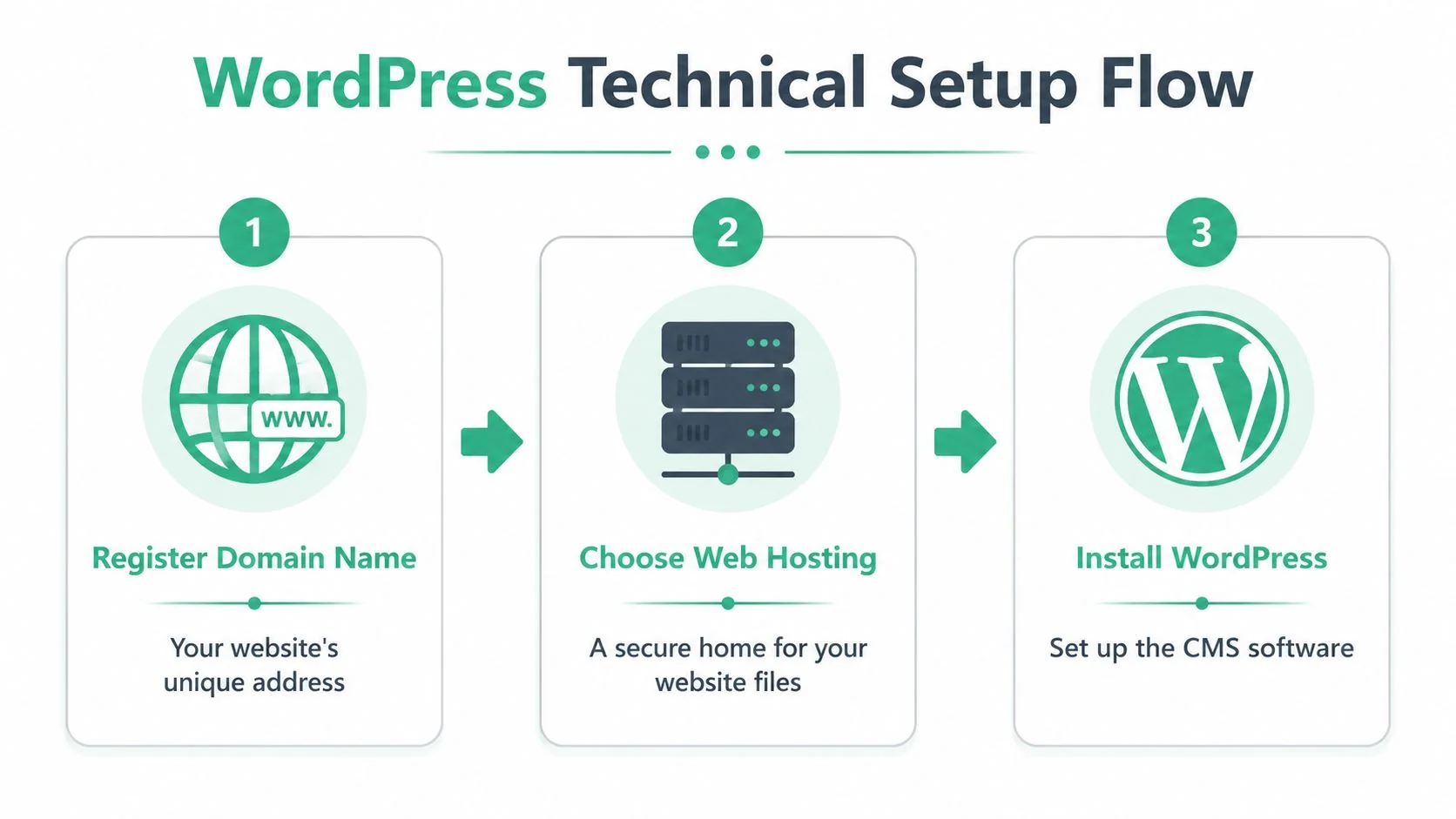
WordPress is a mainstream platform with a large plugin and theme ecosystem, which is one reason it works well for small business websites. For an Australian SME, that means you can build service pages, contact forms, booking tools, ecommerce, and local search basics without commissioning a custom system from scratch. The trade-off is choice overload. There are many ways to set up a WordPress site, and some create far more maintenance than others.
Know what each technical piece does
Start with the domain name. Keep it short, readable, and close to your business name if possible. Avoid odd spellings, extra hyphens, and trendy wording that will sound dated in two years. If someone hears it once on the phone, they should have a fair chance of typing it correctly.
Hosting deserves more attention than it usually gets. A slow or unstable host will make even a well-designed site feel second-rate. That matters for local service businesses in Brisbane because people often visit your site with one clear question in mind. Can this business help me, and can I trust them enough to call? If the site drags, throws errors, or disappears at random, that decision gets made quickly.
This walkthrough is useful if you want to see the setup sequence in action:
Installing WordPress is rarely the hard part. Most hosting providers offer a one-click setup. The more important decision is what happens after installation. Updates, backups, malware checks, SSL, email deliverability, plugin conflicts, and restore options all sit in the background until something breaks. Then they become urgent.
Choose hosting like a business owner, not a bargain hunter
Cheap shared hosting can be fine for a personal blog or a basic placeholder site. For a business website, it often means slower performance at busy times, weaker support, and more technical jobs landing back on your desk. Managed WordPress hosting costs more, but it reduces the amount of troubleshooting you need to do yourself.
Here's a practical comparison:
| Option | Better for | Watch-outs |
|---|---|---|
| Basic shared hosting | Very small starter sites and tight budgets | Slower performance, less hands-on support, more DIY responsibility |
| Managed WordPress hosting | Business sites that need stability and maintenance support | Higher cost, but less time spent fixing issues |
| General business hosting with IT support | Firms that want website hosting tied into broader support and security | You need a provider who understands WordPress properly |
For some businesses, the smarter move is to treat hosting as part of your wider IT setup rather than a separate website purchase. Brisbane WordPress hosting services are one example of that approach. It suits owners who would rather have backups, updates, monitoring, and support handled properly than spend Friday afternoon trying to work out why a plugin update knocked over the contact form.
That is the DIY line I encourage business owners to be honest about. Registering a domain and installing WordPress is manageable. Keeping the site secure, fast, backed up, and recoverable is where professional help often pays for itself.
Once WordPress is installed, clean up the defaults before you touch the design. Set the site title, confirm your permalink structure, remove sample posts and pages, create a proper admin account, and make sure SSL is working. It takes a few extra minutes and saves a lot of avoidable mess later.
Choosing Your Design Tools Themes and Page Builders
Choose the wrong setup and a simple job like changing a heading or updating a photo turns into half an hour of clicking through settings you barely recognise. I see that happen a lot with Brisbane small business sites built in a rush. The site looks fine at first, but the owner avoids touching it because editing feels awkward and risky.
What a theme does and what it doesn't
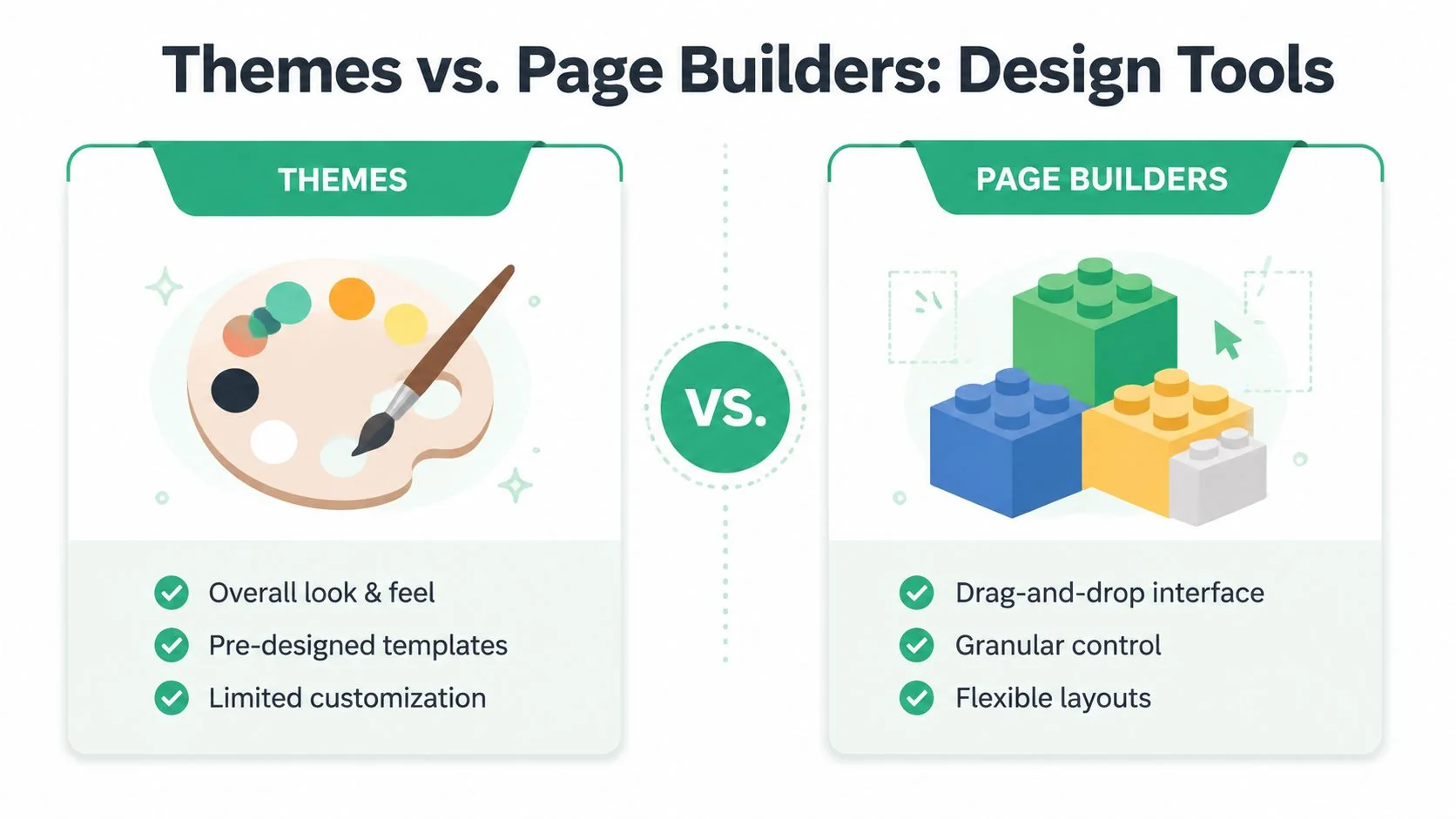
A theme controls your site's overall layout, styling rules, templates, and some built-in design options. It sets the visual structure your content sits inside.
That matters because many owners pick a theme from the demo alone. Demo sites are built to sell the theme. They use strong photography, tidy copy, and carefully staged page layouts. Once you swap in your actual services, team photos, and content, the same theme can feel cluttered or awkward.
A practical theme choice usually has these traits:
- Lightweight code: fewer built-in effects and extras you will never use
- Good plugin compatibility: less chance of layout conflicts later
- Useful custom settings: header, footer, colours, spacing, typography, blog layout
- Active support and updates: abandoned themes create security and maintenance problems
WordPress themes have been a core part of the platform for years, and that separation between content and design is still one of the reasons theme choice has long-term consequences. If the theme is bloated or poorly maintained, every future change gets harder.
Gutenberg or Elementor for a small business site
For many SMEs, the key decision is Gutenberg or Elementor.
Gutenberg is the built-in WordPress block editor. Elementor is a visual page builder with drag-and-drop controls. Both can work well for a business website. Both can also create a mess if every page is built differently and no one sets basic style rules first.
Here is the trade-off in plain terms:
| Criteria | Gutenberg | Elementor |
|---|---|---|
| Ease of learning | Takes a bit of adjustment, then feels natural | Feels more visual from the start |
| Performance | Usually lighter if kept simple | Often heavier, especially on feature-packed pages |
| Flexibility | Strong for service pages, blogs, and standard business layouts | Better for custom landing pages and more design control |
| Long-term maintenance | Closer to standard WordPress, usually easier to keep tidy | More reliance on the builder and its settings |
| Best fit | SMEs wanting a cleaner, simpler editing setup | Owners or designers who want visual control and accept more complexity |
I usually recommend Gutenberg for a standard small business site. It is a better fit for service businesses that need clear pages, straightforward editing, and fewer moving parts. It also reduces the chance of ending up with a site only one person knows how to update.
Elementor has a place. If the site needs more custom section layouts, more design freedom, or a marketing team that prefers visual editing, it can be the right tool. The catch is maintenance. Extra builder controls, add-ons, and layout options often mean more troubleshooting after updates.
Professional WordPress designers now often use a block-first method. They set typography, colours, buttons, and spacing across the site before building pages, as shown in this WordPress block-first training session. That discipline is what keeps a site looking consistent instead of patched together.
Set your fonts, colours, button styles, and spacing rules early. Reusing them across the site saves time and makes the final result look more credible.
The main mistake to avoid is stacking too many design systems on top of each other. A bulky theme, a page builder, extra design plugins, pop-up tools, and custom font add-ons can make the backend slow and confusing. It also makes support harder. If something breaks, you need to work out whether the issue sits with the theme, the builder, a plugin, or a hosting conflict.
That is usually the point where DIY stops being cheap.
For Brisbane business owners, the sensible approach is to keep the setup simple enough to manage, but not so bare that every improvement becomes custom work. If you want to build the site yourself, choose one solid theme, one editing system, and a short plugin list. If you already know you do not want to handle update conflicts, layout issues, or recovery work, get a managed IT or WordPress partner involved early. That is often the cheaper decision once your time is factored in.
Building Your Core Pages and Content Structure
Design becomes real when the core pages start taking shape. This is also where many DIY sites drift off course. Owners focus on sliders, icons, and fancy section layouts before they've made the page easy to read.
Many guides show examples of nice-looking sites but don't help people make the right trade-offs. Smashing Magazine's discussion of WordPress guidance for advanced beginners points back to hierarchy, whitespace, and simplified navigation as the decisions that help users make sense of content and avoid clutter in DIY builds, which you can read in this Smashing Magazine article on writing better WordPress guides.
Build the pages people actually need
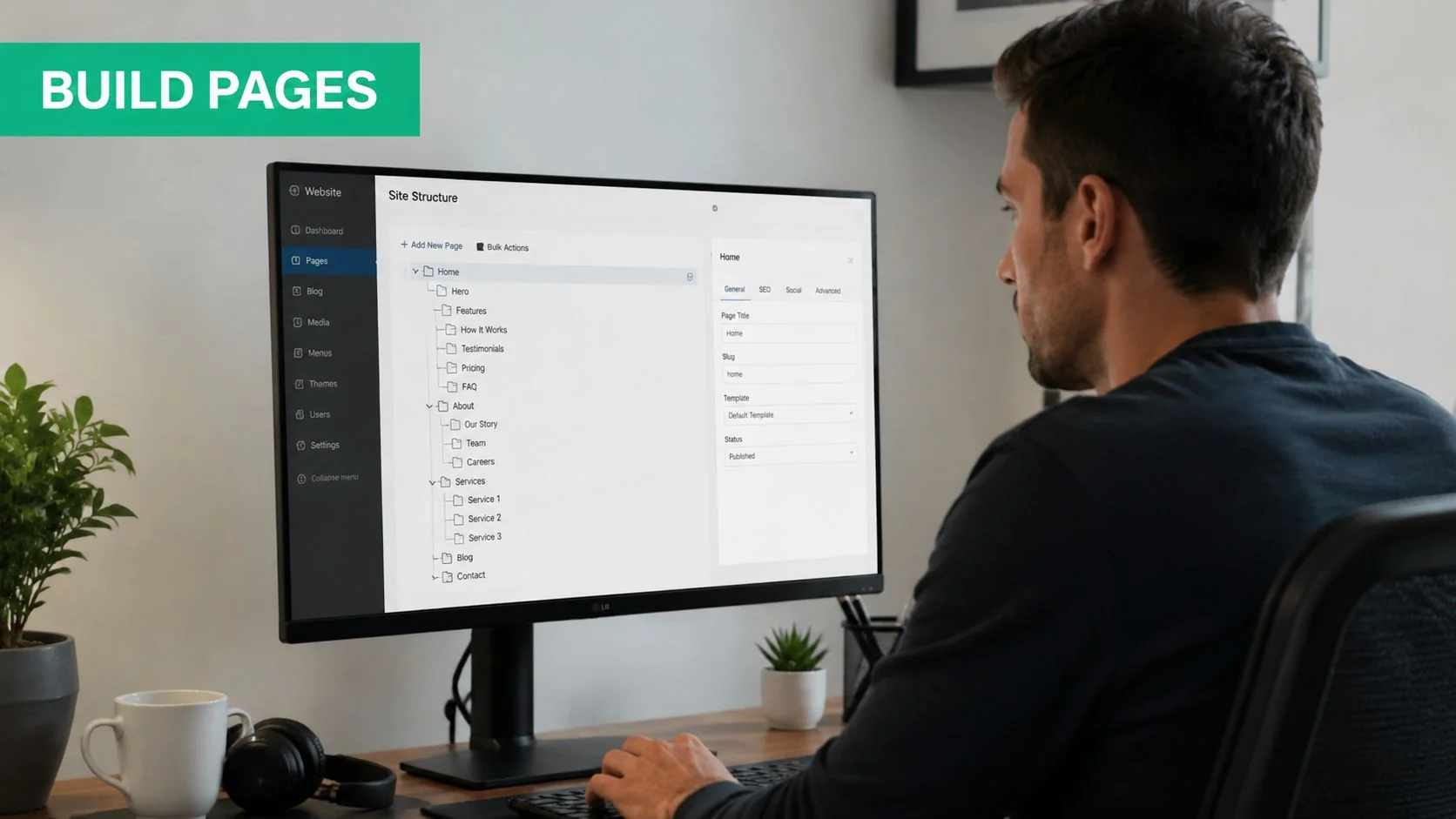
Start with the homepage. It should answer four questions quickly:
- What do you do
- Who do you do it for
- Why should someone trust you
- What should they do next
A solid homepage usually includes a clear headline, a short supporting intro, a primary call to action, a snapshot of services, proof elements like testimonials or experience, and a contact prompt.
Your About page has a different job. It should build confidence, not turn into a biography. Explain your background, who you help, how you work, and what clients can expect. Local businesses do well when they sound human and grounded rather than overly corporate.
Service pages need more attention than many owners give them. A separate page for each major service is easier to scan and easier to optimise. It also lets you speak directly to the client problem.
Use a simple structure like this:
- Problem: what the client is dealing with
- Service: what you provide
- Process: how the job works
- Proof: examples, credentials, or trust signals
- Action: call, quote, booking, or enquiry
Use layout decisions that help people act
The visual side of how to design a WordPress website often comes down to restraint.
A few habits improve almost every page:
- Use one clear H1 heading: don't compete with yourself
- Break copy with subheadings: people scan before they read
- Keep sections visually distinct: spacing is part of comprehension
- Limit call to action choices: too many options weaken all of them
- Use real photos where possible: generic stock imagery often lowers trust
Navigation deserves care too. Keep the main menu short. Home, About, Services, Blog if relevant, and Contact is enough for many SMEs. If users need to hunt through dropdowns to understand your business, the structure needs work.
A quick content hierarchy check helps:
| Page element | Keep | Cut back |
|---|---|---|
| Headlines | Specific, useful, plain English | Clever but vague wording |
| Sections | Short blocks with one purpose | Long mixed-topic sections |
| Buttons | One main action per area | Multiple competing actions |
| Menus | Simple top-level navigation | Too many small pages too early |
When a page feels “unfinished”, the problem usually isn't a missing design trick. It's usually weak hierarchy, weak copy, or too many elements fighting for attention.
Your contact page should be friction-free. Add a form, direct contact details, service area, and any details that reduce hesitation. If people prefer phone calls in your industry, make the phone number easy to spot. If they prefer forms, keep the form short.
Pre-Launch Checklist SEO, Security, and Performance
A site can look ready and still be unfit to launch. The pages are there. The logo is in place. The owner is tired of reviewing it. That's usually the point where important details get missed.
Run a proper pre-flight check
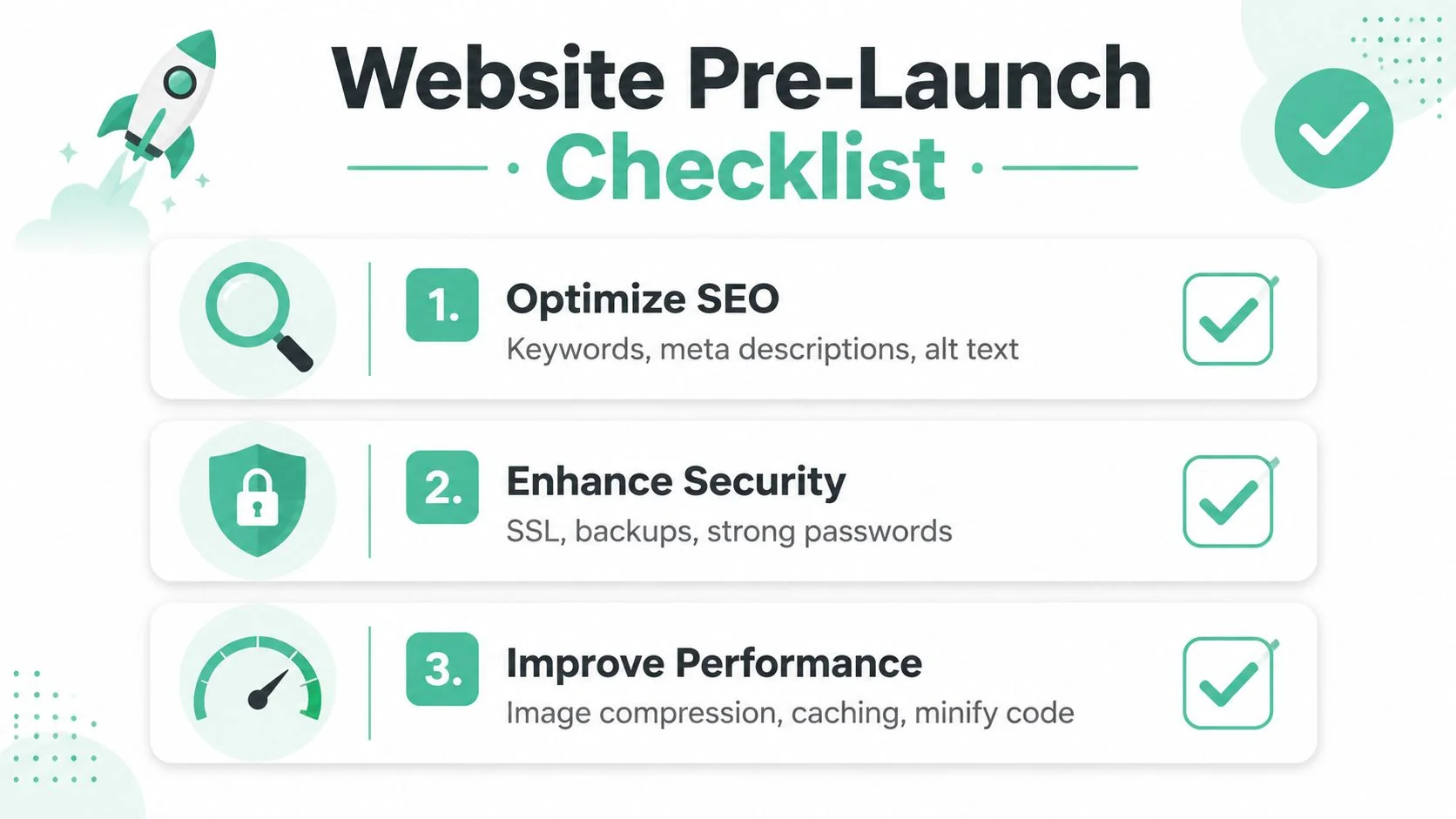
SEO starts with basics. Install a reputable SEO plugin such as Yoast SEO or Rank Math. Then make sure each key page has a sensible page title, a clear meta description, clean headings, readable URLs, and image alt text where relevant. Don't chase tricks. Make the site understandable.
Technical issues can also block local visibility. If you want a useful overview of common problems that hurt search performance, this guide on local ranking and technical SEO issues is a practical reference.
Security needs to be treated as operational, not optional. At minimum, set up automated backups, use strong passwords, limit unnecessary admin accounts, and add a security layer that helps with login protection and monitoring. If you don't want to manage that yourself, website security support for WordPress sites is one way to shift that work to a provider.
Performance comes next. Heavy images, unnecessary plugins, and bloated layouts are common reasons WordPress sites feel slow. A few disciplined steps go a long way:
- Compress images before upload: don't let huge files do all the damage
- Use only needed plugins: every plugin should earn its place
- Choose clean fonts and layout effects: flashy design often costs speed
- Enable caching where appropriate: this usually belongs in hosting or performance settings
Test responsive behaviour on real devices
A mobile-friendly theme isn't enough. Responsive design is a testing process.
WordPress.org's responsive site lesson recommends checking layouts on smartphones, tablets, browser zoom, smart TVs, and browser DevTools breakpoints in this responsive WordPress website lesson. That matters in Australia because smartphone internet use is extremely high, so a broken mobile layout is a direct business risk.
Test real tasks, not just appearance:
- Can someone call you from the page easily
- Does the form work properly on a phone
- Are buttons easy to tap
- Do headings wrap awkwardly
- Do images crop badly
- Does the menu stay usable on smaller screens
Use your own phone. Borrow another one if needed. Test a tablet if your customers are likely to use one. Resize your browser on desktop as well, but don't stop there.
A site doesn't pass mobile testing because it “sort of fits” on a screen. It passes when a real person can use it without friction.
Also check the boring details that often get missed: favicon, footer copyright, privacy policy links, form notifications, thank-you pages, social links, and whether search engines are allowed to index the site. Plenty of launches stumble on tiny settings that nobody checked because everybody assumed someone else had done it.
Website Launch and Ongoing Maintenance
A WordPress site isn't a brochure you print once and forget. It's software. Software changes. That means maintenance is part of ownership.
The practical workflow for WordPress development includes post-launch maintenance, and guidance from WP Engine notes that themes should be tested against each new WordPress version, with bugs and security issues fixed as they arise in an ongoing cycle, as outlined in this WordPress development guide. That's not developer fussiness. It's basic risk management.
Launch is the start of operations
The first few weeks after launch matter. Watch for broken forms, page layout glitches, odd mobile behaviour, plugin conflicts, and content issues that only become obvious once real people start using the site.
Some issues aren't visible in staging. A booking plugin might behave differently once it sends live notifications. A homepage banner might look fine on your laptop and terrible on an older phone. A plugin update might shift spacing in ways no one noticed before launch.
What ongoing maintenance actually includes
A realistic maintenance routine includes:
- WordPress core updates: applied carefully, not ignored for months
- Theme and plugin updates: checked for compatibility issues
- Backups: verified, not just assumed
- Security review: user accounts, suspicious activity, plugin hygiene
- Content review: outdated offers, old staff details, stale service areas
- Performance checks: especially after major plugin or design changes
DIY maintenance is possible, but it's where many small business sites slowly drift into trouble. The owner gets busy. Updates get skipped. Backups aren't tested. A minor issue becomes a bigger one because nobody touched the site for ages.
If the website supports enquiries, appointments, or sales, maintenance isn't admin overhead. It's part of keeping the business visible, credible, and secure.
Frequently Asked WordPress Design Questions
Is WordPress.com the same as WordPress.org
No. They're related, but they aren't the same thing.
WordPress.org is the self-hosted software most businesses mean when they talk about building a WordPress website. You choose hosting, install WordPress, and control the site setup. WordPress.com is a hosted service with its own plans, limits, and convenience trade-offs.
If you want flexibility over themes, plugins, hosting, and long-term control, most business websites lean toward WordPress.org.
Is WordPress really suitable for a small business website
Yes, often very suitable. The reason is flexibility. A service business, clinic, consultancy, tradie, or online store can all build very different sites on the same platform.
That doesn't mean every small business should DIY the full stack. A simple brochure site may be manageable in-house. The more your site depends on security, bookings, forms, integrations, or reliable performance, the more support becomes worth considering.
Can I build the site myself and get help later
Yes, and that's often a sensible path.
You might handle planning, content, and page drafting yourself, then bring in help for hosting, migration, security, speed tuning, or cleanup. That approach works well when you want control over the message but not over every technical task.
Do I need a page builder
Not always. Many SMEs can build a clean, effective site using the native WordPress block editor and a good theme. A page builder becomes useful when you want more visual layout control or a specific editing experience.
The catch is maintenance. More layers usually mean more moving parts.
Can I add ecommerce later
Usually, yes. WordPress supports ecommerce through tools like WooCommerce. It's often better to design the initial site with that possibility in mind, even if you don't launch the store straight away.
That means choosing a theme, structure, and navigation that can expand cleanly later.
What's the biggest mistake people make
They start building before they've decided what the site is for.
The second biggest mistake is treating launch as the finish line. A business website needs planning first and maintenance after. That's the part many how-to guides leave out, and it's the part that tends to cost owners the most time later.
If you want a WordPress site that's easy to manage without carrying all the hosting, security, backup, and maintenance work yourself, Bridge IT Solutions can help with the practical side. That's often the better fit for Brisbane businesses that want WordPress flexibility without turning website upkeep into another internal IT job.
