


If you're setting up business email for the first time, you're probably in one of two situations. You're either still using a personal address for quotes, bookings, and invoices, or you've bought a domain and now you're staring at DNS settings, mailbox options, and security prompts that seem designed for IT people rather than business owners.
That's normal. For Brisbane small businesses, email setup usually starts as a branding task and quickly turns into an operations and security decision. The address on your website matters, but so do the mailboxes your team will share, the way phones connect, and the controls that stop a stolen password turning into an invoice scam.
Email is already part of everyday business communication in Australia. The Australian Bureau of Statistics data cited by Wix's summary of email marketing statistics says 94% of internet users in Australia use email, and the same dataset notes 20.8 million internet users. That tells you something important before you touch a single setting. Email isn't a niche channel. It's basic business infrastructure.
Table of Contents
- Choosing the Right Email Platform for Your Business
- Laying the Foundation Your Domain and Mailboxes
- Configuring DNS for Maximum Email Deliverability
- Migrating Existing Mail and Connecting Your Devices
- Hardening Your Email Security From Day One
- Your Go-Live Checklist and Ongoing Management
Choosing the Right Email Platform for Your Business
It usually starts the same way. A Brisbane business signs up with a quick email option, staff use whatever app they already know, and everything feels fine until a quote is missed, a departing employee still has mailbox access, or a client questions whether the business is established at all. At that point, email stops being a convenience and becomes an operational risk.
A domain-based address such as [email protected] gives you control. You decide how accounts are created, who can access what, how mail is secured, and what happens during staff changes. For Brisbane SMBs, that matters just as much for continuity and compliance as it does for presentation.
A professional email address shows customers, suppliers, and regulators that your business is organised and accountable.
Microsoft 365 vs Google Workspace vs Zoho Mail
For most small businesses, the shortlist is Microsoft 365 or Google Workspace. Zoho Mail has its place, especially for smaller teams watching costs closely, but in practice we see Brisbane businesses choose between Microsoft and Google far more often.
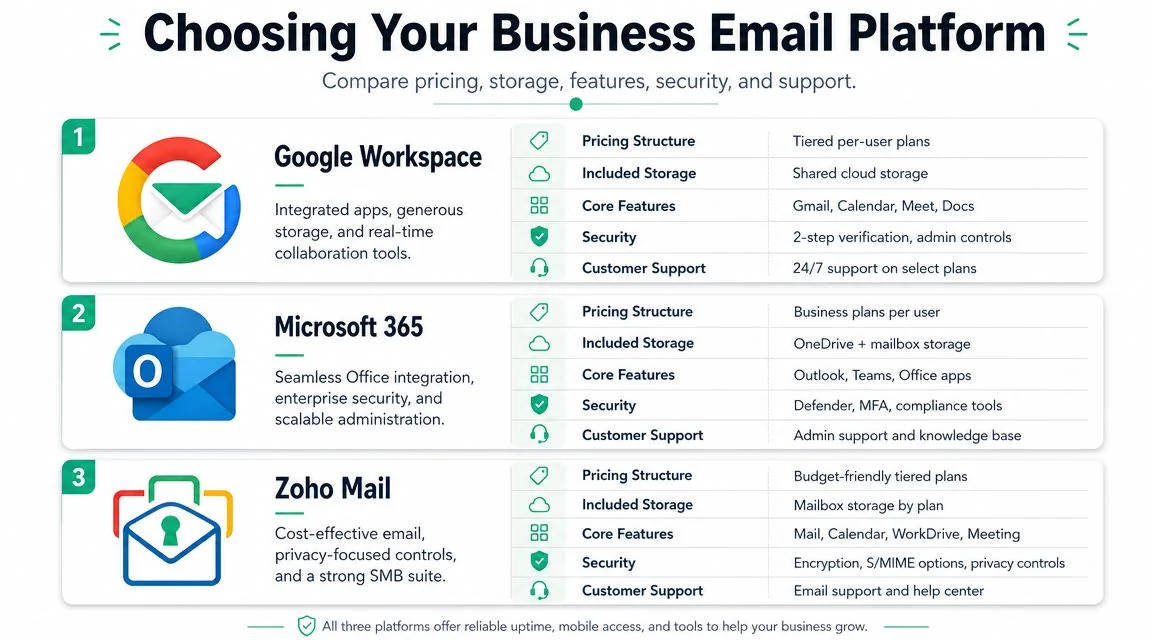
Here is the practical comparison:
| Platform | Best fit | Strengths | Trade-offs |
|---|---|---|---|
| Microsoft 365 | Professional services, established SMBs, teams already using Office | Outlook, Word, Excel, Teams, strong admin controls, broad compatibility | More configuration options, which means setup needs care |
| Google Workspace | Mobile-first teams, simple collaboration, browser-based workflows | Gmail interface, Google Drive, Docs, easy sharing, fast adoption | Some offline work and desktop-heavy processes feel less natural |
| Zoho Mail | Cost-conscious small businesses wanting core email and business apps | Lower complexity, privacy-focused positioning, broad app suite | Less common in Australian SMB environments, so support familiarity can be lower |
The right choice depends on how your staff work.
A law firm or accounting practice in the Brisbane CBD will usually be more comfortable in Microsoft 365. Those teams exchange Word documents with clients, rely on Outlook calendars, and often need tighter control over retention, access, and shared data. A tourism operator handling bookings from the road or a creative team collaborating in browsers may prefer Google Workspace because it is quick to adopt and easy to use across different devices. A logistics business near the Port of Brisbane may care less about collaboration features and more about whether staff can keep working reliably across depot offices, tablets, and shared workstations.
Internet quality matters too. For field teams, transport operators, and trades working across greater Brisbane, connections are not always perfect. Microsoft's desktop apps and offline handling are often a better fit in those conditions. Google Workspace can still work well, but the business needs clear habits around offline access, file syncing, and device setup.
Security should influence the decision early, not after the first phishing incident. Both Microsoft 365 and Google Workspace support multi-factor authentication, account controls, and business-grade administration. Microsoft 365 usually suits businesses that expect their email platform to connect into broader device management, access policies, and compliance controls over time. If that is the direction your business is heading, review a managed Microsoft 365 for business service before you decide.
Choose the platform your team will use properly and your business can manage safely. The best option is the one that fits your workflows in Brisbane today and still holds up when you add staff, tighten security, or need clear control during a disruption.
Laying the Foundation Your Domain and Mailboxes
A strong email setup starts before the first mailbox is created. The domain name and mailbox structure you choose now will either make your business easier to run or force a cleanup later.
Pick a domain you can keep
Choose a domain that matches your registered business name or trading name closely enough that customers won't second-guess it. For Australian businesses, securing the .com.au version is usually the sensible move if it's available and appropriate for your trading identity.
Good domain choices are usually:
- Easy to say: If someone hears it over the phone, they can spell it.
- Easy to remember: Shorter is usually better.
- Stable: Avoid trend-based wording you'll outgrow.
- Brand aligned: Keep it consistent with your website and signage.
Avoid hyphen-heavy domains, odd abbreviations, and names that rely on explanation. If you have to keep correcting people, your email address will cause friction every day.
Practical rule: Buy the domain you want to keep for years, not the one that feels convenient this afternoon.
Keep domain ownership under the business, not a departing employee, web freelancer, or family member's personal account. That sounds obvious, but it causes real problems during staff changes and disputes.
Build mailboxes for people and for functions
Most owners start with personal addresses such as jane@ or sam@. That's fine, but it's incomplete. You also need role-based mailboxes such as info@, accounts@, support@, or bookings@ where they make operational sense.
These aren't just aliases for show. They protect continuity.
The Australian Signals Directorate reported 87,400 cybercrime reports in FY2022–23, as referenced in MassiveGrid's discussion of professional email setup. That's one reason shared operational mailboxes need governance, ownership, and clear access rules rather than being treated as an afterthought.
A good starter structure often looks like this:
- Personal mailboxes: For named staff members handling day-to-day communication.
- Role-based mailboxes: For enquiries, invoicing, support, and bookings.
- Aliases: For alternate addresses that point to the right person or shared mailbox.
- Admin-only accounts: Kept separate from ordinary user mail where possible.
In practice, this is a common pitfall for many small businesses. They let all enquiries go to one person's inbox, then that person takes leave, changes roles, or leaves the company. Suddenly nobody knows who has the latest customer thread, which supplier statement has been actioned, or whether an urgent message has been answered.
For a clinic, reception@ or bookings@ makes handover cleaner. For a trade business, quotes@ and accounts@ stop work from sitting in one person's mailbox. For a professional services firm, role-based addresses also help with auditability and client service consistency.
Don't create shared mailboxes with no rules. Decide who monitors them, who can send from them, whether copies should remain in the shared mailbox, and who removes access when team responsibilities change.
Configuring DNS for Maximum Email Deliverability
This is the part that decides whether your email arrives properly or gets treated with suspicion. Plenty of businesses think their email is “working” because they can send from Outlook. The determining factor is whether other mail servers trust what they receive.
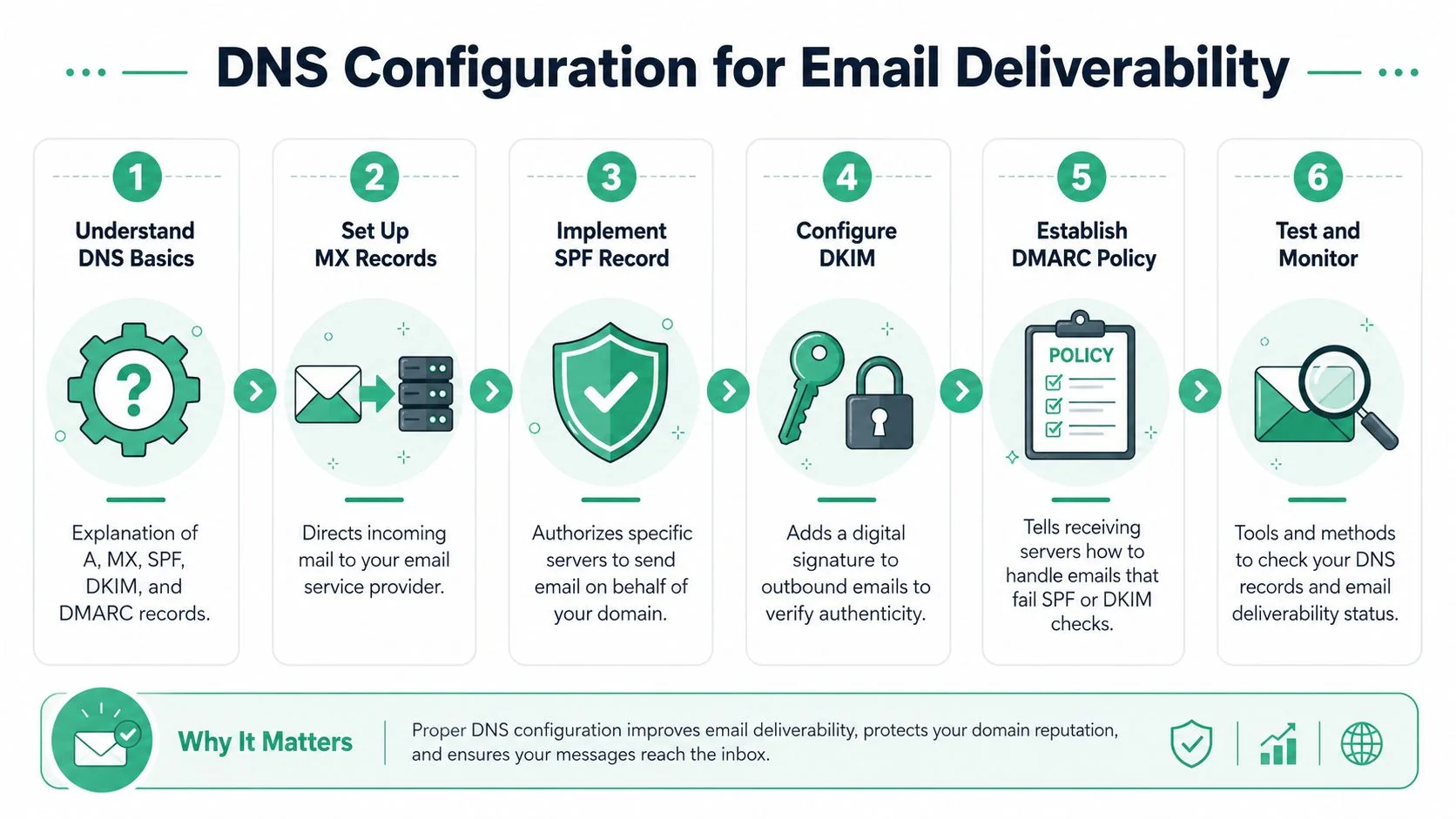
What each DNS record actually does
Think of DNS mail records as the business rules that sit behind your address.
- MX records tell the internet where incoming mail for your domain should go.
- SPF says which systems are allowed to send mail for your domain.
- DKIM adds a signature that helps receiving servers verify the message is genuine.
- DMARC tells receiving servers what to do if checks fail, and helps enforce alignment.
If you want a plain-English walkthrough of how these records fit together, this guide on how to configure DKIM SPF DMARC BIMI is a useful companion reference.
A simple analogy helps. SPF is your authorised sender list. DKIM is your tamper-evident seal. DMARC is the written instruction that says what to do when something doesn't match.
If those records are missing or inconsistent, your quotes and invoices can look indistinguishable from spoofed mail.
The benchmark to watch first is delivery rate. The example cited by Invoke Media's email metrics article is straightforward: if 1,000 messages are sent and 980 are delivered, the delivery rate is 98%. Anything below 95% indicates a serious technical or list issue. For business email setup, that means authentication comes before polishing templates or signatures.
A practical setup order that avoids mistakes
The safest order is usually:
Confirm where the domain is managed
You need access to the actual DNS zone, not just your website host or registrar billing page.Add the provider's mail routing records
This points incoming mail to Microsoft 365, Google Workspace, or your chosen service.Publish SPF carefully
Many businesses break SPF by adding multiple records or forgetting a third-party sender such as invoicing software.Enable DKIM in the email platform
Then publish the corresponding DNS entries so outbound mail is signed properly.Add a DMARC policy
Start with a policy that lets you verify behaviour, then tighten as you gain confidence.
For a deeper explanation of how these records protect against spoofing, Bridge IT has a plain-language article on SPF, DKIM and DMARC as protection against email phishing.
Later in the process, this video is worth watching if you prefer a visual explanation of authentication and deliverability basics:
How to check if the setup is healthy
After the records are in place, test from real mailboxes. Send to Gmail, Outlook, and a few customer-like destinations you can access. Look at whether messages land in inboxes, whether replies work, and whether the sender details display cleanly.
Check for these warning signs:
- Mail landing in spam: Usually an authentication, reputation, or formatting issue.
- Intermittent failures: Often caused by partial DNS changes or old records still in place.
- Forwarding weirdness: Can break alignment if the setup is untidy.
- Third-party system failures: Invoicing or website forms may still be sending without proper authorisation.
Business email setup goes wrong here more often than anywhere else. Not because the concepts are impossible, but because one stale record can undermine the whole result.
Migrating Existing Mail and Connecting Your Devices
Changing platforms worries people for one reason above all others. They're afraid old email will vanish. That's a fair concern, especially if your inbox contains years of quotes, approvals, patient correspondence, supplier history, or attachments that nobody has filed anywhere else.
Move old mail without creating chaos
A clean migration starts with one decision. Are you moving everything, or only what the team still needs operationally? Moving old mail blindly can import clutter, duplicate folders, and old problems. Moving too little can break continuity.

A safe migration process usually looks like this:
- Audit first: List current mailboxes, aliases, forwarding rules, shared inboxes, and archived mail.
- Decide what must move: Active mail, contacts, and calendars are usually essential. Old newsletters and junk folders are not.
- Run a test migration: Use one low-risk mailbox first and inspect the result.
- Cut over in a planned window: Avoid changing platforms in the middle of payroll, month-end, or a major project deadline.
- Keep access to the old system briefly: Not forever, but long enough to confirm nothing material was missed.
For Microsoft tenants, a detailed Microsoft 365 migration checklist helps frame this process in the right order.
One thing that works well is separating migration from go-live in your own planning. Move data first if possible. Then switch mail flow only after you've confirmed the destination accounts look right.
Don't judge a migration by whether the mailbox opens. Judge it by whether the folders, search, contacts, calendars, and sent history are usable on Monday morning.
Set up Outlook iPhone and Android properly
Once the mail is in the new platform, the user experience matters. If staff can't sign in easily or mobile access is unreliable, they'll start improvising. That usually means less secure apps, personal forwarding, or lost visibility.
Business email setup in Australia has to account for mobile-first use. The figures cited by Porch Group Media's summary of mobile and email behaviour note that 92% of Australian adults owned a smartphone in 2023, and 53% used it as their main internet device. That changes how email should be configured. It's no longer just a desktop mailbox in the office.
On desktops, Outlook remains the common fit for many SMBs, especially in Microsoft environments. On phones, use the provider's recommended mail app where possible, because account policies, MFA, and sync are usually more reliable there than with generic mail apps.
Focus on four things during device setup:
| Area | What good looks like | What often goes wrong |
|---|---|---|
| Sign-in flow | Users authenticate through the platform's secure login process | Staff add the mailbox manually with outdated settings |
| Mobile signatures | Short, readable, branded, not overloaded with tiny legal text | Signatures become messy, oversized, or unreadable on phones |
| Sync | Mail, calendar, and contacts update consistently across devices | One device shows old data and nobody notices for days |
| Security | MFA prompts work, lost devices can be managed, app access is controlled | Personal devices connect with little policy or oversight |
Keep signatures simple. On mobile, long disclaimers and stacked images usually create formatting problems. Use a clean name, role, phone number, and website. If staff work on the road, make sure calendar and contact sync are part of the setup, not an afterthought.
Hardening Your Email Security From Day One
A mailbox that sends and receives correctly is only half-finished. If security isn't built in from the start, email becomes the easiest doorway into your business.
Why setup without security is unfinished
Small businesses are attractive targets because attackers know many teams don't have dedicated security staff. Email remains the easiest way to impersonate a director, capture a password, or redirect a payment conversation.
The first mistake owners make is assuming a cloud email platform is automatically secure just because it's hosted by a major vendor. The platform gives you tools. It doesn't guarantee your policies are turned on, your users recognise phishing, or your shared mailboxes are governed properly.
For Brisbane businesses, the practical risk is familiar. A fake supplier email changes bank details. A compromised account sends messages to clients from a legitimate address. A staff member reuses a weak password and nobody notices until a mailbox rule starts hiding replies.
The controls worth enforcing immediately
If you only do a few things on day one, do these:
Turn on multi-factor authentication for every user
This is the single most valuable control in a standard business email setup. A stolen password should not be enough to open the mailbox.Protect admin accounts more strictly
Admin access should not double as everyday email if you can avoid it. High-privilege accounts deserve tighter handling.Review anti-phishing and anti-spam policies
The defaults may be acceptable, but they still need review. Executive impersonation and suspicious forwarding rules deserve attention.Lock down shared mailbox access
Shared mailboxes need named owners, reviewable permissions, and an offboarding process.Train staff on suspicious payment and login requests
Most email attacks don't look technical. They look routine.
A practical external reference is this comprehensive guide for email security, which gives a solid overview of the controls and habits businesses should apply around email use.
Security should add friction in the right places. Logging in with MFA is acceptable friction. Recovering from a compromised mailbox is not.
Encryption also matters, but many businesses approach it the wrong way. They look for a single “encrypt everything” button. In reality, protection usually comes from a combination of secure transport, platform controls, access governance, and user behaviour. If you handle sensitive financial, legal, or health-related information, decide when secure message handling is required and make that part of procedure, not guesswork.
The businesses that do this well don't rely on one setting. They build layers, keep access tidy, and remove old permissions quickly.
Your Go-Live Checklist and Ongoing Management
The switch to a new email system should feel boring. That's a good outcome. If go-live is dramatic, the planning was too loose.
What to verify before you switch over
Before you announce the new addresses or fully change mail flow, run a final check against the setup you've built.
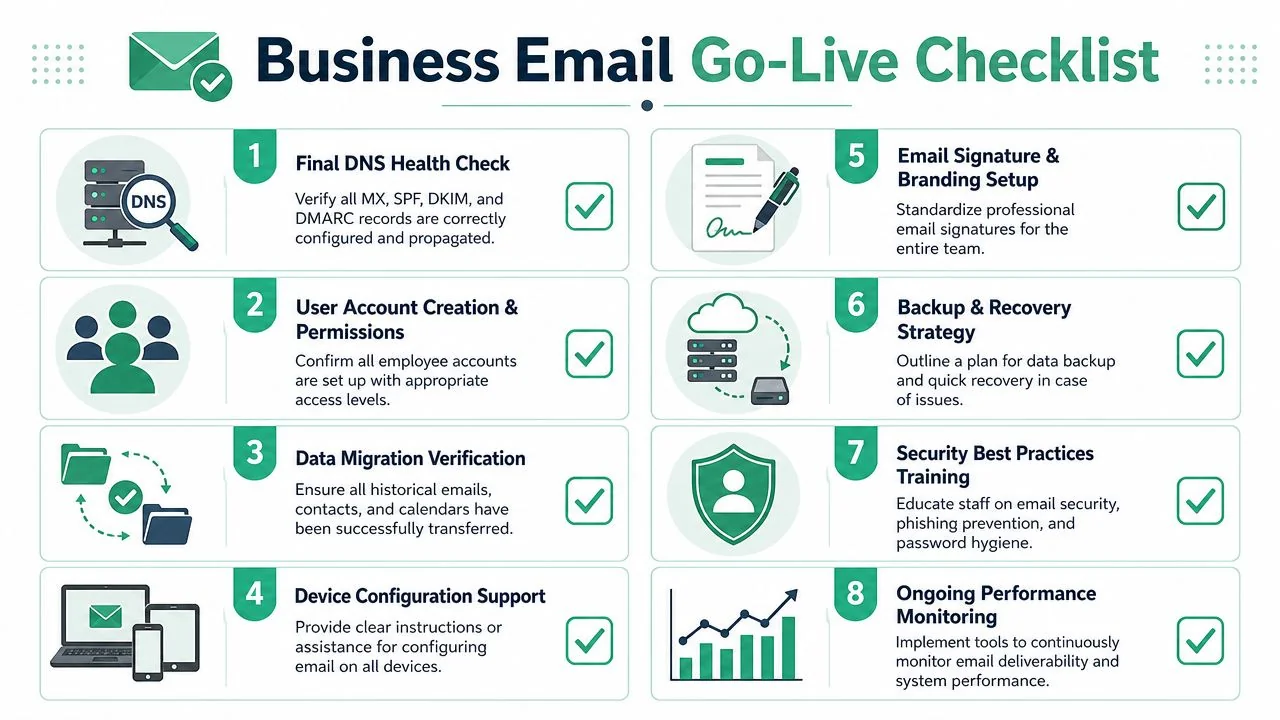
Use a checklist that covers both technical and operational items:
- DNS health: Confirm mail routing and authentication records are present and behaving as expected.
- User readiness: Check each person can sign in on desktop and mobile, with MFA working.
- Shared mailbox access: Verify the right staff can read and send from operational addresses.
- Migration validation: Spot-check folders, contacts, calendars, and sent items.
- Signature consistency: Make sure branding, phone numbers, and disclaimers are correct.
- Test messages: Send and receive between major providers and a few real-world destinations.
- Business systems: Confirm website forms, booking tools, invoicing platforms, scanners, and line-of-business apps can still send mail.
- Offboarding leftovers: Remove old forwarding rules, stale delegates, and forgotten accounts.
Don't treat this as a once-over by one person. Have at least one non-technical staff member test the setup in the way they work.
What ongoing management actually looks like
Email isn't a project you finish and forget. It needs light, regular management.
The framework cited by American Eagle's email strategy guidance recommends defining goals, choosing a system, then continuously monitoring and optimising. For SMEs, that means keeping a small weekly dashboard and watching indicators such as bounce rate so you catch problems early rather than after a campaign or batch of messages fails.
For business operations, ongoing management usually includes:
- Account reviews: Remove access staff no longer need.
- Shared mailbox checks: Confirm ownership and workflow still make sense.
- Backup planning: Make sure deleted or corrupted mail can be recovered.
- Retention rules: Keep mail long enough for business and compliance needs, but not indefinitely by accident.
- Deliverability checks: Watch for unexpected failures from website forms, apps, or bulk sends.
- Security reviews: Revisit phishing protections, forwarding rules, and risky sign-ins.
A sensible retention policy depends on your industry, contracts, and legal obligations. The practical point is consistency. If one person keeps everything forever and another deletes aggressively, your business has no real policy.
Backups matter for the same reason. Cloud platforms are resilient, but resilience isn't the same as having a recovery plan that matches your business risk. Accidental deletion, malicious changes, and mailbox clean-ups gone wrong are all common enough to justify thinking this through early.
When business email setup is done properly, it stops being “email” and starts being part of your business continuity.
If you'd like help setting up, securing, or migrating business email without the usual trial and error, Bridge IT Solutions works with Brisbane and South East Queensland businesses to make cloud email practical, secure, and easy to manage long after go-live.
