


If you're running a Brisbane business, this scenario is probably familiar. Your email still works, but the server it's tied to is ageing. Staff are splitting time between the office, home, client sites, and mobile devices. Files live in too many places, Teams was added in a rush, and nobody feels fully confident that access, backups, and security are set up properly.
That's usually the point where Microsoft 365 migration services stop sounding like an IT project and start looking like a business decision. For most SMEs, the core question isn't whether cloud productivity tools are useful. It's whether the move can happen without disrupting the team, exposing data, or creating a bigger mess than the one you're trying to fix.
Table of Contents
- Why Brisbane Businesses Are Moving to Microsoft 365
- Understanding Microsoft 365 Migration Services
- Key Migration Paths and Common Tools
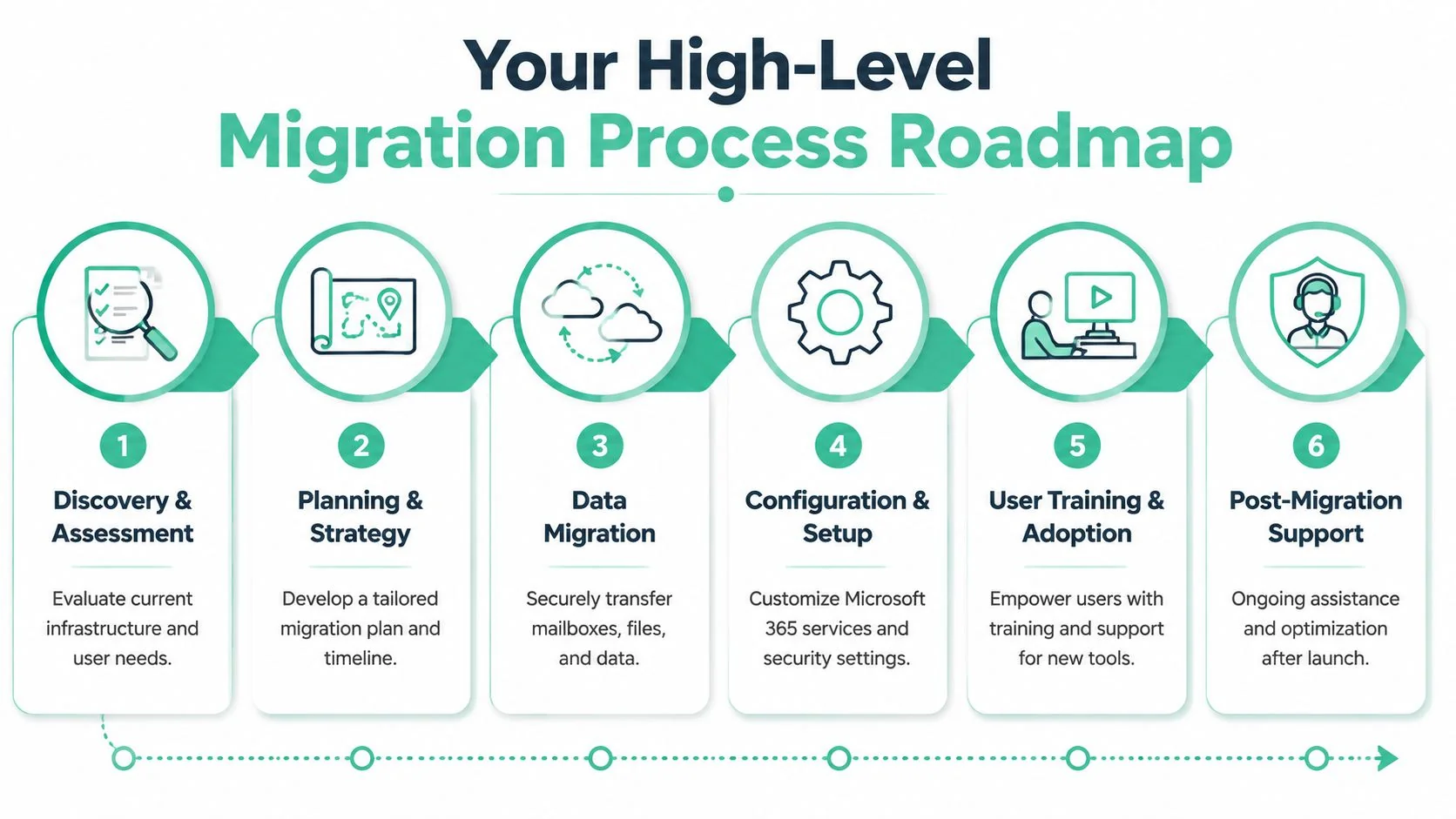
- Your High-Level Migration Process Roadmap
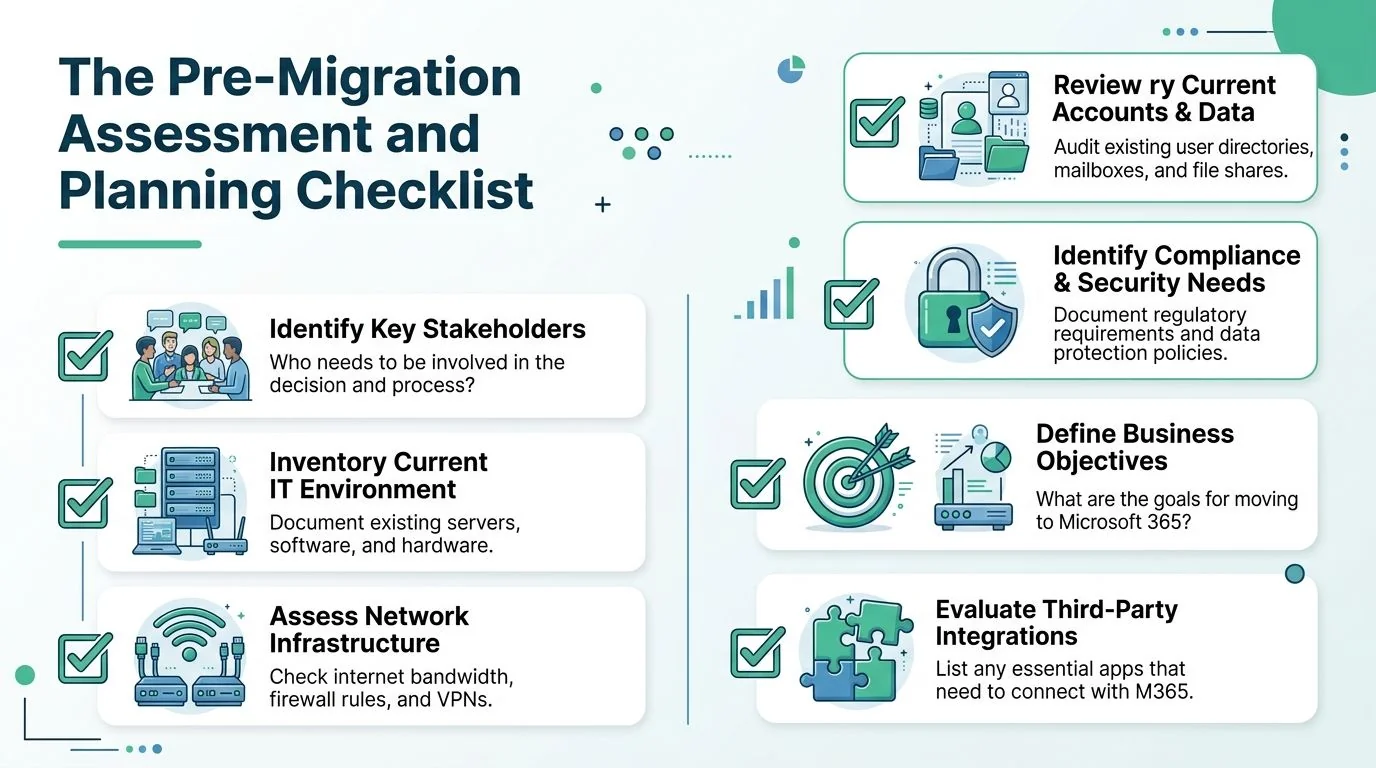
- The Pre-Migration Assessment and Planning Checklist
- Common Migration Pitfalls and How to Avoid Them
- Choosing Your Brisbane Microsoft 365 Partner
Why Brisbane Businesses Are Moving to Microsoft 365
A typical trigger looks like this. A professional services firm in Brisbane CBD is facing an expensive server refresh. The directors are already dealing with hybrid work, rising security expectations from clients, and staff who want simple access to email, files, and meetings from anywhere. Keeping old systems alive starts to feel more expensive than changing them.
Microsoft 365 appeals because it brings the core stack into one place. Exchange Online handles business email, Teams covers chat and meetings, SharePoint and OneDrive manage document storage and sharing, and the whole platform is easier to access across laptops, mobiles, and home offices. For SMEs, that usually means less patchwork and more consistency.

That shift wasn't isolated. By 2022, over 70% of Australian medium-sized enterprises were using Microsoft 365 workloads, and over 60% of these organisations used specialist partners for the migration, particularly in sectors like professional services and healthcare, to ensure security and minimise downtime according to this Australian migration market summary.
For Brisbane and South East Queensland businesses, that matters for two reasons. First, you're not making a fringe technology choice. Second, many firms already learned that moving successfully isn't just about buying licences. It depends on planning, configuration, security controls, and user readiness. That's why businesses looking at Microsoft 365 for business in Brisbane usually need more than a subscription comparison. They need a migration approach that fits how their team operates.
A smooth migration doesn't feel dramatic to staff. Email keeps flowing, files are where people expect them, and Monday morning starts normally.
Understanding Microsoft 365 Migration Services
Most business owners hear the word "migration" and assume it means copying email and files into a new system. That's only part of the job.
A better way to think about Microsoft 365 migration services is this. You can move offices with a few helpers, borrowed boxes, and a ute. Or you can use a professional moving company that labels everything, plans access, protects fragile items, and makes sure the new space is ready before the first desk arrives. In IT, the second option is what reduces disruption.
What the service actually includes
A proper migration service usually starts with assessment. That means reviewing your current email platform, file shares, user accounts, devices, security settings, and any applications tied to your existing environment. If you're on Exchange Server, local file servers, or a mix of cloud and on-prem systems, each dependency needs to be found before anyone starts moving data.
Then comes design and execution. That includes:
- Tenant setup: Creating or preparing the Microsoft 365 environment with the right users, licences, security baselines, and access rules.
- Workload planning: Deciding what moves into Exchange Online, OneDrive, SharePoint, and Teams, and what should be archived or left alone.
- Data movement: Migrating mailboxes, calendars, contacts, shared drives, and sometimes archives or shared mailboxes.
- Cutover planning: Managing the point where users stop working from the old system and begin using the new one.
- User support: Helping staff sign in, reconnect Outlook, access files, and understand the new way of working.
Why tools alone aren't enough
Migration tools are useful, but tools don't make decisions. They don't clean up old permissions, identify duplicate data, or warn you that one department has been relying on a shared mailbox nobody documented. They also don't handle staff communication.
If you're comparing providers or researching broader seamless data transfer solutions, pay attention to the service layer around the tooling. The method matters less than the discipline around discovery, validation, testing, and post-move support.
Practical rule: If a provider talks mostly about the software they use and not about assessment, user impact, and rollback planning, you're hearing about a toolset, not a migration service.
The value of a migration partner isn't that they can click through a wizard. It's that they know what usually breaks, what can wait, what can't, and how to keep business continuity front and centre while the move happens.
Key Migration Paths and Common Tools
Not every Microsoft 365 migration follows the same path. The right approach depends on your current setup, how much complexity sits behind it, and how much disruption the business can tolerate.
Below is a simple comparison of the most common migration paths.
| Migration path | Best fit | Strengths | Trade-offs |
|---|---|---|---|
| Cutover | Smaller businesses with simpler environments | Fast switch, straightforward project structure | Higher pressure on timing, less forgiving if preparation is poor |
| Staged | Businesses that want to move users in groups | Lower disruption, easier testing, better control over support load | Takes longer, requires stronger coordination |
| Hybrid | Organisations with complex on-prem Exchange needs or temporary coexistence requirements | Supports coexistence between old and new environments | More moving parts, more administration, not ideal unless there's a clear reason |
| Tenant-to-tenant | Mergers, acquisitions, divestments, rebranding, multi-entity consolidation | Useful when both sides already use Microsoft 365 | Permissions, identity, Teams and SharePoint structures can get complicated quickly |
How to choose the right path
A cutover migration suits a business that wants a clean break and doesn't have many special cases. If the number of users is modest, the mail environment is tidy, and the file structure is manageable, this can work well. It's simple, but it gives you less room for surprises.
A staged migration is usually the safer option when different teams work differently, or when support demand will spike if everybody changes on the same day. Finance might move first, then operations, then the rest of the office. That gives the business a chance to test real-world usage before full rollout.
A hybrid migration makes sense when the old and new environments need to coexist for a period. That can happen when line-of-business applications still rely on the on-prem environment or when internal constraints rule out a full immediate move. Hybrid can be useful, but many SMEs overestimate the need for it. In practice, it often adds complexity that smaller firms don't want to keep managing.
Native tools and third-party tools
Microsoft provides native migration options, including Exchange migration methods and onboarding tools within the Microsoft 365 ecosystem. For straightforward environments, native tooling is often enough.
Third-party tools come into play when the source system is unusual, archives are messy, permissions need more control, or SharePoint and OneDrive content need more detailed handling. The tool choice should follow the migration path, not drive it.
If you're weighing migration approaches at a broader level, this guide to cloud computing migration strategies for business is a useful companion to the Microsoft 365 decision.
Your High-Level Migration Process Roadmap
A migration feels risky when it sounds like one big overnight event. In practice, the lower-risk projects are broken into clear phases with checkpoints between them.
A simple visual overview helps anchor the process.
What happens before data moves
The first phase, discovery and assessment, involves a proper review of the existing environment. Mailboxes, shared mailboxes, file shares, distribution groups, mobile devices, security settings, and application dependencies all need to be identified. During this phase, any old, unused business data also gets flagged instead of being carried into the new tenant by default.
The second phase is planning and design. The migration path is selected, the Microsoft 365 tenant is prepared, licensing is aligned, identity and access settings are mapped, and the project schedule is agreed. This is also where communications are drafted so staff know what changes, when it changes, and what they need to do.
Before cutover, a lot of preparation happens in the background:
- Environment readiness: User accounts, permissions, security baselines, and target structures are configured.
- Data cleanup: Redundant files, unused accounts, and old shared locations are reviewed so they don't clutter the destination.
- User communication: Staff are told what to expect, what to save, and where they'll work after the move.
- Pilot testing: A smaller group or a controlled data set is often used to validate that email flow, file access, and sign-in behave as expected.
For businesses that prefer to see a plain-language overview from Microsoft's side, this explainer gives helpful context on migration concepts and planning considerations:
What happens during and after cutover
The migration event itself should feel controlled, not chaotic. In a staged project, users move in planned groups. In a cutover, the switch happens in a defined window with validation steps before staff return to work. Either way, the team handling the migration should be monitoring closely for sync issues, sign-in problems, Outlook profile changes, shared mailbox behaviour, and file permission gaps.
After the move, the work isn't finished. Post-migration support is where the environment becomes stable and useful.
That stage usually includes:
- User support at launch: Helping staff reconnect Outlook, Teams, OneDrive, and mobile devices.
- Issue resolution: Fixing shared mailbox quirks, missing permissions, document access problems, and client app sign-ins.
- Security hardening: Confirming multifactor authentication, access controls, and baseline policies are active.
- Adoption support: Showing teams how to use SharePoint, Teams, and OneDrive in a way that replaces old habits instead of duplicating them.
The migration day matters. The week after matters more. That's when user confidence is either reinforced or lost.
A good roadmap gives the business predictability. People know when decisions are needed, when staff need to be available, and when support will be on hand.
The Pre-Migration Assessment and Planning Checklist
Most migration problems start before the first mailbox moves. They begin when nobody has a complete picture of what exists, who uses it, and what can't break.
This checklist is where SMEs can save themselves a lot of pain. It isn't glamorous, but it's the work that keeps a migration from drifting into surprises.
The business checklist that prevents technical surprises
Start with the people and the business rules, not just the servers.
- Identify decision-makers early: Someone needs authority over scope, timing, and user impact. Without that, projects stall when trade-offs appear.
- List critical business periods: Payroll runs, month-end processing, patient bookings, legal deadlines, and project delivery windows all affect migration timing.
- Define what success looks like: Some businesses care most about email continuity. Others want better file access, tighter security, or cleaner collaboration.
- Choose your internal champions: A manager in each team can help validate access, shared mailbox use, and file requirements.
This same planning mindset appears in other Microsoft platform projects as well. If you're also looking at broader business systems, this piece on planning Dynamics 365 implementation is useful because it highlights the same truth. Good outcomes usually come from clear scope, stakeholder alignment, and realistic rollout planning.
The technical checklist that protects continuity
Once the business context is clear, the technical review becomes much sharper.
- Inventory mailboxes and shared resources: Include user mailboxes, shared mailboxes, calendars, distribution lists, contacts, and any delegated access.
- Review file locations properly: Map local servers, network shares, desktop-stored files, OneDrive usage, and ad hoc cloud storage that staff may already be relying on.
- Document applications tied to email or files: Printers, scanners, CRM tools, finance systems, and website forms can all depend on your current setup.
- Audit devices: Laptops, office desktops, personal mobiles, and tablets all affect sign-in, sync, and support after go-live.
- Check permissions and ownership: Shared folders often contain years of inherited permissions and no clear owner. That becomes a major problem if copied blindly into SharePoint.
- Review compliance requirements: Legal, financial, and healthcare organisations often need special care around retention, access control, and data handling.
- Plan staff communications: Users should know what changes, when it happens, and where to get help on the day.
A short pre-migration workshop often surfaces more than any technical scan alone. Staff will mention the shared inbox that runs the service desk, the folder that only one admin can access, or the scanner in reception that still sends via the old environment. Those details matter.
Small omissions create big delays. The migration itself is usually manageable. Hidden dependencies are what catch teams out.
If this checklist feels heavier than expected, that's normal. A calm migration depends on making the invisible visible before the schedule is locked.
Common Migration Pitfalls and How to Avoid Them
The common assumption is that Microsoft 365 migrations fail because the technology is complicated. Usually, that isn't the main issue. Most problems come from rushed planning, poor sequencing, and underestimating how many parts of the business touch email and file access.
Where projects usually go wrong
The biggest risk for SMEs is downtime. Australian Communications and Media Authority reports indicate that 68% of small and medium organisations experienced at least one migration-related outage in the last two years, often due to inadequate DNS and mailbox capacity planning, as summarised in Microsoft's migration guidance reference.
That lines up with what practitioners see in the field. The cutover stage is where pressure peaks. If mailbox sizes haven't been checked, if coexistence hasn't been thought through, or if testing is too light, users notice immediately.
Other pitfalls show up just as often:
- Scope creep: The business starts by moving email, then adds file restructuring, device refreshes, Teams rollout, and security redesign mid-project.
- Messy permissions: Old shared drives are copied into SharePoint without reviewing who should still have access.
- Weak post-migration protection: Businesses assume Microsoft 365 means everything is automatically backed up and fully recoverable in every scenario, which isn't a safe assumption for operational resilience. A dedicated Microsoft 365 data backup approach should be considered separately.
- Poor user handover: Staff arrive Monday morning with new prompts, moved files, and no idea what changed.
What a lower-risk migration looks like
The projects that go well usually share the same habits.
- Use staged groups when uncertainty is high: If different teams have different dependencies, moving in batches gives support staff room to resolve issues before they affect everyone.
- Set mailbox and data rules early: Oversized mailboxes, duplicate archives, and unmanaged file sprawl slow migrations and create avoidable errors.
- Test at business hours, not just after-hours: A test that works late at night may still miss issues tied to real user activity, devices, and workflows.
- Separate migration from transformation: Move first, then optimise. Rebuilding every process during cutover increases risk.
- Give users a support path: A simple contact point for sign-in, Outlook, Teams, and file access questions reduces panic and gets people working again faster.
Cutting corners in assessment doesn't save time. It shifts the work into the most expensive part of the project, when users are waiting and the business is exposed.
A reliable migration isn't about bravado. It's about sequencing, restraint, and making sure every technical decision supports continuity for the people doing the work.
Choosing Your Brisbane Microsoft 365 Partner
A migration partner shouldn't just know Microsoft 365. They should know how SMEs in Brisbane operate. A legal practice in the CBD, a clinic in the bayside suburbs, a construction office in South East Queensland, and a home-grown manufacturing business all rely on technology differently. The migration method has to reflect that.

Questions worth asking before you sign
Ask potential providers direct questions. The answers will tell you very quickly whether you're speaking to a sales team or a delivery team.
- Have you migrated businesses like ours before? Industry context matters. Shared mailboxes, sensitive records, delegated access, and compliance expectations aren't the same across sectors.
- How do you handle planning and discovery? If the answer jumps straight to tools, that's a warning sign.
- What happens on migration weekend or cutover day? You want a clear sequence, named responsibilities, and user support arrangements.
- How do you reduce disruption for staff? The provider should talk about communications, pilot groups, profile changes, shared resources, and post-go-live support.
- What security work is included? A migration should leave the business in a better position, not just a different one.
Some SMEs also overlook a basic but important issue. Ask who will be doing the work. Experienced, vetted engineers matter when they're handling access to your email, files, identities, and business systems.
Why local support matters after go-live
Local support helps because migration issues are rarely abstract. They show up as practical business interruptions. A director can't access email on the phone. Reception can't open a shared calendar. A scanner stops sending. A project folder has the wrong permissions. When that happens, businesses want fast, plain-English help.
For Brisbane and South East Queensland SMEs, local presence often translates into better communication, more realistic scheduling, and support that understands your operating hours, office setup, and business constraints. That matters before the migration, and it matters even more after it.
The best partner is usually the one that treats the migration as one part of your broader operational environment. Not a once-off data move. Not a licence transaction. A business continuity project with technical, security, and people impacts that all need proper handling.
If you're planning a move to Microsoft 365 and want local guidance that keeps disruption low, talk to Bridge IT Solutions. Their Brisbane-based team supports South East Queensland SMEs with practical migration planning, security-focused setup, and ongoing IT support that doesn't disappear after go-live.
